How do I connect Linear?
Connecting Linear does two things: it lets workflows manage Linear access as people join and leave, and it links Linear issues to the assets they are about.
In this guide
Before you begin
- You need Admin access in Velory.
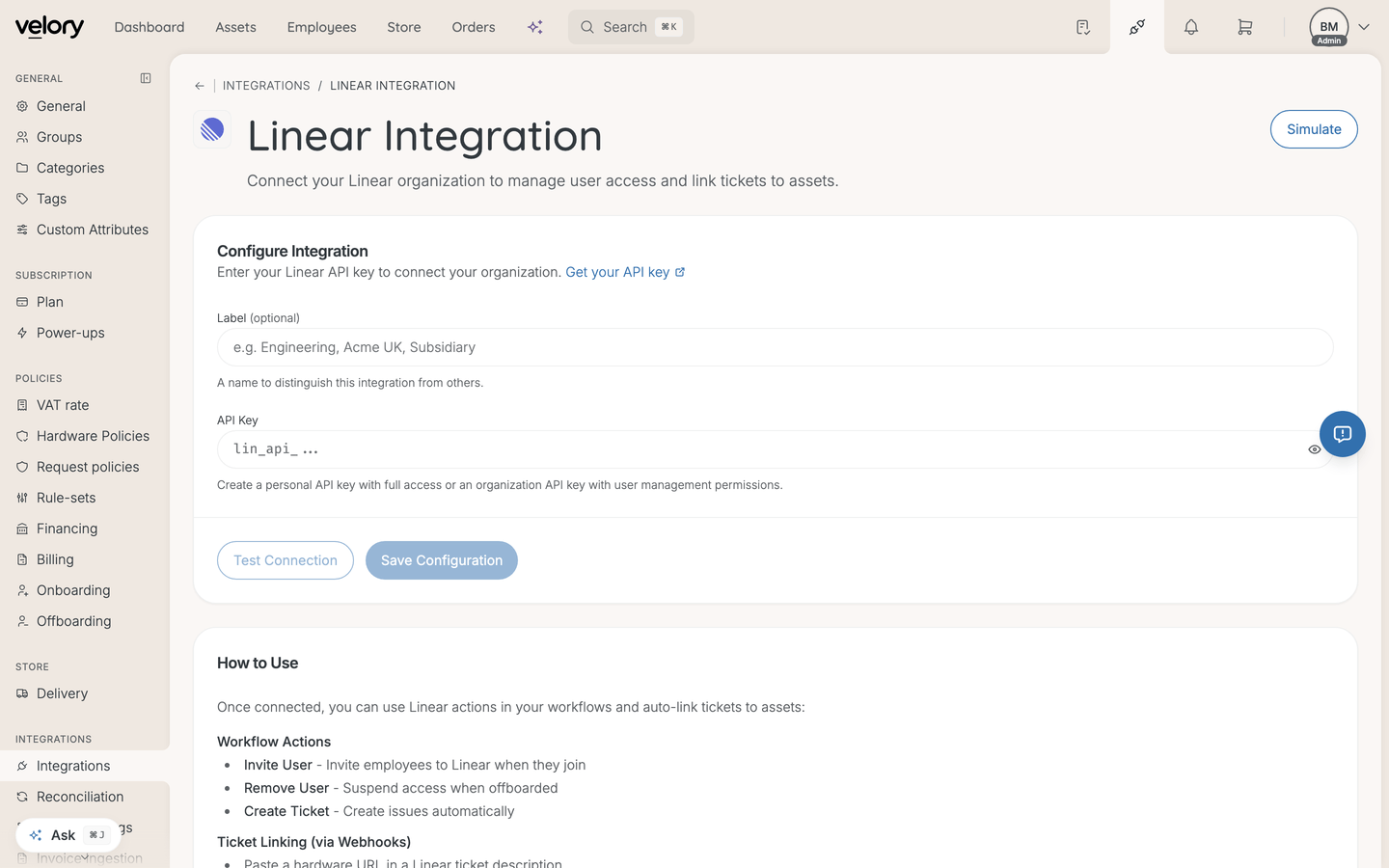
- You need a Linear API key. Either a personal API key with full access, or an organization API key with user management permissions.
Use an organisation key if you can. A personal key stops working when that person leaves.
Connect Linear in Velory
- Go to Settings → Integrations.
- Click Explore marketplace.
- Open the Productivity category, find Linear, and click Connect.
- Paste your key into API Key.
- Click Save.
The integration page then shows Organization, Connected As, and a Last Verified timestamp — check that Organization is the workspace you expected before going further.
What workflows can do with Linear
Once connected, workflow actions can:
- Invite user — invite an employee to Linear when they join
- Remove user — suspend their access when they are offboarded
- Create ticket — open an issue automatically
See What actions can I use in a workflow? for how to add these to a workflow.
Set up webhooks
Webhooks are what let Linear activity trigger workflows in Velory. They are a separate step from connecting — the API key alone does not give you triggers.
- In Linear, go to Settings → Webhooks at organisation level.
- Click New webhook.
- Paste the Webhook URL shown in the Velory integration details.
- Select the events: Issue created, Issue updated, Comment created.
- Copy the generated signing secret.
- Paste it into Webhook Secret in Velory and save.
Link issues to assets
- Paste a hardware URL into a Linear issue description.
- The issue appears on that asset's page in Velory.
- Workflows can then trigger when the issue is resolved.
Good to know
Can I connect more than one Linear organisation?
Yes. Use Add Another Linear Org on the integration page. Workflow steps that target Linear then have a Linear workspace setting so each step knows which organisation it acts on.
What does the "Default" workspace option mean on a workflow step?
It keeps the original behaviour of using the first-connected organisation. Existing workflows built before multi-organisation support continue to work unchanged, which is why the option is still there.
Why is nothing triggering my workflows?
Check the webhook, not the API key. Invites and issue creation use the key; triggers need the webhook and its signing secret. If the secret in Velory does not match the one Linear generated, Linear's calls are rejected.
What happens if I remove the integration?
Linear is disconnected from your workflows. Workflow steps that target Linear stop working, so review any workflow using them before removing it.
Was this article helpful?