How do I set up single sign-on?
Settings → Admin → Single Sign-On connects Velory to your identity provider over SAML 2.0. Once it is set up, anyone whose email domain you have verified can sign in through your IdP. Their Velory password keeps working too, unless you turn enforcement on.
Any standards-compliant SAML 2.0 provider works. Velory links out to the vendor's own setup documentation for Google Workspace, Microsoft Entra ID, Okta and Iru Identity, but that list is not a restriction.
In this guide
Before you begin
You need the sso:manage permission, which company Owners and Admins have. You will also need access to your identity provider's admin console and to your domain's DNS.
Do it in this order. Each step depends on the one before it.
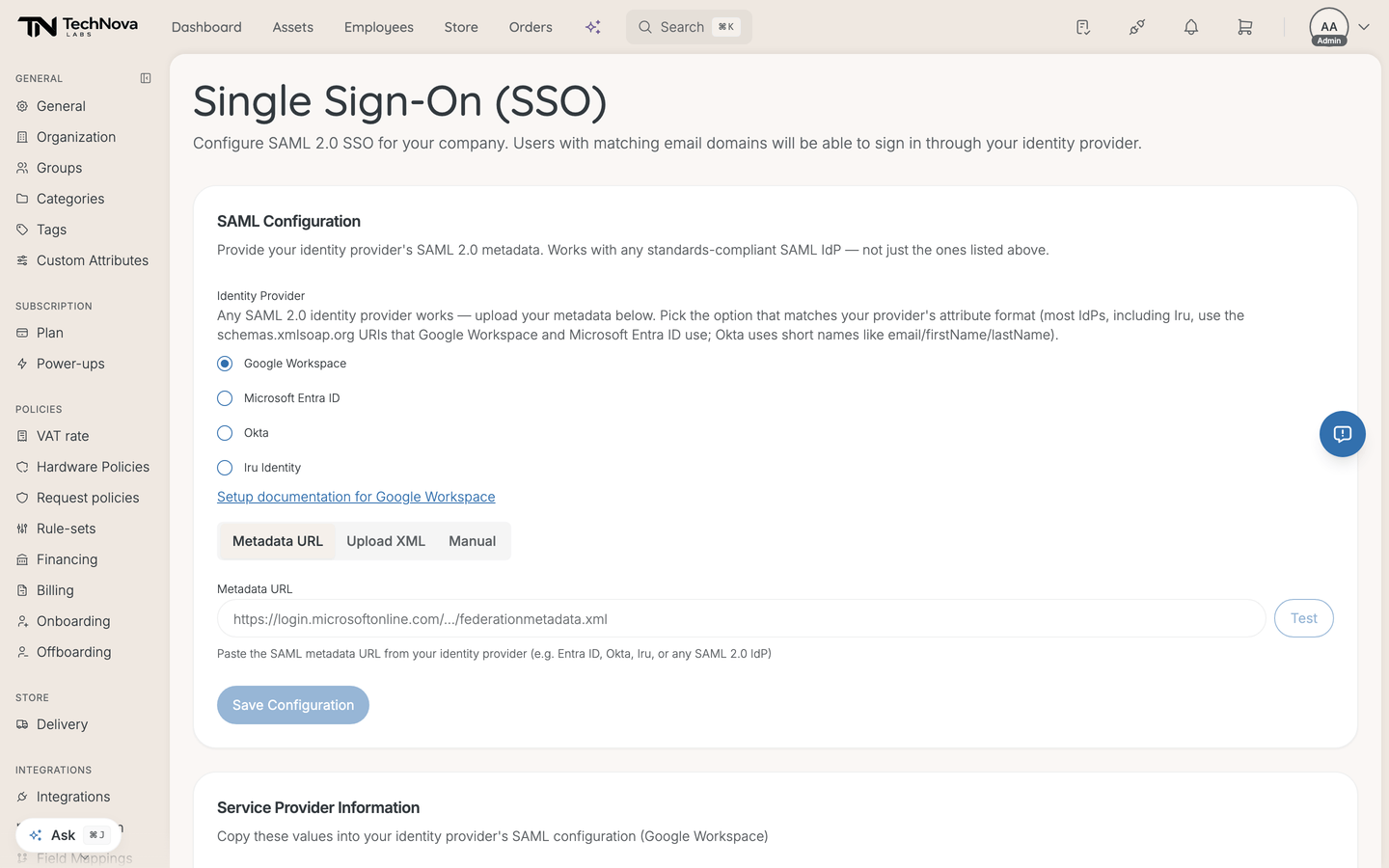
1. Give Velory your IdP's metadata
Three ways, under SAML Configuration:
| Mode | Use when |
|---|---|
| Metadata URL | Your IdP publishes a metadata URL — the least error-prone |
| Upload XML | You downloaded a metadata file |
| Manual | You are entering Entity ID, SSO URL and certificate by hand |
Metadata URL is the option to prefer. There is a Test button that fetches the URL and reports back "Metadata verified" with the Entity ID and SSO URL it found, so you know it worked before saving.
For Manual, you need the Entity ID (Issuer), the Single Sign-On URL, and the X.509 signing certificate in PEM format.
Then Save Configuration.
2. Pick your identity provider
Above the configuration there are four options: Google Workspace, Microsoft Entra ID, Okta and Iru Identity. A single Setup documentation link sits below them and follows whichever is selected, pointing at that vendor's own guide.
Do this before saving. The selection defaults to Google Workspace, and it decides the attribute mapping — saving first means saving the wrong one.
This is not a restriction on which IdPs work — any SAML 2.0 provider does. What the choice sets is the attribute format Velory expects, which is the thing that trips people up, because both formats are valid and the symptom of choosing wrong is a login that authenticates but arrives with no name attached:
schemas.xmlsoap.orgURIs — Google Workspace, Microsoft Entra ID, and Iru- Short names (
email,firstName,lastName) — Okta
On a provider not in the list, pick whichever of those two formats yours emits.
3. Copy Velory's values into your IdP
Under Service Provider Information, two values to paste into your IdP's SAML app:
- ACS URL — the Assertion Consumer Service URL
- Entity ID — the Audience URI
Both have copy buttons.
4. Verify your email domains
SSO activates per domain, and only verified domains activate.
- Add a domain, such as
acme.com. - Copy the DNS TXT record shown.
- Add it to that domain's DNS.
- Select Verify.
A domain sits at Pending until it verifies, then reads Verified.
You cannot add domains before saving the SAML configuration — the page says "Save your SAML configuration first, then add domains."
5. Decide on enforcement
Require SSO for all users blocks password login for anyone with a matching email domain.
Turn this on after you have signed in successfully through the IdP at least once. Enforcing before you have proven the connection is how an admin locks themselves out of their own tenant.
Optional: launching from your IdP
Allow launching from your identity provider gives you a Launch URL to paste into your IdP app's start/sign-in URL field. The Velory tile in your IdP dashboard then signs people straight in with no email step.
Sign-in stays SP-initiated underneath, so this is a convenience rather than a weaker flow.
Optional: Just-In-Time provisioning
Allow JIT provisioning auto-creates accounts on first SSO login for employees already in Velory but never invited — the ones that arrived via CSV import or an HRIS sync.
Pick a Default role for new users. Two kinds of role are left out of the picker, so JIT can never mint an administrator:
- roles built on Owner or Admin;
- roles that grant more than a Manager has by default — a Manager-based role with extra admin permissions switched on, for instance.
The role's reach does not matter: a reporting-tree role works, and new users get it with that reach. The picker's helper text and empty-picker message still mention a company-wide scope requirement, which no longer applies. See How do I create a role?.
JIT does not create employees. It creates logins for employee records that already exist.
Good to know
What does the Status field mean?
Not Configured, Active, Disabled or Error. Error means the configuration saved but something about it does not work — re-test the metadata.
Does Velory support SCIM provisioning?
No. SSO here is authentication only. To sync users and groups into Velory, use a directory integration instead — see What are directory integrations?. The two are complementary: the directory brings people in, SSO lets them sign in.
What happens if I delete the SSO configuration?
SSO stops for your company and everyone falls back to password login. It cannot be undone — you would set it up again from scratch. The action sits under Danger Zone for that reason.
Do I still need to invite people?
Not if JIT is on and their employee record exists. Without JIT, an employee needs an invitation before they can sign in, even with SSO configured.
Can some people use passwords and others SSO?
Yes — and the same person can use both. Signing in through your IdP lands on the same Velory account as their password does, so nothing about their access changes between the two. With enforcement on, anyone whose email domain is verified must use SSO. Someone on a different domain is unaffected either way.
Was this article helpful?