What do roles and permissions control?
A role is a set of permissions and a reach. Everyone in Velory has one, and it decides which navigation they see, which records they can read, and what they can change.
Settings → Admin → Roles & Permissions.
In this guide
Before you begin
You need to be a company Owner or Admin. The Roles & Permissions entry appears in Settings when your role has Settings › Edit switched on, which the shipped Owner and Admin roles do.
The four base roles
Every role builds on one of these:
| Base role | Intended for |
|---|---|
| Owner | Full access |
| Admin | Company management |
| Manager | Team management |
| Employee | Basic access |
The base role matters more than the permission list. It is what decides whether someone is an admin at all — and Settings itself is gated on being an Owner or Admin, not on any individual permission. A Manager with generous permissions still cannot open Settings.
Role types
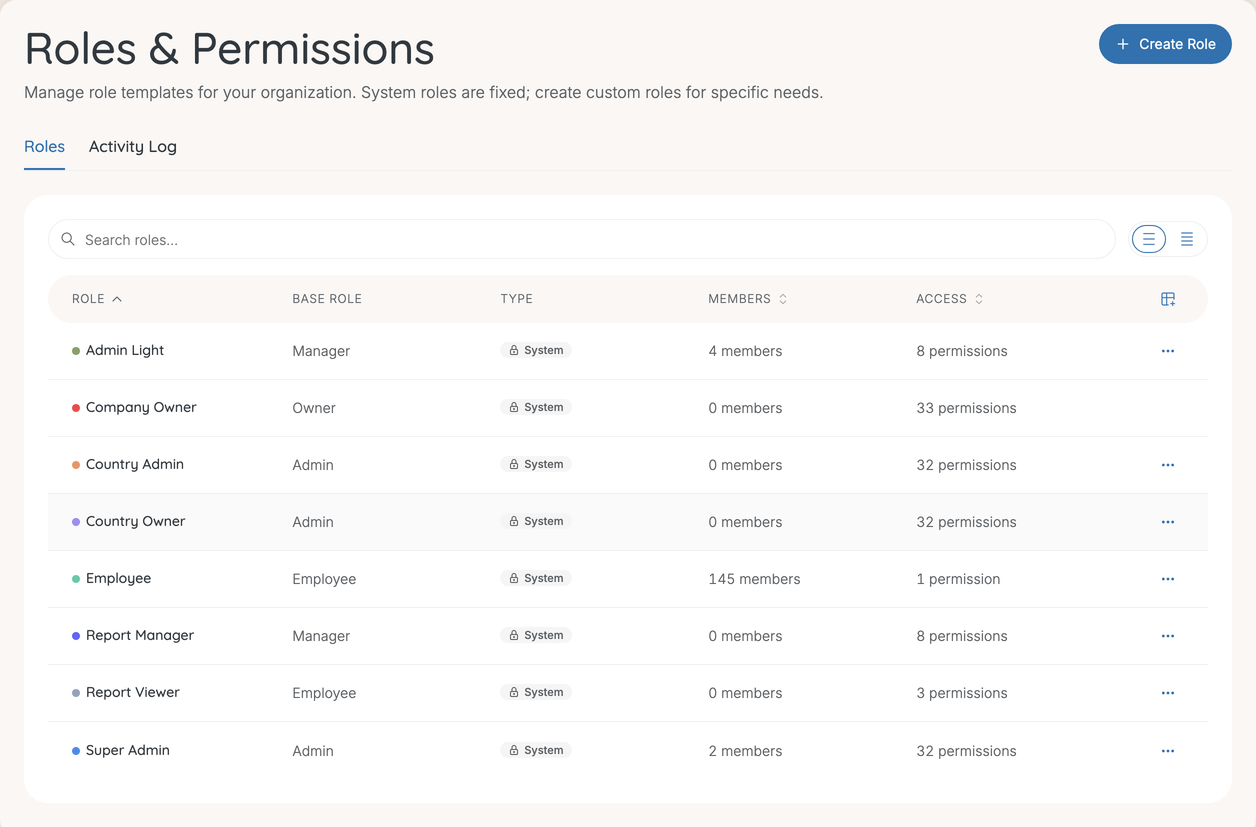
The Type column tells system roles from your own:
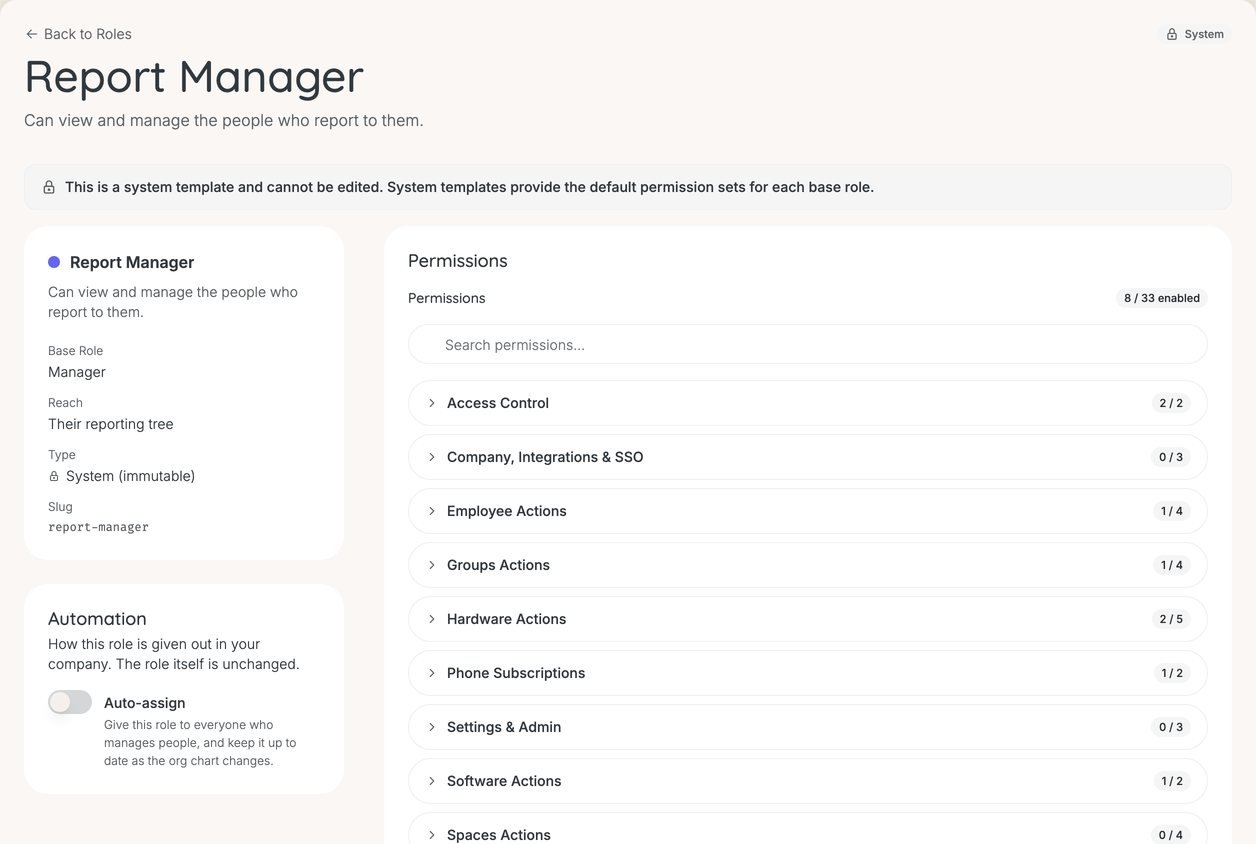
- System — ships with Velory, and cannot be edited: "This is a system template and cannot be edited. System templates provide the default permission sets for each base role."
- Custom (fixed) — a role your company created. Every role created in Settings carries this label.
- Custom (flexible) — also a role your company created. Some roles created through the assistant's organisation plans carry this label instead.
Read "fixed" and "flexible" as cosmetic: editability turns only on whether a role is a system one, so every custom role can be edited and deleted whichever label it has.
Create a custom role
Settings → Admin → Roles & Permissions → Create Role. See How do I create a role? for each step and the two choices that are hard to undo.
The permission categories
When you create or open a role, the Permissions panel lists its switches in groups, such as Hardware Actions or Store Actions, with a count of how many are on. Each switch is named area › action.
Three things make the list easier to read:
- "View All" means the whole company's list. With it, the holder sees every record in that area, narrowed by the role's reach.
- "Create" usually means create, edit and delete. For employees, hardware, phone subscriptions and software there is no separate edit switch.
- A switch brings its menu entry with it. Turn on Hardware › View All and Hardware appears in the holder's navigation.
What each switch does
The table follows the order of the Permissions panel. Manager shows what a new Manager-based role starts with.
| Switch | Lets the holder | Manager |
|---|---|---|
| Access › Approve | See and decide everyone's access requests, not only their own | ✓ |
| Access › Request | Request access to software for themselves | ✓ |
| Integrations › Manage | Use hardware reconciliation and manage field-mapping sources. Does not open the Integrations settings pages | |
| SSO › Manage | Open and change the Single Sign-On settings | |
| Switch Company | Use the company switcher. Owners only by default | |
| Employees › Create | Add, edit, merge and delete employees, and change status or groups in bulk | |
| Employees › Import | Import employees from CSV and review matches from connected HR systems | |
| Employees › Invite | Send invitations so employees can sign in, and confirm onboarding | |
| Employees › View All | See every employee. Adds Employees to the menu | ✓ |
| Groups › Create, Update, Delete | Create groups, change groups and their members, and delete groups | |
| Groups › View All | See groups and their members. Adds Groups to the menu | ✓ |
| Hardware › Create | Add, edit and delete devices, and assign or unassign them | |
| Hardware › Import | Import devices from CSV or invoices and review integration matches | |
| Hardware › Manage State | Change a device's state, run MDM actions and see unlock PINs | |
| Hardware › View | A device's ticket history. Little use without View All | ✓ |
| Hardware › View All | See the company's devices. Adds Hardware to the menu | ✓ |
| Phone Subscriptions › Create | Add, edit, assign and remove subscriptions, and place subscription orders | |
| Phone Subscriptions › View All | See every subscription. Adds Mobile Subscriptions to the menu | ✓ |
| Settings › Company | Open company-wide policy pages, such as notifications and offboarding, and the Integrations pages | |
| Settings › Edit | Manage tags and delivery addresses, and see Roles & Permissions | |
| Settings › View | See the Settings link and pages such as Tags and Custom Attributes | |
| Software › Create | Manage software licences and plans, and act on discovered apps | |
| Software › View All | See all software, costs and discovered apps. Adds Software to the menu | ✓ |
| Spaces › Create, Edit, Delete | Create, change and delete spaces | |
| Spaces › View All | Open Spaces at all | |
| Store › Admin | Set up the store: products, rule-sets, add-ons and returns. Adds Store to the menu | |
| Store › View | Nothing at the moment. Switching it changes no access | |
| Workflows › Create | Create, edit, publish and delete workflows | |
| Workflows › View | See workflows and their run history |
An Employee-based role starts with Access › Request only. Owner and Admin roles start with everything on, except Switch Company, which only Owners have.
Worth knowing before you switch things on:
- Settings and Workflows switches only matter for Owner- and Admin-based roles. Nobody else can open Settings, and Workflows live there.
- Store › Admin does not let someone shop. Shopping needs an Owner- or Admin-based role.
How far a role's permissions can go
A role can be given permissions up to the defaults of the base role one level above it:
| Base role | Can be given up to |
|---|---|
| Employee | Manager's permissions |
| Manager | Admin's permissions |
| Admin | Admin's permissions |
| Owner | Owner's permissions |
So a Manager-based role can hold every admin permission. It still cannot open Settings, because that gate reads the base role, but it can do admin work everywhere else. Check what a Manager-based role actually holds before handing it out. You also cannot give a role more than you hold yourself.
Reach
Permissions decide what someone can do. Reach decides which records they can do it to. It is set on the role:
- The whole company — the role sees every record its permissions allow.
- Their reporting tree — the holder sees the people who report to them, and everyone below those people.
The shipped Report Manager and Report Viewer roles reach the reporting tree. A lead who manages leads sees everyone below them, not only their direct reports.
There is a third limit, and it sits on the assignment rather than the role: a company-wide role assigned from a group's members table applies to that group only, and restricts the holder to that group's data. A reporting-tree role cannot be given for a group. See How do I assign a role to someone?.
A restricted admin also loses company-wide surfaces such as Organization, even though their permissions are otherwise unchanged.
Changing a role's reach
You can change it while editing a custom role, and the change moves everyone who holds the role. Two cases are refused until you remove the assignments in the way:
- the role is assigned to a group, and you want reporting-tree reach;
- someone holding it has an Admin or Owner base role, and you want reporting-tree reach.
A role's page
Open a role to see its name, base role, reach and permissions, and its Assigned members — with View in employees table for the full list. Custom roles are edited and deleted from here.
A role that people hold says so: "changes apply to all of them, and it can't be deleted while in use."
Auto-assign
A reporting-tree role has an Automation section with one switch: Auto-assign — "Give this role to everyone who manages people, and keep it up to date as the org chart changes." It works on system roles too, which is how you use it with Report Manager.
- Someone who gets their first report receives the role.
- Someone who loses their last report loses it — but only if auto-assign gave it to them. A role you assigned by hand stays.
- If you remove the role from someone, it stays removed. Turning auto-assign off and on again gives it back to everyone who manages people.
- Turning it off removes nobody: "Auto-assign off. Nobody lost the role."
Only one role per company can be auto-assigned.
The activity log
The Activity Log tab records role and permission changes: templates created and deleted, roles assigned and unassigned, data scope changed, and software owners added or removed. Each entry names the actor.
It answers "who gave them that" without guesswork, which is the question that actually comes up.
Good to know
Why can I not edit this role?
It is a System role. Create your own on the same base role and adjust that instead — the "(fixed)" on a custom role does not stop you editing it.
Does changing a role affect people already assigned to it?
Yes, immediately and to everyone holding it. Check the Members count before editing — that is how many people the change lands on.
Can I give one person an exception?
Not on the person. Permissions live on the role, so an exception is a custom role: inherit from the role they hold, change what they need, and assign it to them. Give it a name that says why it exists, so the next admin can tell.
Roles or groups?
A role says what someone can do. A group says who they are — and is what request policies, software auto-assignment and admin scoping point at. Most companies need few roles and many groups.
What happens to someone with no role?
The list shows No role. They have no access beyond the basics. Assign one — see How do I assign a role to someone?.
Was this article helpful?