How do I set up my organisation structure?
Settings → General → Organization holds your hierarchy: countries, locations, divisions, departments and teams, arranged as a tree under your company.
The structure is what most other things hang off. Employees belong to units in it, admins can be scoped to part of it, and request policies can target it.
Before you begin
You need Admin access, and you must not be a scoped admin. An admin restricted to part of the organisation is redirected to General if they open this page, and the Organization entry is hidden from their sidebar — the hierarchy is not theirs to restructure.
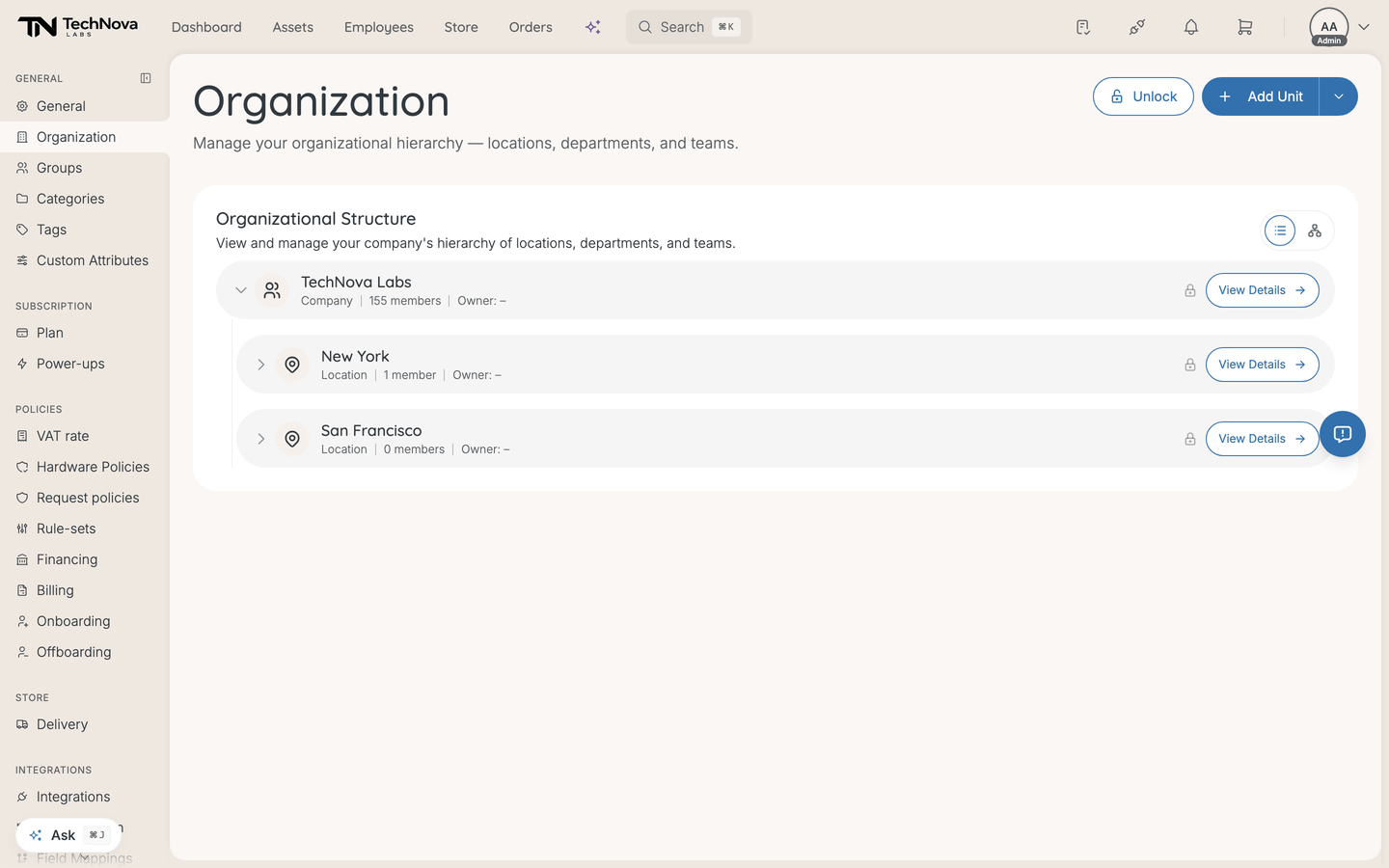
Two views
A pair of icon buttons in the top right of the Organizational Structure card switches between them. They carry no visible label or tooltip: the list icon is Tree, the sitemap icon is Org Chart.
| View | What it is for |
|---|---|
| Tree | The working view. Add, rename, move and delete units. |
| Org Chart | The same structure drawn as a chart, for reading rather than editing. |
Each row shows the unit's type and member count, with View Details to open it.
Add a unit
- Go to Settings → General → Organization.
- Select Add Unit.
- Give it a name and pick its type.
- Place it under the right parent.
The structural types are Company, Country, Division, Department, Location and Team. Company is the root and there is exactly one.
The lock
The org chart has a Lock toggle. Locked, units cannot be dragged or deleted; you get "Org chart is locked — click Unlock to edit".
Leave it locked between structural changes. Dragging a department onto the wrong parent is easy to do by accident and moves everyone inside it.
Rename the unit types
Org Terminology overrides the display names for unit types. If your company says "Site" rather than "Location", or "Practice" rather than "Department", set it here and the label changes throughout.
Leave an override empty to keep the default label. Reset to defaults clears them all.
This changes wording only. It does not change what a type does or where it can sit in the tree.
Good to know
What is the difference between this and Groups?
Structural units are groups underneath — but the two pages show different sets, and neither shows both.
This page owns the structural types: company, country, division, department, location and team. The Groups page filters those out of its query and shows only the flat kinds: plain groups, roles and security groups.
So a department will never appear under Groups, and a security group will never appear here. If something is missing from one page, look at the other.
Can I delete a unit with people or child units in it?
A unit must be empty before it can go. Velory refuses with "Cannot delete a unit that still has members. Remove its members first", and refuses again if it has child units, which would otherwise be orphaned to the top of the tree.
Why can I not delete a particular unit?
Five things block it:
- it is the company root
- it still has members
- it has child units
- it is managed — synced from an integration, so remove it at the source
- the org chart is locked
The lock is the one people miss, because it reads as a display preference rather than a guard. Unlock first.
Was this article helpful?