What happens on the Confirm new-hire trigger step?
Every onboarding starts here. The step holds what Velory knows about the hire, lets you correct the parts that matter, and does nothing until you confirm. Confirming generates the setup tasks and — unless you say otherwise — emails the hire their invite.
It is the last cheap moment to change anything. Corrections you make here are written to the employee before the setup tasks are created, so a wrong role fixed now costs nothing and a wrong role fixed later means re-doing the equipment.
In this guide
Before you begin
You need Admin access. The step only appears while the project is waiting for confirmation; once confirmed it collapses into a one-line record of who confirmed it and how the hire was reported.
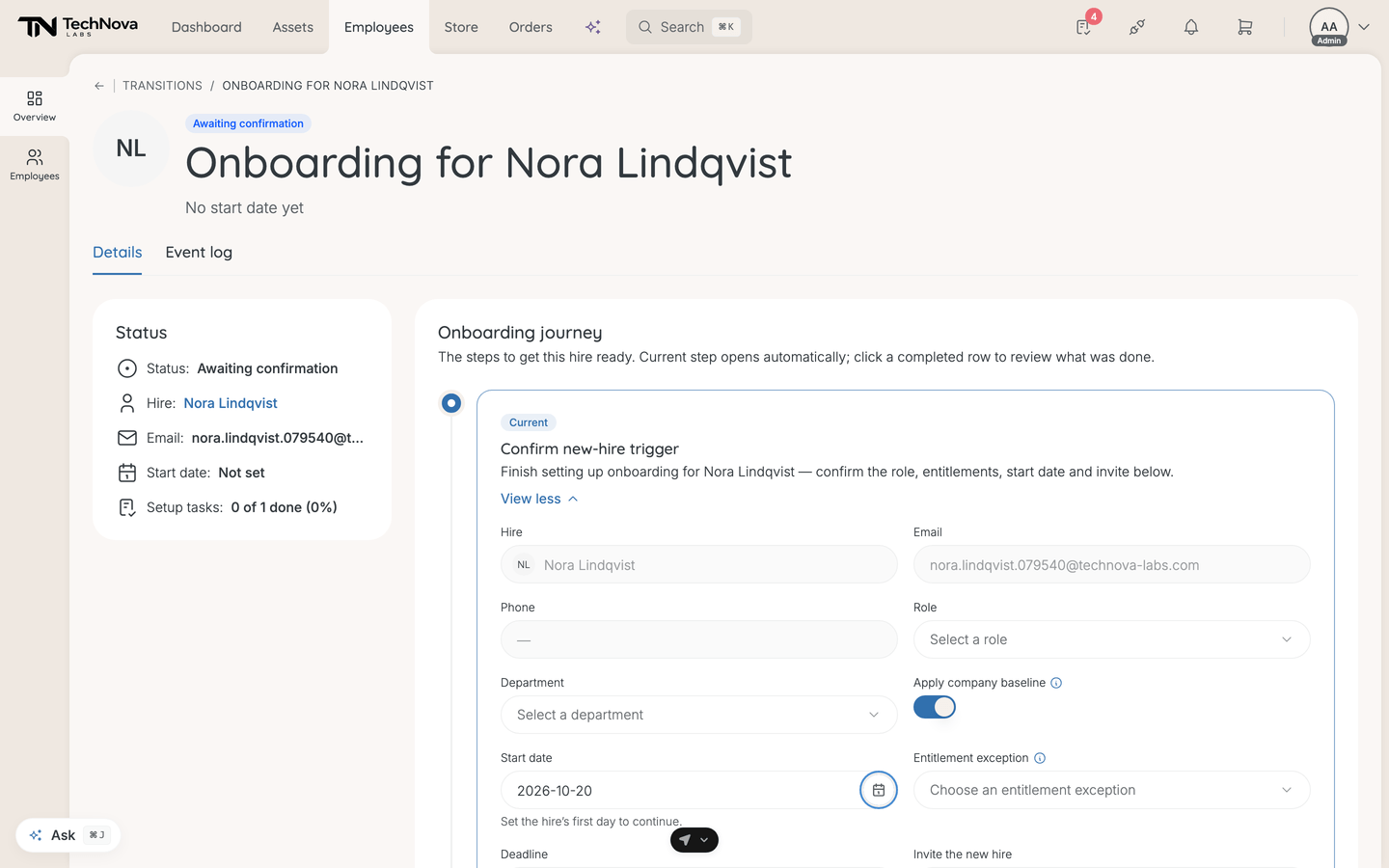
What you can and cannot change
| Field | Editable | Notes |
|---|---|---|
| Hire | No | Name as reported |
| No | Where the invite goes | |
| Phone | No | The delivery contact number. The hire is never asked for it |
| Role | Yes | Pick from your existing job titles or type a new one |
| Department | Yes | Same |
| Apply company baseline | Yes | On by default. Off gives the hire only the exception you pick — a consultant who should not get the standard package |
| Entitlement exception | Yes | An exception applied on top of the baseline, or on its own when the baseline is off. Preview shows what it includes |
| Start date | Yes | Prefilled when a sync supplied one |
| Deadline | No | Calculated — start date minus your policy's lead time |
| Invite the new hire | Yes | When and whether the invite is sent |
Fetched from names the system that reported the hire, when one did.
Confirm stays greyed out until two things are true
The step tells you which, under To confirm, first:
- Set a start date. Without one there is no deadline to work back from, so an onboarding cannot start. A sync that did not include a date leaves this empty.
- Pick a date to send the invite, if you chose to schedule it.
There is no equipment to attach. A hire's offer resolves from their entitlement — the company baseline plus whatever exception covers their group — so the thing that decides what they get was configured before they arrived. See How do entitlements decide what people get?.
Preview on the exception shows the products it includes, so you can check what this hire will be offered without leaving the step.
Choosing how the invite is sent
| Option | What happens |
|---|---|
| Send invite now | The hire is emailed as soon as you confirm |
| Schedule invite | Held until the date you pick, then emailed automatically on the morning of that date |
| I'll send it manually | No email. Copy the link from the Employee onboarding step and send it yourself |
Scheduling is the option for a hire who signed months ago: the project exists and you can prepare against it, but they hear nothing until closer to their start date.
Who gets asked, and who ends up owning it
The people told that a hire is waiting are set by Who confirms a new hire in your onboarding policy: every company admin by default, or the hire's manager, a named employee, or a group. An empty or broken setting always falls back to every company admin — Velory would rather tell too many people than nobody.
Then the part worth knowing before you click: whoever confirms first takes ownership of every remaining task on that onboarding that nobody already owns. Confirm it and the equipment tasks have your name on them.
Two exceptions keep that from being blunt. Tasks already routed to a specific approver — your store policies can send Laptops to one person and Phones to another — stay with them. And if two admins confirm at the same moment, the first takes the tasks and the second takes none; the project is never split between them.
If you would rather somebody else owned the setup, let them confirm it.
Rejecting a trigger
Reject closes the project without creating any tasks. It needs a reason, which is recorded on the audit trail, and it will not trigger another onboarding for that hire automatically — so a duplicate report stays rejected.
Use it for a hire reported twice, a record created in error, or someone who never started.
Good to know
What does the deadline preview mean?
It is the date your setup should be finished by — the start date minus the lead time in your onboarding policy. It recalculates as you change the start date, and it is the same figure the sidebar and the Transitions table show afterwards.
The start date changed after I confirmed
Change it on the employee's record. The deadline follows the start date, so the escalation colour moves with it.
Can I change what they get after confirming?
Not from this step, which is now closed. Change the entitlement itself if the whole group is wrong; for one hire, individual items can be changed or skipped on Prepare assets.
Who else can confirm this?
Anyone with admin access, from here or from their own task list — the step is the same decision either way, and it records who made it.
Why is the phone number read-only?
It comes from the employee record and is shown here because it is the delivery contact for their equipment. Change it on the employee's profile if it is wrong.
Was this article helpful?
Related articles
How do entitlements decide what people get?
Admin settings
How do I set onboarding deadlines and reminders?
Admin settings
How do onboarding deadlines work?
Employee Management
How does onboarding work in Velory?
Employee Management
How do I prepare a new hire's equipment?
Employee Management
How do I start an onboarding?
Employee Management