How does onboarding work in Velory?
An onboarding is a project attached to one person. It has a start date, a deadline, a list of equipment, and a sequence of steps that you and the hire work through from opposite ends. Yours is the project page; theirs opens from an emailed link.
Creating an employee record does not create an onboarding. The two are separate on purpose — you can hold someone on the roster for a month before anything is ordered for them.
In this guide
Before you begin
You need Admin access. What an onboarding offers is decided in advance by the hire's entitlement — the company baseline, plus any exception covering their group — and the onboarding policy sets the deadline and who confirms. Both live under Settings. See How do entitlements decide what people get?.
The journey
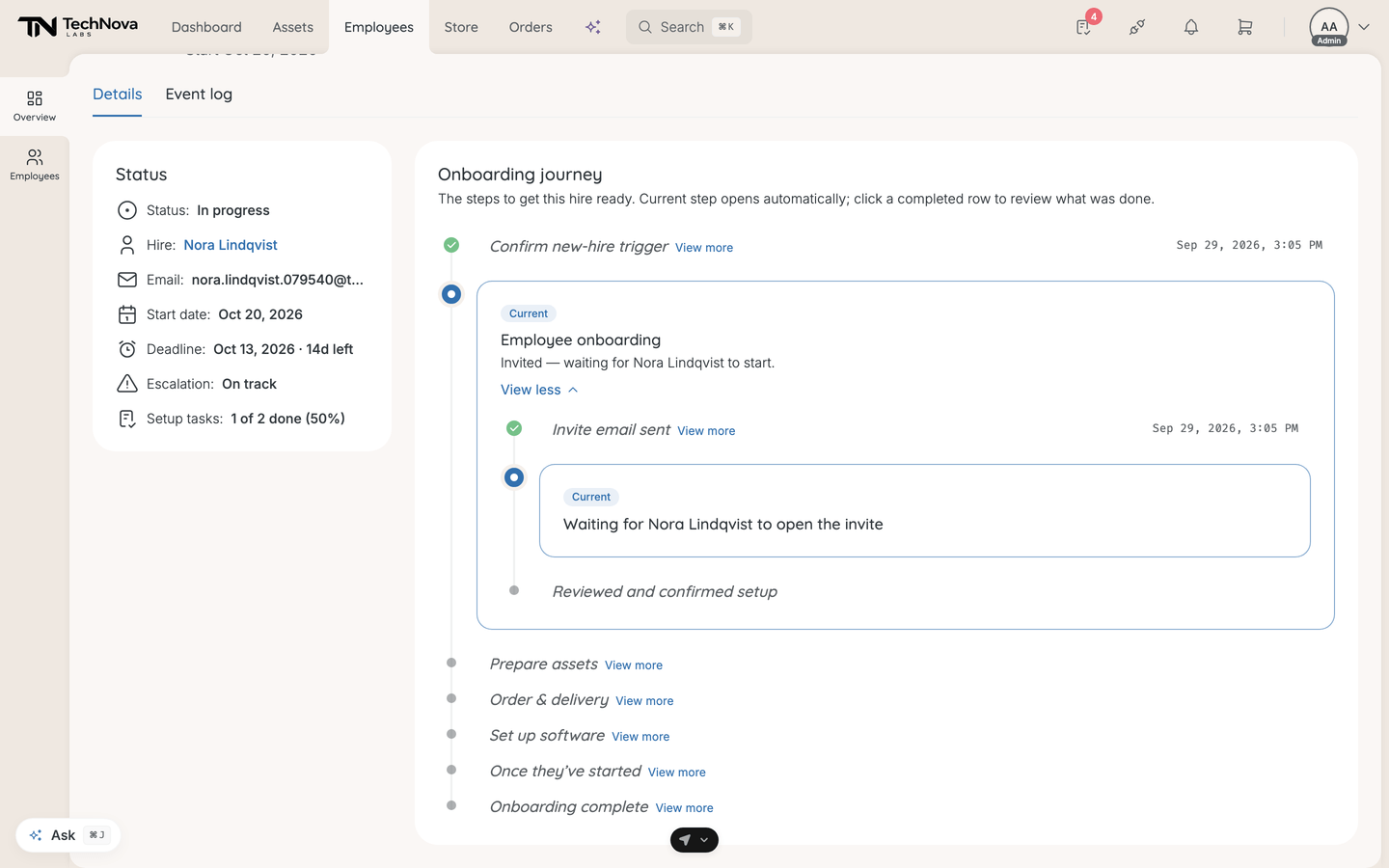
Open an onboarding from the Transitions tab, or from the banner on the person's profile. The page is a sidebar of status on the left and the journey on the right. The current step opens on its own; a completed row can be clicked to review what was done.
| Step | What happens on it |
|---|---|
| Confirm new-hire trigger | Only while the project is waiting for you. Set the role, department, start date, which entitlement applies and how the invite is sent, then confirm. Nothing is ordered before this |
| Employee onboarding | The hire's own side of it. Shows whether the invite has been sent, opened and submitted — and holds Send invite, Resend invite and Copy link |
| Prepare assets | Collect or order what they picked. Each item says what will happen when you confirm it |
| Order & delivery | Every confirmed item, tracked to the hire. They confirm delivery from their portal, or you mark items delivered here |
| Set up software | Approved software, provisioned closer to the start date |
| Once they've started | Anything that can wait until after day one |
| Onboarding complete | Closing the project sets the hire to Active |
The sidebar carries Status, Hire, Role, Department, Email, Start date, Deadline, Escalation and a setup-task count.
What your new hire is asked to do
The invite opens a page called Your onboarding. The hire works through it in their own time and submits at the end; their progress shows on the Employee onboarding step of your project, and whoever owns the onboarding is told when they submit.
| Their step | What they do there |
|---|---|
| Start | A welcome with their start date and what has been prepared for them |
| Hardware | Choose from the collection their entitlement points at, or anything in the category that fits their allowance. They cannot continue while a required category is empty. Prices are never shown; a pick over the allowance is marked Needs approval |
| Mobile | Shows a plan for review only. Nothing they see there is ordered, so arrange phone plans yourself |
| Software | See the apps they are being given. Nothing to decide |
| AI agents | The same, for AI agents |
| Review | Everything together, with the delivery recipient and destination, before they confirm |
When they confirm, they land on their own Overview.
They only see the steps they have something to do. An entitlement covering laptops and docks alone gives them Welcome, Start, Hardware, Review and Done — no Mobile, Software or AI agents step.
Worth knowing:
Required categories block them, and name themselves. A hire cannot leave the hardware step until every category marked Required in onboarding has something in it, and the message names the ones they have missed. A prefilled item counts as filled. See What can I set on an entitlement category?.
Software appears only when they have been granted some. An entitlement with no software marked Mandatory at onboarding produces no software step, however large your software estate is. See How do I decide which software a group gets?.
They cannot change where their equipment goes. The Review step shows the address — your office, or their home address, whichever your onboarding policy sets — and the Edit button beside it is greyed out. When no address is on file yet, they get a note saying you will sort it out and they need do nothing.
Every step is conditional on what they have been granted. Software appears only when their entitlement grants software; AI agents only when it grants agents; Mobile only when a mobile category applies to them.
Hires who get no onboarding of their own
Some do not. When the equipment is set entirely by an admin, no invite is sent and the hire never sees any of the above — the Employee onboarding step says so, and the whole setup is yours to complete.
Estimated cost
The page carries an Estimated cost card splitting what this hire will cost into a one-time total and a monthly total for software and subscriptions. It reads the plan and price data on what the entitlement offers, so it is only as good as those.
Good to know
Does confirming order anything?
No. Confirming the trigger starts the onboarding, invites the hire if you chose to, and generates the setup tasks. Orders are placed when you confirm items on Prepare assets.
What if the hire never opens their invite?
The deadline passes and you can act without them — the Prepare assets step unlocks and you confirm, change or skip each item yourself. See How do onboarding deadlines work?.
Can I re-open a step I already confirmed?
Yes, with one exception: items already with the retailer stay done. Re-opening tells you which ones could not be pulled back.
What does cancelling do?
Manage → Cancel onboarding marks the project cancelled and skips every pending task, with a reason recorded on the audit trail. Completed tasks stay as a record. It does not roll back hardware already assigned or orders already placed — those you undo by hand.
Does the hire get a login?
Yes, through the invite. If you only want to give someone access to Velory without any equipment flow, use Invite to set password from the employee list instead.
Was this article helpful?
Related articles
How do entitlements decide what people get?
Admin settings
What happens on the Confirm new-hire trigger step?
Employee Management
How do onboarding deadlines work?
Employee Management
How do I finish or cancel an onboarding?
Employee Management
How do I prepare a new hire's equipment?
Employee Management
How do I start an onboarding?
Employee Management
How do I track every onboarding and offboarding in one place?
Employee Management