How do I resolve reconciliation candidates?
When imported records need manual review, you decide what to do with each candidate — merge it with an existing record, create it as new, or skip it. This guide explains each action and when to use it.
In this guide
Before you begin
You need Admin access. Navigate to Settings → Reconciliation and select the entity type (Hardware, Employees, or Phone Subscriptions).
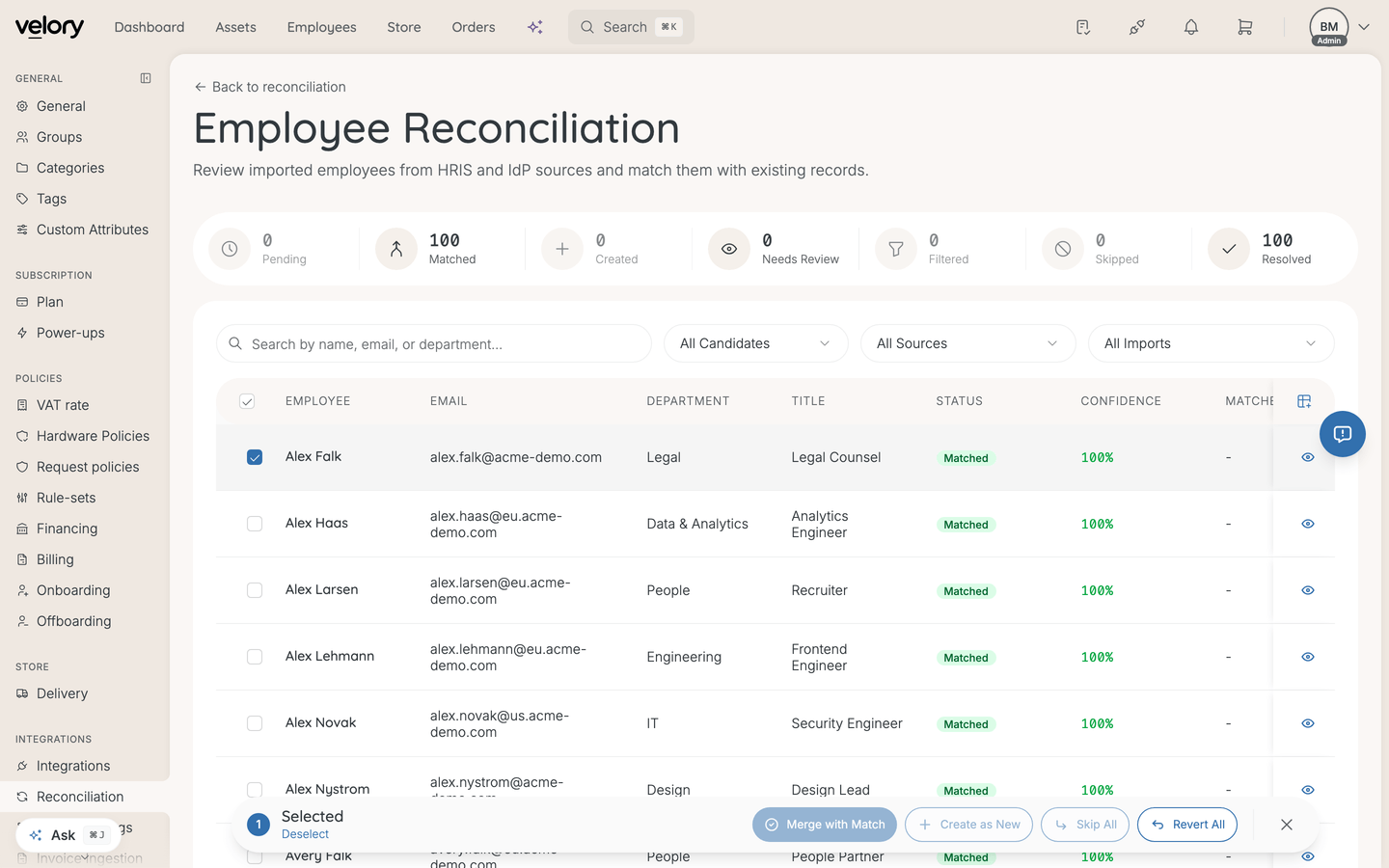
Actions available
Merge with Match
Use this when the imported record is the same as an existing record in Velory.
- Merging updates the existing record with data from the import
- Fields owned by the import source take priority based on your field mapping settings
- The candidate status changes to Merged
- Only available when a match has been found
When to use: A device imported from Jamf matches an existing laptop in Velory by serial number. Merging links the MDM data to the existing asset record.
Create as New
Use this when the imported record is genuinely new and does not exist in Velory.
- Creates a new record (hardware asset, employee, or subscription) from the imported data
- The candidate status changes to Created
- Available regardless of whether a match was found
When to use: A new employee synced from BambooHR has no match in Velory. Creating adds them as a new employee.
Skip
Use this when the candidate should be dismissed without any action.
- The candidate is moved to Resolved and will not appear in the active view
- No record is created or updated
- You can optionally provide a reason
When to use: A test device or a duplicate import that you do not want to track in Velory.
Revert (employees only)
Use this to undo a previous merge or create action on an employee candidate.
- Reverting a created employee can optionally delete the employee record
- Reverting a merged employee unlinks the import data from the existing record
- Velory warns you if the employee has assigned hardware, software, or subscriptions that would be affected by deletion
When to use: You accidentally merged a candidate with the wrong employee, or created a duplicate employee that should not exist.
Using the candidate detail page
For complex decisions, open the candidate detail page by clicking View Details on any row. The detail page shows:
- Imported data — All fields from the import source
- Suggested match — The existing record Velory thinks is the best match, with the confidence percentage and the reason for the match
- Other potential matches — Alternative matches ranked by confidence, in case the suggested match is wrong
- Action buttons — Merge with Match, Create as New, Skip, or view the existing record directly
This is especially useful for Review Required candidates, where the match confidence is lower and you need to verify manually.
Bulk actions
To resolve many candidates at once:
- Select candidates using the checkboxes in the table.
- Choose an action from the bulk action bar: Merge with Match, Create as New, Skip All, or Revert All (employees only).
- Confirm the action in the dialog.
When using Merge with Match in bulk, only candidates with a match are processed — candidates without a match are skipped automatically.
A summary shows how many candidates were processed and if any failed.
Good to know
What if I am not sure about a match?
Open the candidate detail page to see the full imported data side by side with the suggested match. Check the match reason — does the serial number, email, or name actually match? If the suggested match is wrong, look at the other potential matches or create the record as new.
Can I come back to skipped candidates later?
Yes. Use the status filter to view Resolved candidates. Skipped candidates are visible there, but they cannot be un-skipped. If you need to import the data again, trigger a new sync from the integration.
What do the confidence colours mean?
- Green (≥90%) — Strong match based on a unique identifier like serial number or email. Usually safe to merge.
- Amber (50–89%) — Moderate match that may need manual verification.
- Red (<50%) — Weak match, often based on fuzzy name similarity. Review carefully before merging.
Was this article helpful?