What is reconciliation and how does it work?
When you import data into Velory — from an HRIS like BambooHR, an MDM like Jamf, a telco provider, or a CSV file — Velory needs to figure out whether imported records match existing ones or should be created as new. This process is called reconciliation.
In this guide
Before you begin
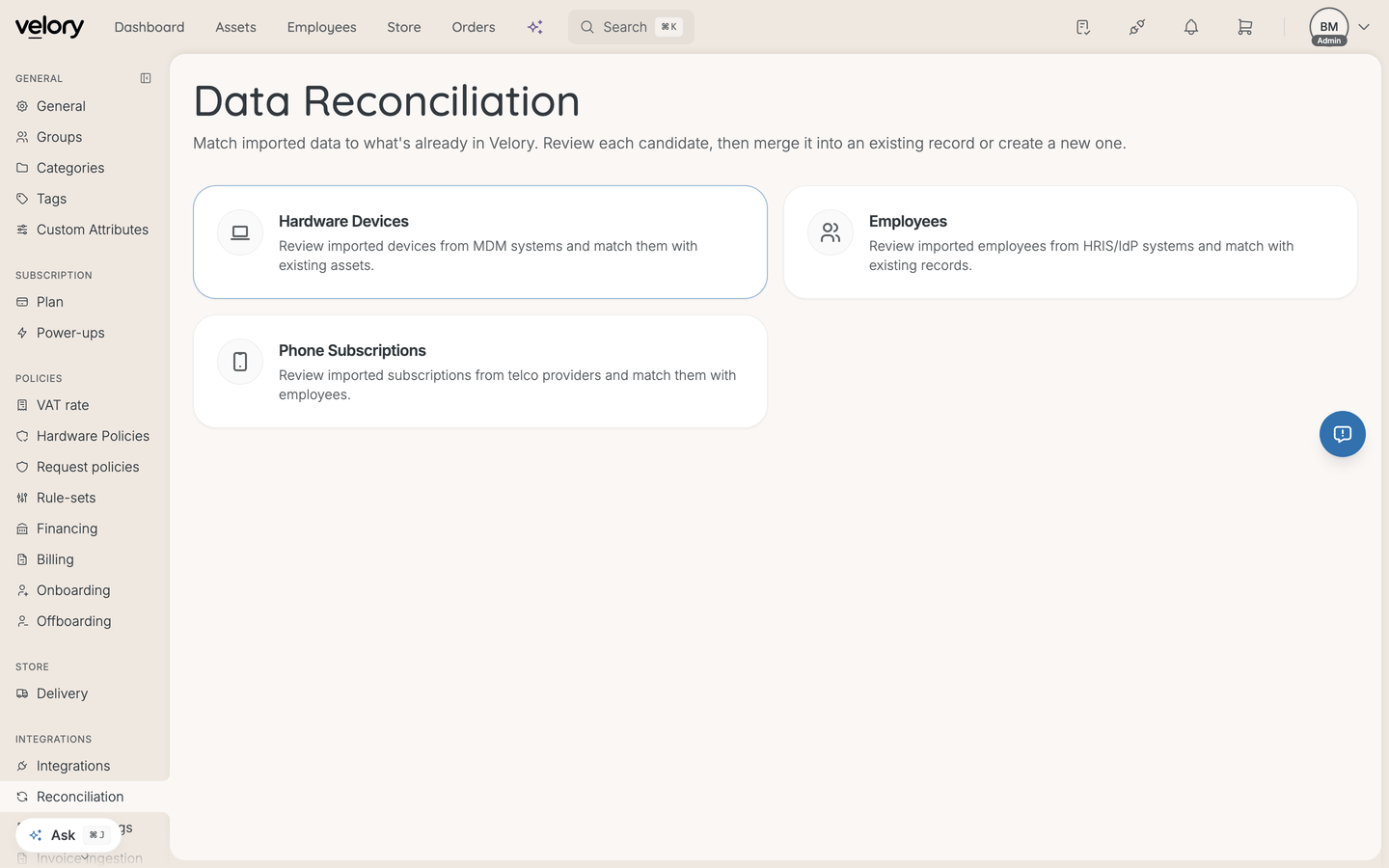
You need Admin access to view and manage reconciliation. Navigate to Settings → Reconciliation to see the reconciliation pages.
How reconciliation works
When data arrives from an external source, Velory follows this process:
- Import — Data is received from an integration (HRIS, MDM, telco) or uploaded via a file. Each imported record becomes a candidate.
- Matching — Velory compares each candidate against your existing records using identifiers like email, serial number, or employee ID. Each match gets a confidence score (0–100%).
- Auto-resolution — High-confidence matches can be automatically merged if your reconciliation policies allow it. Unmatched candidates can be automatically created as new records.
- Admin review — Candidates that need manual attention appear in the reconciliation page for you to review and decide what to do.
What can be reconciled?
Reconciliation covers three types of records:
| Type | Where to find it | Matched by |
|---|---|---|
| Hardware | Settings → Reconciliation → Hardware | Serial number, MAC address, MDM external ID |
| Employees | Settings → Reconciliation → Employees | Email, employee number, employee ID, SSO ID |
| Phone Subscriptions | Settings → Reconciliation → Phone Subscriptions | Phone number, external reference, email + name |
Each type has its own reconciliation page with a table of candidates, filters, and actions.
Candidate statuses
Each imported candidate has a status that tells you where it is in the process:
| Status | What it means |
|---|---|
| Pending | Not yet processed — awaiting matching |
| Matched | A match was found and auto-merged (if policies allow) |
| Review Required | A potential match was found but needs manual review — either low confidence or multiple possible matches |
| No Match | No existing record matched this candidate |
| Awaiting Workflow | A workflow automation is handling this candidate |
| Created | A new record was created from this candidate |
| Merged | The candidate was merged with an existing record |
| Skipped | An admin dismissed this candidate without action |
| Filtered | Excluded by a workflow automation |
Reconciliation policies
You can control how Velory handles matches automatically, per integration source:
- Auto-merge — When enabled, high-confidence matches are merged automatically without admin review. When disabled, all matches are queued for manual review.
- Auto-create — When enabled, unmatched candidates are automatically created as new records. When disabled, they are queued for manual review.
These policies let you balance speed (automatic handling) with control (manual review). You can configure them per source in your integration settings.
Good to know
When do candidates appear?
Candidates appear whenever data is imported — whether through a scheduled integration sync (e.g. BambooHR syncing every few hours), a manual sync trigger, or a CSV file upload.
How is confidence calculated?
Confidence depends on the type of identifier that matched. Exact matches on unique identifiers (like serial numbers or email addresses) give 100% confidence. Fuzzy matches on names give lower confidence. The match reason is shown alongside the confidence percentage so you can see why Velory thinks a candidate matches.
Can I see the history of what was resolved?
Yes. Use the status filter on the reconciliation page to view Resolved candidates. This shows everything that has been merged, created, or skipped — useful for auditing past imports.
Was this article helpful?