How do I reconcile imported hardware?
When hardware devices are imported from an MDM (Jamf, Intune, Iru), Apple Business, Google Workspace, or a CSV file, they appear as candidates in the hardware reconciliation page. You review the matches and decide whether to merge them with existing devices or create new records.
In this guide
Before you begin
You need Admin access. Navigate to Settings → Reconciliation → Hardware.
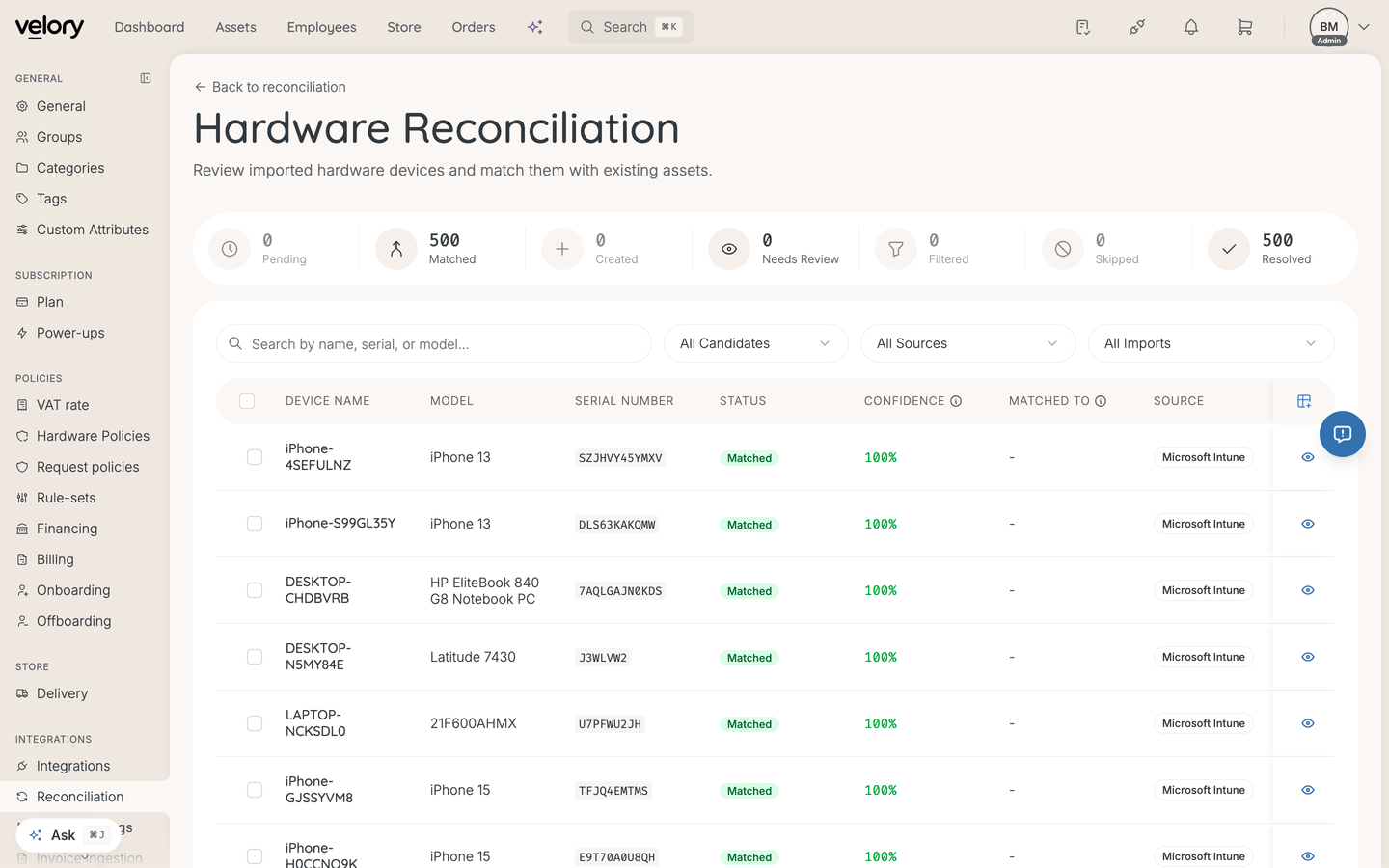
Understand what you see
Stats bar
At the top of the page, summary cards show how many candidates are in each state: Pending, Matched (incl. auto-merged), Needs Review, No Match, Filtered, and Resolved.
Candidate table
Each row represents an imported device:
| Column | What it shows |
|---|---|
| Device Name | The name from the import source |
| Model | The device model |
| Serial Number | The serial number from the import |
| Status | Current reconciliation status (Pending, Matched, Review Required, No Match, etc.) |
| Confidence | Match confidence percentage — green (≥90%), amber (50–89%), or red (<50%) |
| Matched To | The existing device it matched with, including who it is assigned to |
| Source | Where the import came from (e.g. Jamf, Intune, CSV) |
| Imported | When the candidate was imported |
Search and filter candidates
Search — Find candidates by name, serial number, or model.
Filters:
- Status — All Candidates, Pending, Matched, Needs Review, No Match, Awaiting Workflow, Filtered, Resolved
- Source — Filter by import source (e.g. Jamf Pro, Microsoft Intune, CSV)
- Import Batch — Filter by a specific import run, showing the source, date, and number of candidates
How hardware matching works
Velory matches imported devices against existing hardware using these identifiers, in order of priority:
| Identifier | Confidence | Notes |
|---|---|---|
| Serial number | Very high | Exact match on serial number |
| WiFi MAC address | Very high | Exact match |
| Ethernet MAC address | Very high | Exact match |
| MDM external ID | Very high | The device's ID in the MDM system |
| External ID | High | Any other external identifier |
| Fuzzy match | Lower | Matching on device attributes when no unique identifier matches |
The Confidence column and match reason help you understand why Velory thinks a candidate matches a particular device.
Review and resolve candidates
For each candidate, you can:
- Merge with Match — Link the imported device to an existing record in Velory. The existing record is updated with data from the import.
- Create as New — Create a new hardware asset from the imported data.
- Skip — Dismiss the candidate without taking any action.
- View Details — Open the candidate detail page to see the full imported data, the matched record, and alternative potential matches.
You can also select multiple candidates and use bulk actions to merge, create, or skip them all at once.
Good to know
What if a device matches the wrong record?
Open the candidate detail page using View Details. You will see the suggested match and any other potential matches with their confidence scores. You can choose a different match or create the device as new instead.
What happens after I merge a candidate?
The existing hardware record in Velory is updated with the imported data (model, serial number, OS version, etc.). Fields owned by the import source take priority based on your field mapping configuration.
Do I need to review every candidate?
Not necessarily. If auto-merge is enabled in your reconciliation policies, high-confidence matches are merged automatically. You only need to review candidates marked as Review Required or No Match.
Was this article helpful?