How do I reconcile imported employees?
When employees are imported from an HRIS (BambooHR, Hailey HR, HiBob), a directory (Microsoft Entra ID, Google Workspace), or a CSV file, they appear as candidates in the employee reconciliation page. You review the matches and decide whether to merge them with existing employees or create new records.
In this guide
Before you begin
You need Admin access. Navigate to Settings → Reconciliation → Employees.
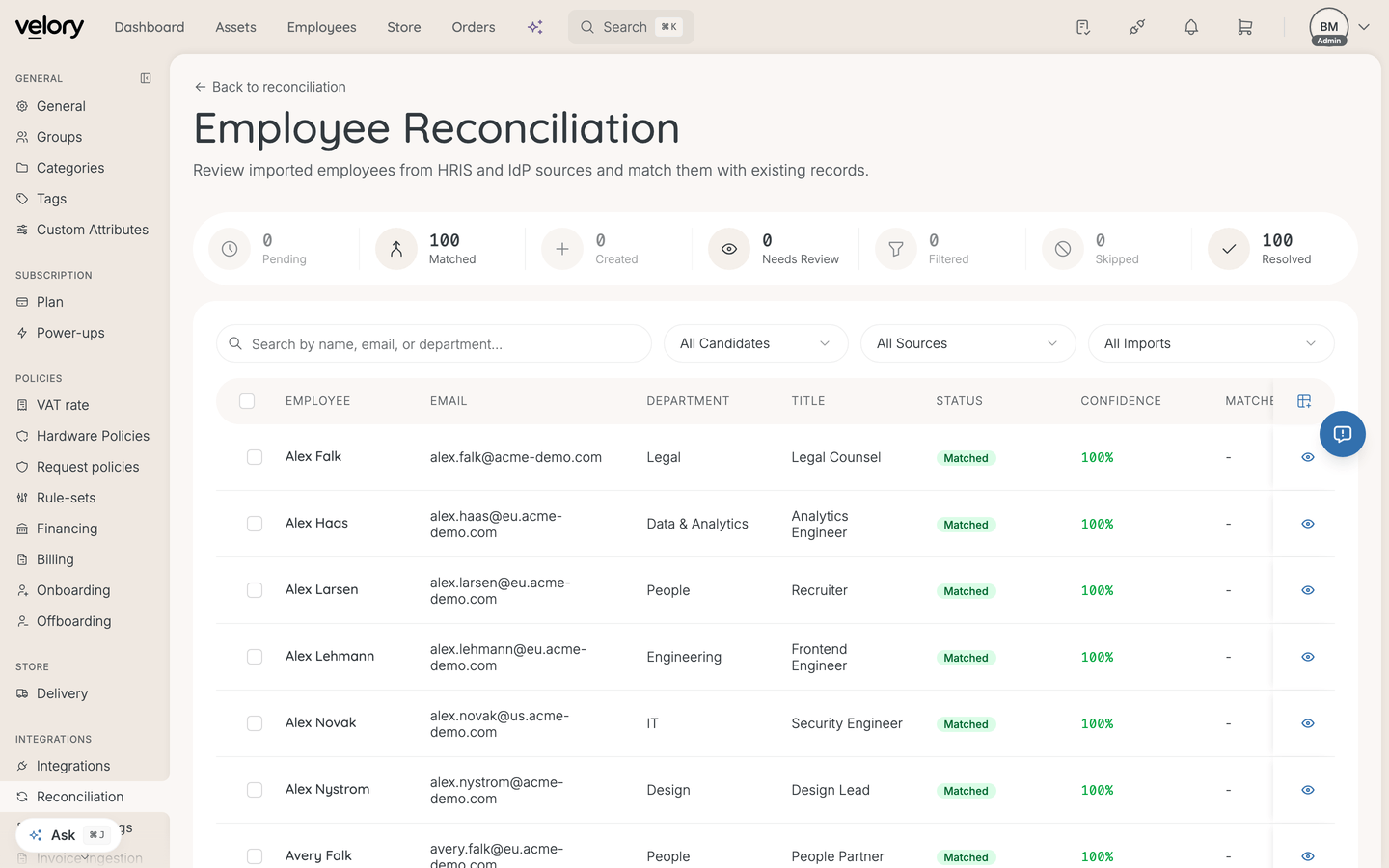
Understand what you see
Stats bar
At the top of the page, summary cards show how many candidates are in each state: Pending, Matched (incl. auto-merged), Needs Review, No Match, Filtered, and Resolved.
Candidate table
Each row represents an imported employee:
| Column | What it shows |
|---|---|
| Employee Name | The name from the import source |
| Department | The department from the import |
| Title | The job title from the import |
| Status | Current reconciliation status (Pending, Matched, Review Required, No Match, etc.) |
| Confidence | Match confidence percentage — green (≥90%), amber (50–89%), or red (<50%) |
| Matched To | The existing employee it matched with |
| Source | Where the import came from (e.g. BambooHR, Microsoft Entra ID, CSV) |
| Imported | When the candidate was imported |
Search and filter candidates
Search — Find candidates by name, email, or department.
Filters:
- Status — All Candidates, Pending, Matched, Needs Review, No Match, Awaiting Workflow, Filtered, Resolved
- Source — Filter by import source (e.g. BambooHR, Google Workspace, CSV)
- Import Batch — Filter by a specific import run
How employee matching works
Velory matches imported employees against existing records using these identifiers, in order of priority:
| Identifier | Confidence | Notes |
|---|---|---|
| Very high | Primary work email — the strongest identifier | |
| Personal email | Very high | Non-work email address |
| Employee number | High | Your organisation's internal employee ID |
| Employee ID | High | Legacy system identifier |
| SSO ID | High | Identity provider identifier |
| Name (fuzzy) | Lower | First + last name similarity — flagged for review rather than auto-merged |
Review and resolve candidates
For each candidate, you can:
- Merge with Match — Link the imported employee to an existing record. The existing record is updated with data from the import.
- Create as New — Create a new employee from the imported data.
- Skip — Dismiss the candidate without action.
- Revert — Undo a previous merge or create action (unique to employee reconciliation).
- View Details — See the full imported data, the matched record, and alternative potential matches.
You can also select multiple candidates and use bulk actions to process them all at once.
Good to know
Can I undo a reconciliation action on an employee?
Yes — employee reconciliation supports a Revert action that is not available for hardware or phone subscriptions. If you merged a candidate with the wrong employee or created a duplicate by mistake, you can revert the action. When reverting a created employee, Velory warns you if the employee has assigned hardware, software, or subscriptions that would be affected.
What happens after I merge an employee candidate?
The existing employee record is updated with the imported data (department, job title, start date, etc.). Which fields get updated depends on your field mapping configuration — fields marked as owned by the import source take priority.
How does this relate to the employee import feature?
Both features bring employees into Velory, but through different paths. The Import from file feature (on the Employees page) handles CSV imports directly with its own matching logic. The Reconciliation page is used for ongoing integration syncs from HRIS and directory systems — it gives you more control over how matches are reviewed and resolved.
Was this article helpful?