How do I publish and manage store products?
Edit Store holds every product in your store, live or not. Publishing a product is what makes it orderable — in the Store, and in New request for anyone whose entitlement allows it.
Store → Store Setup → Edit Store.
Statuses
| Status | Meaning |
|---|---|
| Draft | In your store, not orderable. Imports land here |
| Published | Orderable |
| Partial | Published, but only some of its variants are |
| Archived | Kept, not orderable |
| Importing | Still arriving from the retailer. Hidden from the list |
The View menu switches between Published, Draft and Archived.
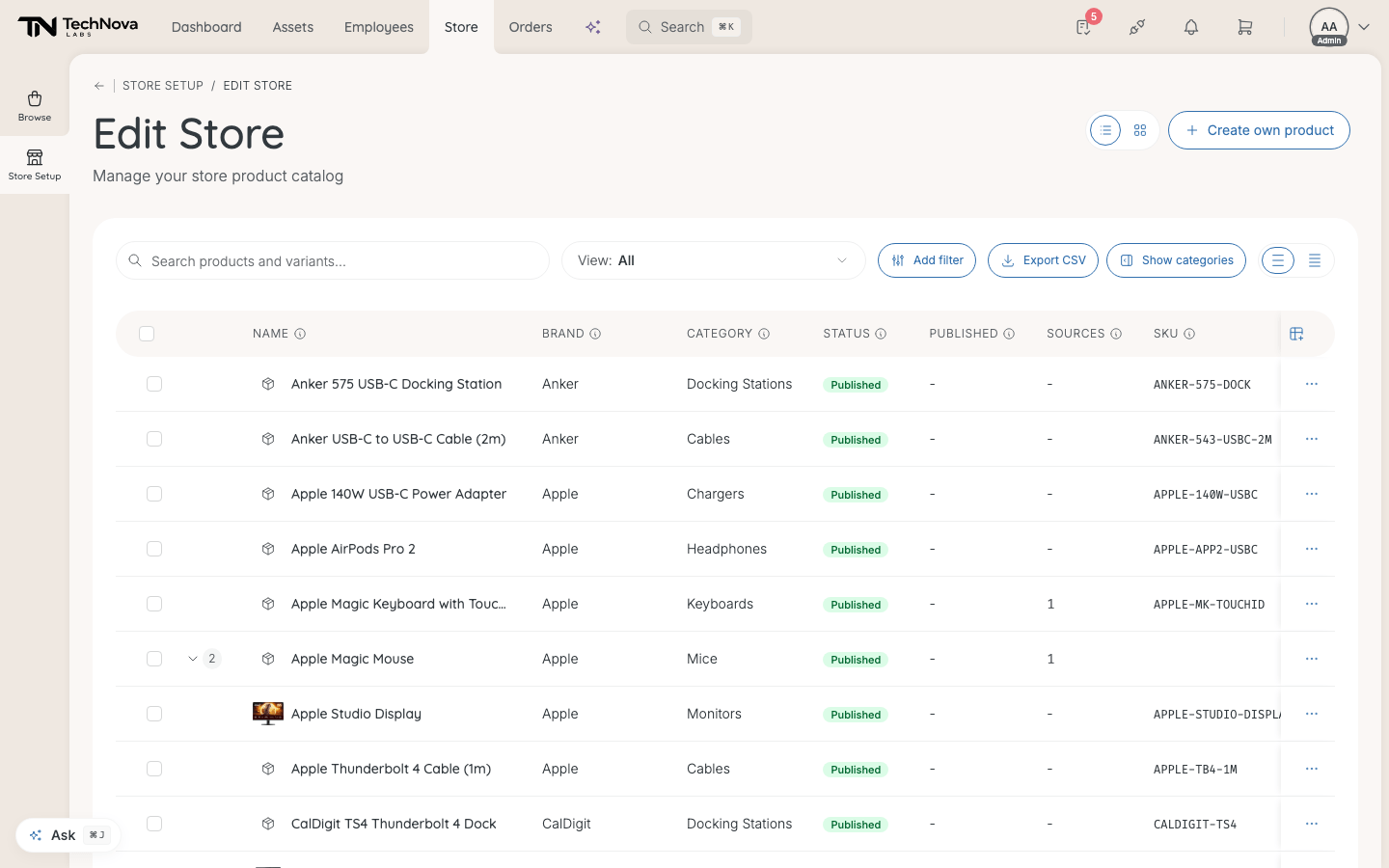
Publish imported products
-
Filter to Draft.
-
Tick the products and select Publish.
-
Products to review opens. For each product, check its Category and what it should become:
- Standalone — a product of its own.
- Variant — another size or colour of a product you already have. It is merged into that product.
- Duplicate — the same product you already have, from another source. It is merged too.
Each row says what will happen, for example "Will be removed — becomes a variant of MacBook Air 13″".
-
Publish.
Publishing a product also publishes its variants if none were live yet.
Bulk actions
Tick products in the table to Change Category, Publish, Unpublish or Remove. Up to 50 at a time.
- Unpublish puts a product back to Draft. Nothing is lost.
- Remove deletes it. "This action is permanent and cannot be undone."
To archive a product, open it and change its Status.
A product's own page
Select a product to open it. Tabs: Details, Variants, Sources, Add-ons and Activity.
- Status and Category.
- Fulfillment — Automatic when a retailer delivers it, Managed when your company does. Read-only.
- Discoverable in store — whether the product is listed when people browse. It can be switched only while the product is published. See the caveat below.
- Display Name Override and Description Override — your own wording for an imported product, without changing the retailer's data.
- Add-ons — accessories offered with the product, either mandatory or optional.
Each variant has its own status: publish or unpublish one size or colour without touching the rest. Unpublishing the last live variant puts the whole product back to Draft.
Good to know
Can I change a product's price?
Not on an imported product — its price comes from your retailer and updates with their price list. A product you created yourself can be repriced from its variant page: enter the new amount in Price and select Update. See How do I add a product my company supplies itself?.
Discoverable in store is off, but the product still shows
Turning it off hides the product from category pages sorted by Name or Newest. Search, Trending Now and category pages sorted by Popular — the default — still show it. Unpublish the product if nobody should find it.
Can I export the list?
Yes. The table has a CSV export.
What does the badge on Store Setup count?
Draft products — the ones waiting for you to publish.
Was this article helpful?