How do I manage, monitor, ignore or retire a discovered service?
Every discovered service arrives as New and waits for you to decide what it is: something the company should pay for and track, something to keep an eye on, or noise. That decision is the whole point of the inbox.
In this guide
Before you begin
You need software creation rights to change a discovered service's status. Read-only admins see the inbox but not the actions.
The six statuses
| Status | Meaning |
|---|---|
| New | Detected, no decision made yet |
| In review | A retired status. Nothing enters it any more; existing rows behave like New |
| Managed | Licensed in Software, with seats tracked against detected users |
| Monitored | Deliberately not licensed, but kept under watch |
| Ignored | Dismissed from the inbox. Restorable at any time |
| Retired | Decommissioned. Licences were revoked; history is kept |
What you can do from each status
Actions are guarded — the ones that do not apply are not offered.
| From | Action | Result |
|---|---|---|
| New | Manage | Managed |
| New | Monitor | Monitored |
| New | Ignore | Ignored |
| Monitored | Manage | Managed |
| Monitored | Stop watching | Back to New |
| Monitored | Retire | Retired |
| Managed | Stop managing | Monitored — only while no active licences remain |
| Managed | Retire | Retired |
| Ignored | Restore | Back to New |
| Retired | — | Nothing. Retired is final |
Note what is missing: you cannot Ignore a service that is Managed or Monitored. Once a service is licensed or watched, the way out is Retire, which deals with the licences properly instead of leaving them attached to a dismissed record.
Manage — take it into Software
Manage is the adoption path. It adds the service to your software catalogue and, optionally, licenses the people already using it.
- Open the discovered service, or select it in the inbox.
- Click Manage.
- Pick the Service it corresponds to, or create it if it is not in your catalogue yet.
- Optionally create a Plan, or choose No plan — just manage the service.
- If you added a plan, select which detected users should get a seat. Selected users get an active licence.
- Confirm with Manage — or Manage & assign n seats when you selected people.
The status becomes Managed. Licences created this way are stamped Added via: Discovery in Software, and the service's timeline records that it was adopted from SaaS discovery.
If the plan has fewer free seats than the people you selected, Velory warns you how far over the limit it will go before you confirm. It does not block you — over-provisioning is sometimes the correct answer, and you should know you are doing it.
Assigning seats is covered in more detail in How do I give discovered users a licence?.
Monitor — watch without paying
Monitor says "I know about this and I am not licensing it." Use it for services that are legitimate but not company-funded, or when you want a few weeks of evidence before deciding.
Monitored services keep collecting signals, so detected-user counts stay current. They sit outside your licence and cost figures. Stop watching returns a service to New if you want it back in the queue.
Ignore — dismiss the noise
Ignore hides a service from the inbox and stops it being flagged for licence review. Use it for one-off sign-ins, personal tools, or a vendor you have no interest in tracking.
Ignoring is reversible and loses nothing. Filter the Status column to Ignored to see them again, and Restore brings one back to New.
Retire — decommission and revoke
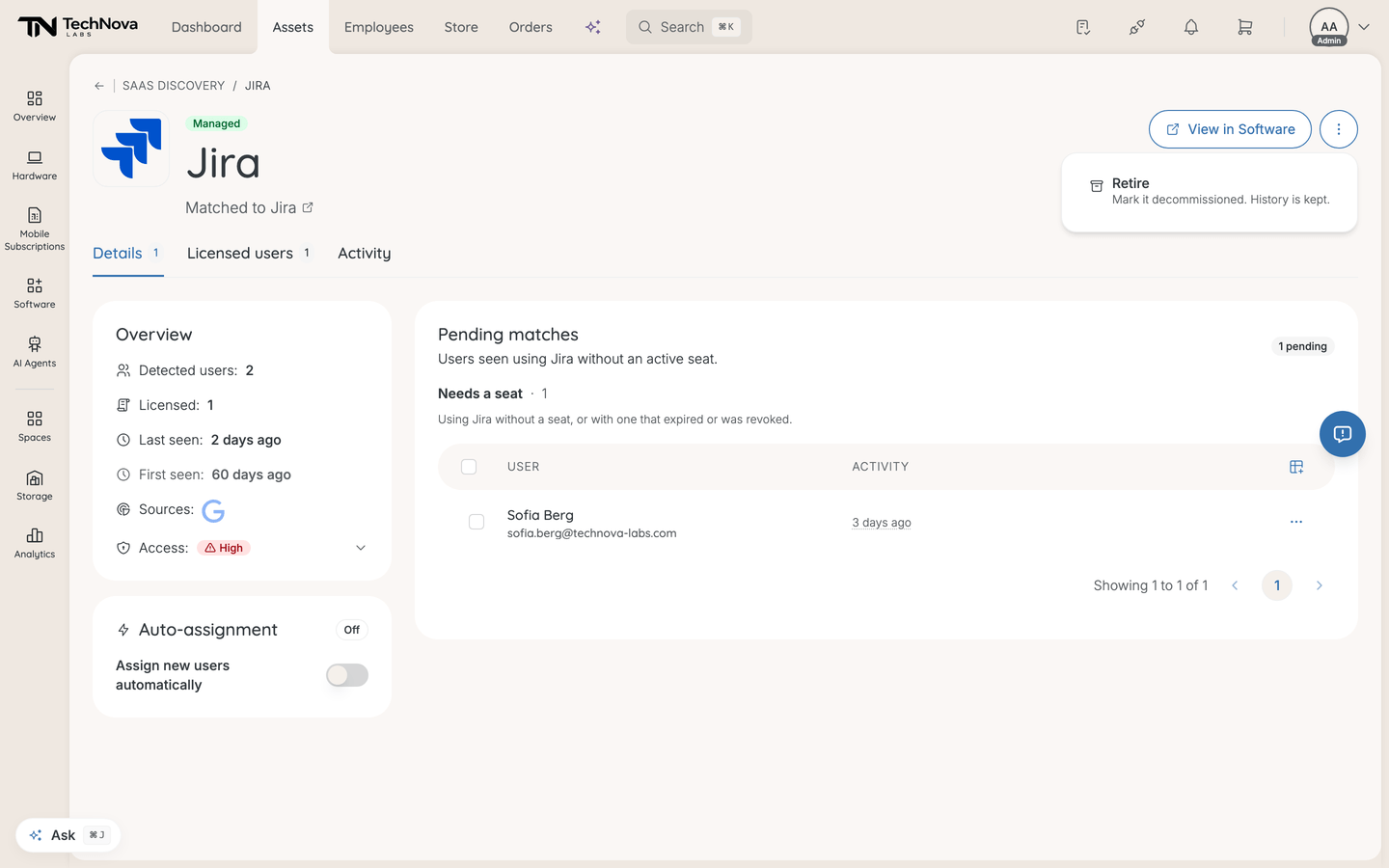
Retire is for a service the company has stopped using. It does two things:
- Sets the status to Retired
- Revokes every active licence on the matched service — freeing the seats and stopping the cost
The confirmation dialog counts the licences first and tells you exactly how many will be revoked, including licensed employees not shown on the page you are looking at.
Retire cannot be undone. There is no un-retire, and the status guard blocks a second attempt.
Bulk actions
Select multiple rows in the inbox to apply Manage, Monitor, Ignore, Restore or Retire at once. Bulk retire counts the affected licences across every selected service before asking you to confirm.
Because guards apply per service, a bulk action skips the rows it is not legal for rather than failing the whole batch.
Merge services is the other bulk action worth knowing. When the same tool shows up under several detected names, select them all and merge them into one service. The alternative names become aliases, so future variants fold in automatically instead of reappearing as new rows. All selected services must belong to the same service — if they are already matched to different ones, Velory tells you to narrow the selection.
Good to know
Why won't it let me stop managing a service?
Because it still has active licences. A managed service with live seats should be retired, not demoted — demoting it would leave the seats attached to a service Velory is no longer tracking. Velory tells you how many licences are in the way.
Either retire the service, or remove the licences in Software first and then stop managing it.
After retiring, some licences are still active. Why?
Revocation is attempted per seat and does not stop the retire if an individual seat fails. If Velory reports that some seats could not be revoked, those licences are still live and still billing. Find them in Software under the matched service and deal with them by hand.
What happens to history when I retire or ignore something?
Nothing is deleted. The service keeps its timeline — first detected, status changes, seats assigned, auto-assign changes — and stays in the list under its new status.
Does ignoring a service stop discovery collecting data about it?
No. Signals keep arriving; the service stays out of the inbox and out of licence review. That is why restoring it later shows current data rather than a stale snapshot.
What is "Shadow IT" in the Origin column?
It marks a service that exists in your catalogue only because discovery found it — nobody added it deliberately. It is a note about how the record got there, not a verdict on the service.
Was this article helpful?