How do I view and manage employees?
Employees → Employees is the roster: one row per person, with their status, department, role and tags. You can search it, filter it, save a view of it, and act on one person or on a whole filtered set.
In this guide
Before you begin
Admins can do everything on this page. Managers can read the whole list but hold none of the add, import or invite permissions, so those actions are not available to them. Employees cannot reach the list at all; they see their own profile in their Personal workspace.
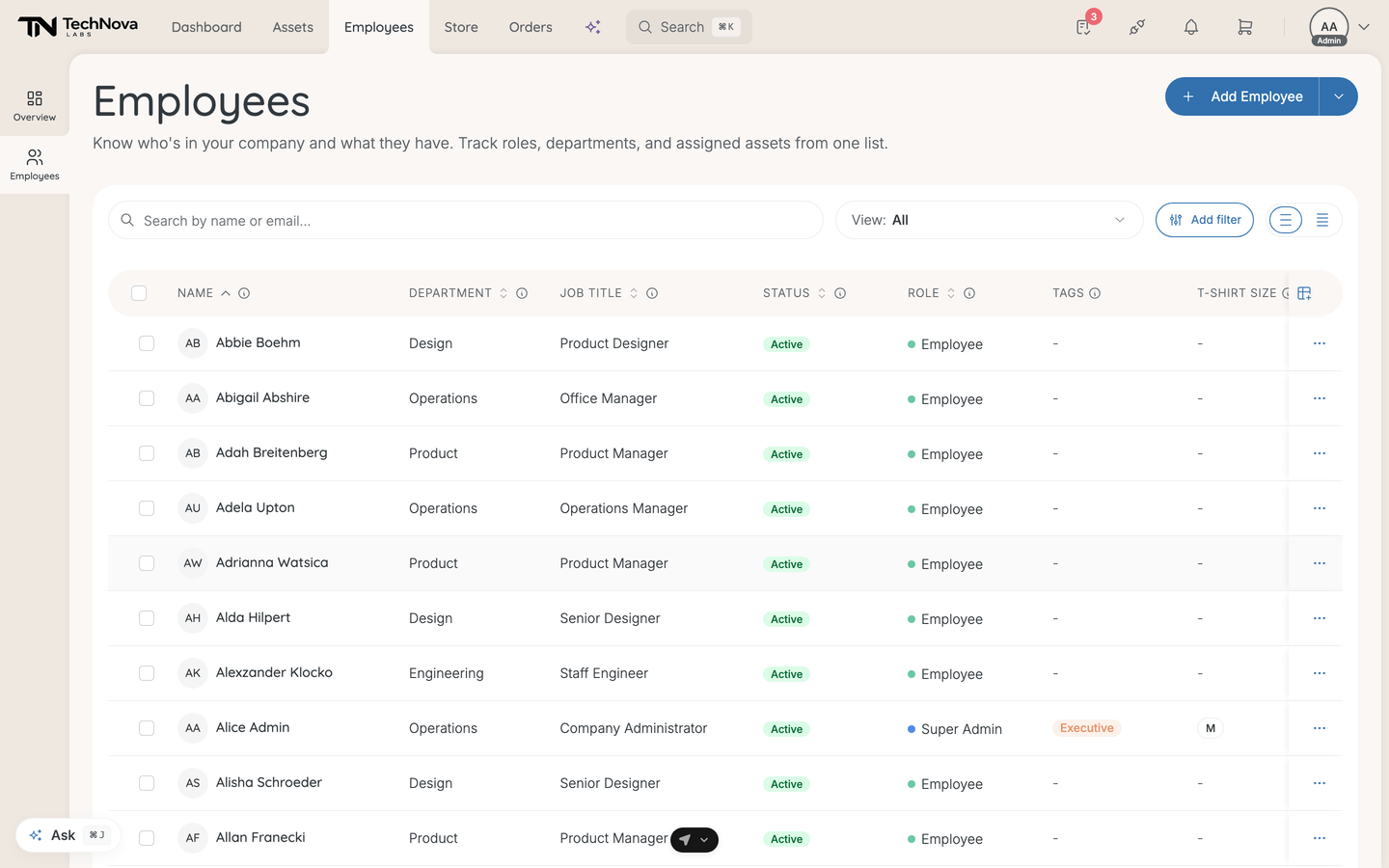
Understand what you see
| Column | What it shows | Visible by default |
|---|---|---|
| Name | Full name and avatar. Click it to open the person | Yes |
| Department | Their team or business unit | Yes |
| Job Title | Their role or position | Yes |
| Status | Active, Onboarding, Offboarding or Inactive | Yes |
| Role | Their Velory role, as a coloured badge. Read-only here | Yes |
| Tags | Tags on the person | Yes |
| Work arrangement | Onsite or remote | Yes |
| Work email address | No | |
| Work location | The office they work from | No |
| Location | Where they are based | No |
| Start Date | When they joined | No |
| Created | When the record was added to Velory | No |
Five columns are hidden until you ask for them. Use the column picker in the table toolbar to show Email, Work location, Location, Start date and Created — or to hide anything else. Your choice is remembered. If your company uses custom attributes on employees, those appear as columns too.
The Role column is read-only. Roles are granted from Settings and from the group surfaces, which carry the assignment guards.
Search, filter and save a view
Search matches name and email.
Views — the selector after the search field carries four presets: Active, Onboarding, Offboarding and Inactive. Each one is a status filter rather than a tab, so clearing the selection returns you to everyone. Your company's saved views live in the same dropdown.
Filters — the filter panel offers:
- Status
- Department
- Groups — structural and regular groups alike
- Manager — employees reporting to a given manager
- Source — the integration that created the record
- Role — employees holding a given role
- Work arrangement — onsite or remote
- Office
- Tags
- Start date — as a range
Source, Manager, Role and Tags only appear when your company has values for them, so a company with no integrations sees no Source filter.
Save keeps the current combination as a named view.
Take action on one person
The row menu holds:
| Action | What it does |
|---|---|
| View / Edit | Opens their detail page |
| Start onboarding | Creates an onboarding project and invites them, depending on how you set the invite |
| Copy magic link | Opens a dialog holding a direct onboarding link, with a button to copy it |
| Invite to set password | Creates their login if needed and sends a link straight to the set-password screen, skipping the equipment steps |
| Assign tags | Applies tags |
| Update status | Changes their employment status |
| Add to group | Adds them to a group |
| Delete | Permanently removes the record |
There is also a Start offboarding entry in this menu. It does not work — offboarding is started from the person's own detail page, under Manage. See How do I start an offboarding?.
Act on several employees at once
Select rows with the checkboxes, or use Select all pages to take everyone matching the current filters. Then choose from the bar that appears:
| Action | What it does |
|---|---|
| Assign tags | Applies tags to the whole selection |
| Update status | Sets one status on all of them |
| Add to group | Adds all of them to one group |
| Invite selected | Gives each person a login as a least-privilege Employee, with no activation email. People who already have an account are skipped rather than failed |
| Start onboarding | Creates a separate onboarding project for each one |
| Delete | Removes them all |
A bulk delete large enough to take a while is handed to a background job, and you get a progress indicator and a result — including a partial result if some rows could not be deleted.
Start offboarding appears in this bar too and reports that it is not available. Offboardings are started one at a time from each person's profile.
Add new employees
Add Employee, top right, offers three routes:
| Method | When to use |
|---|---|
| Add single employee | One person, by hand |
| Import from file | Many at once, from CSV, XLSX, XML or JSON |
| Connect HRIS/Directory | Keep the roster in step with BambooHR, Hailey HR, HiBob, Google Workspace or Microsoft Entra ID |
Good to know
Why do I not see status tabs?
There are none. The four status presets live in the Views selector next to the search field instead, alongside any views your company has saved. They filter the same table rather than switching between separate ones.
Can scoped admins add employees?
No. A scoped admin sees the employees within their scope but cannot add new ones. Ask a company-wide admin; the new person appears in the scoped admin's view once they are in the right group.
What happens when I delete an employee?
The record and its data are removed permanently, and it cannot be undone. A delete can also be refused outright when other records still reference the person — the message says so. Reassign or unassign their assets first.
How do I see what assets someone has?
Open their detail page. The Hardware and Software tabs list what is assigned to them, with a count on each tab.
Why can I not filter by sync status?
The filter panel does not offer one, even though records do carry a sync status. It is visible per person in the Sync Information section of their detail page.
What does "Copy magic link" give me?
A direct onboarding link for that person, shown in a dialog so you can copy it deliberately. Use it when email is not a good channel — a hire who has not got their work address yet, for instance.
Was this article helpful?
Related articles
What does the Employee overview show me?
Employee Management
How do I add an employee manually?
Employee Management
How do I view and edit an employee's details?
Employee Management
How do I organise employees with groups?
Employee Management
How do I import employees from a file?
Employee Management
How do employee statuses work?
Employee Management
How do I use tags on employees?
Employee Management