How do bundles work?
A bundle is several products ordered as one — a laptop, a dock and a headset as a "Developer setup", say. Some parts are fixed; for others the buyer picks from a few options. Its price is the sum of what is picked.
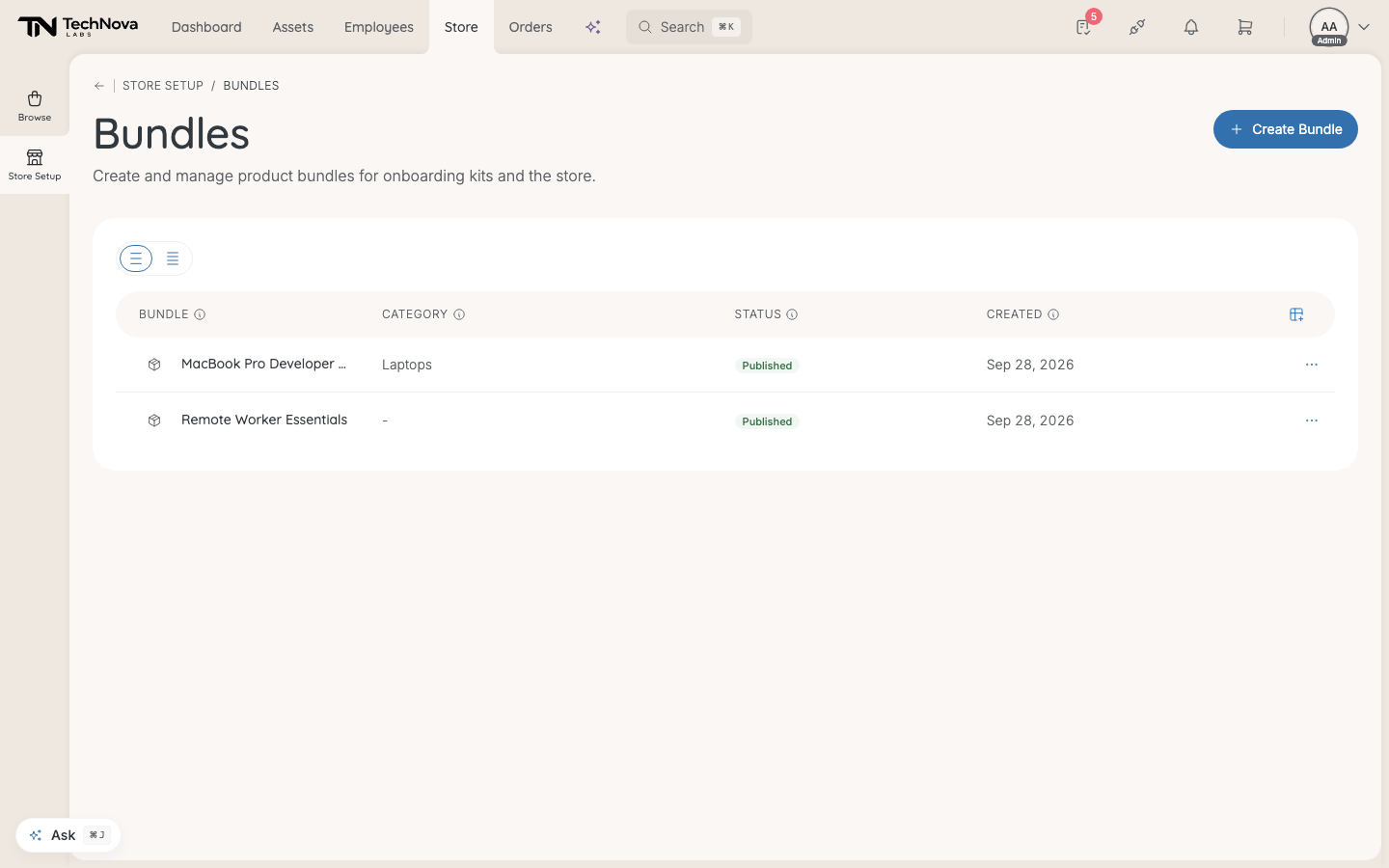
Store → Store Setup → Bundles.
Bundles are bought in the Store, which only admins use. They are not what employees get at onboarding — that is decided by entitlements, which draw on collections.
In this guide
Bundle or collection?
| Bundle | Collection | |
|---|---|---|
| What it is | A package ordered as one | A shortlist of products to choose from |
| Who uses it | Admins, in the Store | Employees, through their entitlement |
| Price | The sum of its parts | Each product priced on its own |
If you want a group to choose from a few laptops, build a collection. If you want to order the same three items together again and again, build a bundle.
Create a bundle
- Select Create Bundle.
- Give it a Name and, if you like, a Description.
- You land on the bundle, as a Draft.
Settings
Details → Bundle settings:
- Name and Description — what buyers see.
- Status — Draft, Published or Archived. Only a published bundle can be ordered.
- Discoverable in store — "When off, this bundle can still be purchased via a direct link, but won't appear in the company store."
- Store category — the category the bundle belongs to.
Select Update to save.
Hardware slots
Hardware holds the slots — one per part of the bundle. The table shows each slot's Slot name, Type, whether it is Required, what is Pre-selected, its Options, and any Add-ons that come with its products.
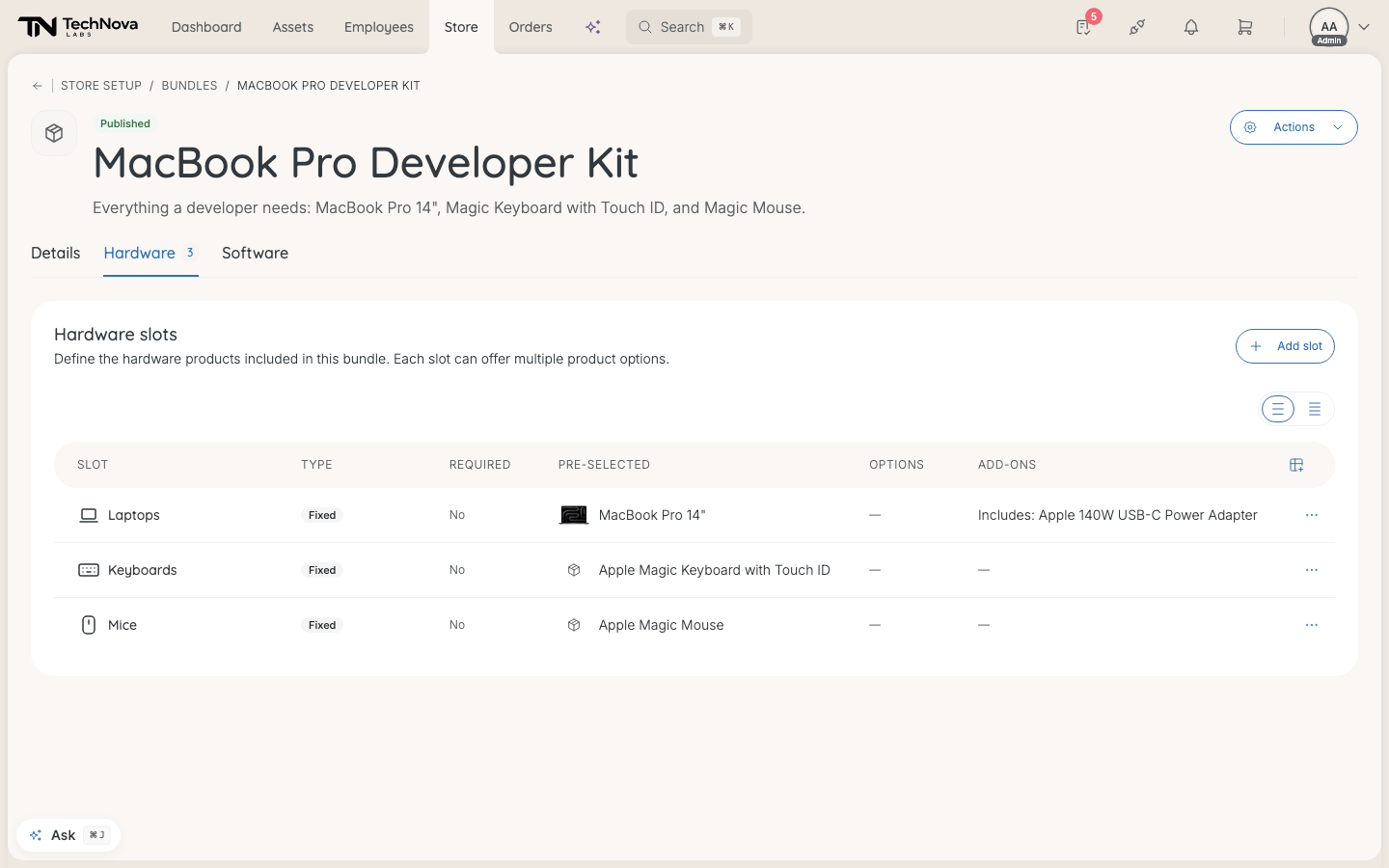
To add one, select Add slot:
-
Give it a Slot name — "Laptop", "Monitor", "Headset".
-
Choose How is this slot filled?
Fill What the buyer sees Fixed product "Always included; can't be changed." Pick the Product Employee chooses "Pick one from a list of options." Use Add products to build the list -
For a slot with options:
- Required selection — the bundle cannot go in the cart until something is picked here.
- Pre-select a default option — one option starts picked, and the buyer can still switch. Set as default chooses which.
-
Select Save, then Save changes on the slots table.
Publish it
Set Status to Published on Details. To take it down again, the Actions menu has Unpublish, which keeps the bundle, and Delete, which "cannot be undone".
How buyers see it
Published bundles that are discoverable appear under Bundles on the Store's front page and in the category menu.
The bundle's page lists what is included and asks the buyer to Configure your bundle. Add Bundle to Cart stays disabled until every required slot has a pick. In the cart the bundle is one line, with its parts inside, and it goes through checkout and approval like anything else. See What happens when I check out?.
Good to know
What do the Software and AI agents tabs do?
Nothing when the bundle is bought in the Store. Only the hardware is ordered.
Onboarding assignments does not save
The Onboarding assignments section under Details does not work for store bundles — adding one always fails. Onboarding equipment is decided by entitlements.
"A bundle whose parts carry add-ons cannot be requested yet"
Checkout refuses a bundle when one of its products has add-ons. Use products without add-ons in bundles.
Does a bundle show VAT and stock like a product does?
No. Its page shows the combined price, without a VAT breakdown, stock or shipping estimate. Check those on the individual products.
Can employees order a bundle?
No. Bundles live in the Store, which employees and managers cannot open. To give a group a choice of equipment, use a collection.
Was this article helpful?