How do I change my notifications, password or photo?
Velory tells you when something needs you — in the app, and by email or in Slack or Microsoft Teams when your company has switched those on. You choose what reaches you. Your photo and password are on My Profile.
In this guide
Read your notifications
Select the bell at the top of the page. Each notification opens what it is about — a request, a device, something to hand back.
Choose what you are notified about
- Open the account menu and select Connected AI clients.
- In the sidebar, select Notifications.
- Under Notification preferences, use the global row to switch a channel on or off for everything, or expand a category to change single notifications.
Two things are decided for you, not by you:
- Which channels your company uses. An admin chooses, for the whole company, which notifications go out and on which channels. Out of the box that is the in-app inbox only. Connecting Slack does not bring a notification to Slack that your company keeps off chat.
- When they are sent. Most notifications about work to be done are not delivered on Saturdays and Sundays (UTC). One that falls on a weekend is not saved for Monday — the task itself is still waiting in Velory. Password resets and invitations go out any day.
Get notifications in Slack or Teams
On the same page, under Channels:
- Connect Slack, then approve the request in Slack. Notifications arrive as a direct message from Velory. This is separate from the Velory assistant in Slack, which your admin installs for the whole workspace.
- Paste Teams webhook posts your notifications to a Teams channel. In Teams, open the channel's ⋯ menu, choose Workflows, pick Post to a channel when a webhook request is received and copy the URL it gives you. Paste it into Velory and select Save. Everyone in that channel sees what is posted, so use a channel only you read.
Email goes to your work email, and the in-app inbox needs no setup. If a channel reads "not enabled in this environment", it is not available on your Velory environment and nothing on this page changes it — ask your IT admin.
To stop using a channel, select Disconnect.
Change your photo or password
Open the account menu and select My Profile.
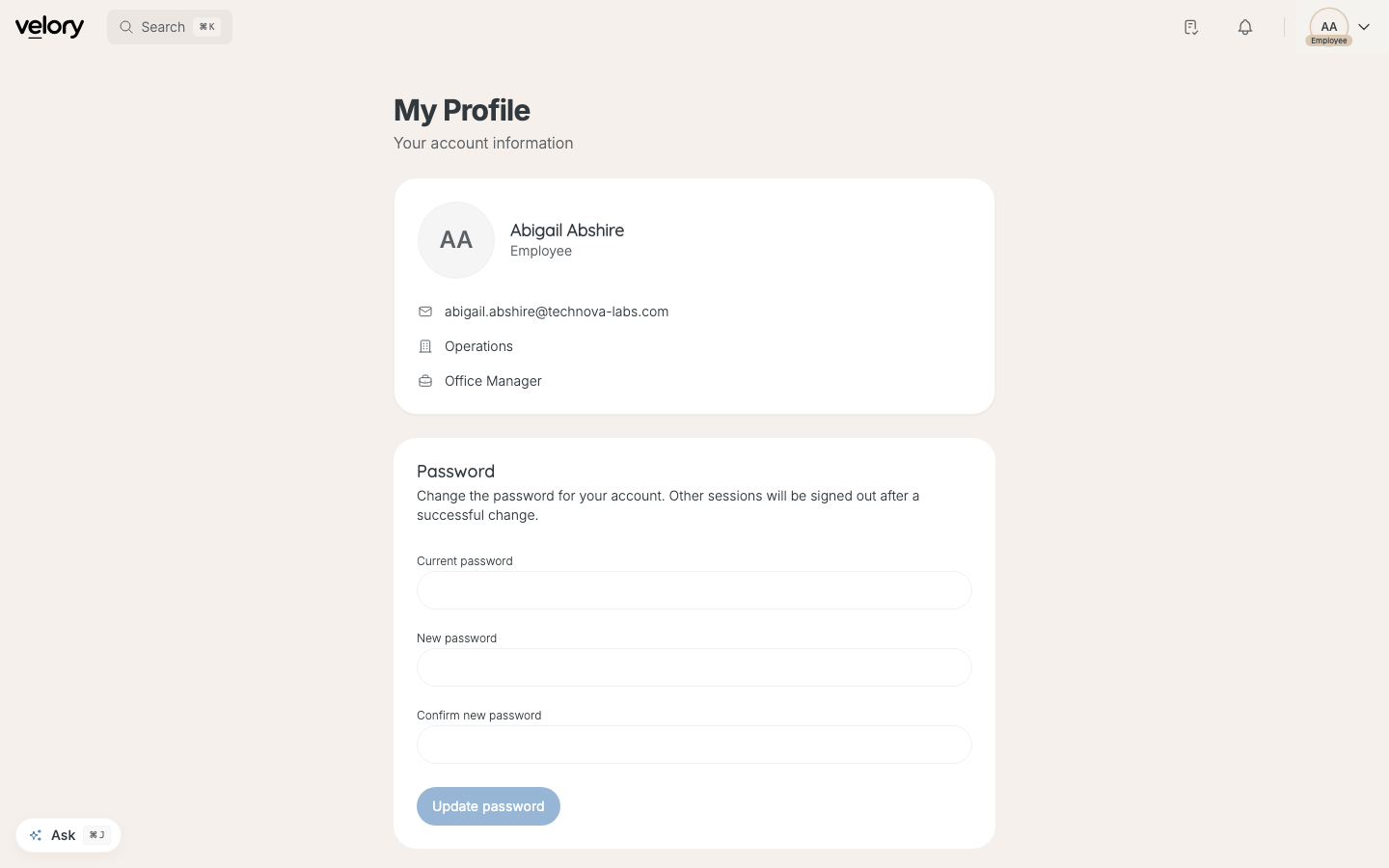
- To change your photo, upload a new one.
- To change your password, fill in Current password, New password and Confirm new password, then select Update password. Other sessions are signed out.
If your company signs in with SSO, there is no password here. Your identity provider manages it.
Good to know
I signed up through an onboarding link and have no password
On the sign-in page, select Forgot password? to set one. See How do I sign in to Velory?.
I connected Slack but nothing arrives there
Most likely your company keeps chat switched off for those notifications, which is the default. Ask your IT admin. Notifications that fall on a weekend are not sent either.
Several tasks arrived as one email
That is deliberate. Tasks created together arrive as one row each in the bell, but as a single email and a single chat message, collected over five minutes.
Why are notification settings under Connected AI clients?
Both are your personal settings and share one page; the account menu links to it as Connected AI clients. Select Notifications in its sidebar.
What is Connected AI clients?
It connects an AI assistant such as Claude or ChatGPT to your Velory account. See How do I connect an AI assistant to Velory?.
Was this article helpful?