How do I add an employee manually?
Adding one person is a single dialog. It is the right route for a one-off hire, or for building a small roster before you connect an HR system.
Before you begin
You need Admin access. Scoped admins cannot add employees — ask a company-wide admin, and the new person appears in the scoped admin's view once they are in the right group. Managers cannot add employees either.
Add a new employee
- Go to Employees → Employees.
- Click Add Employee, top right.
- Select Add single employee.
- Fill in the fields.
- Click Add Employee.
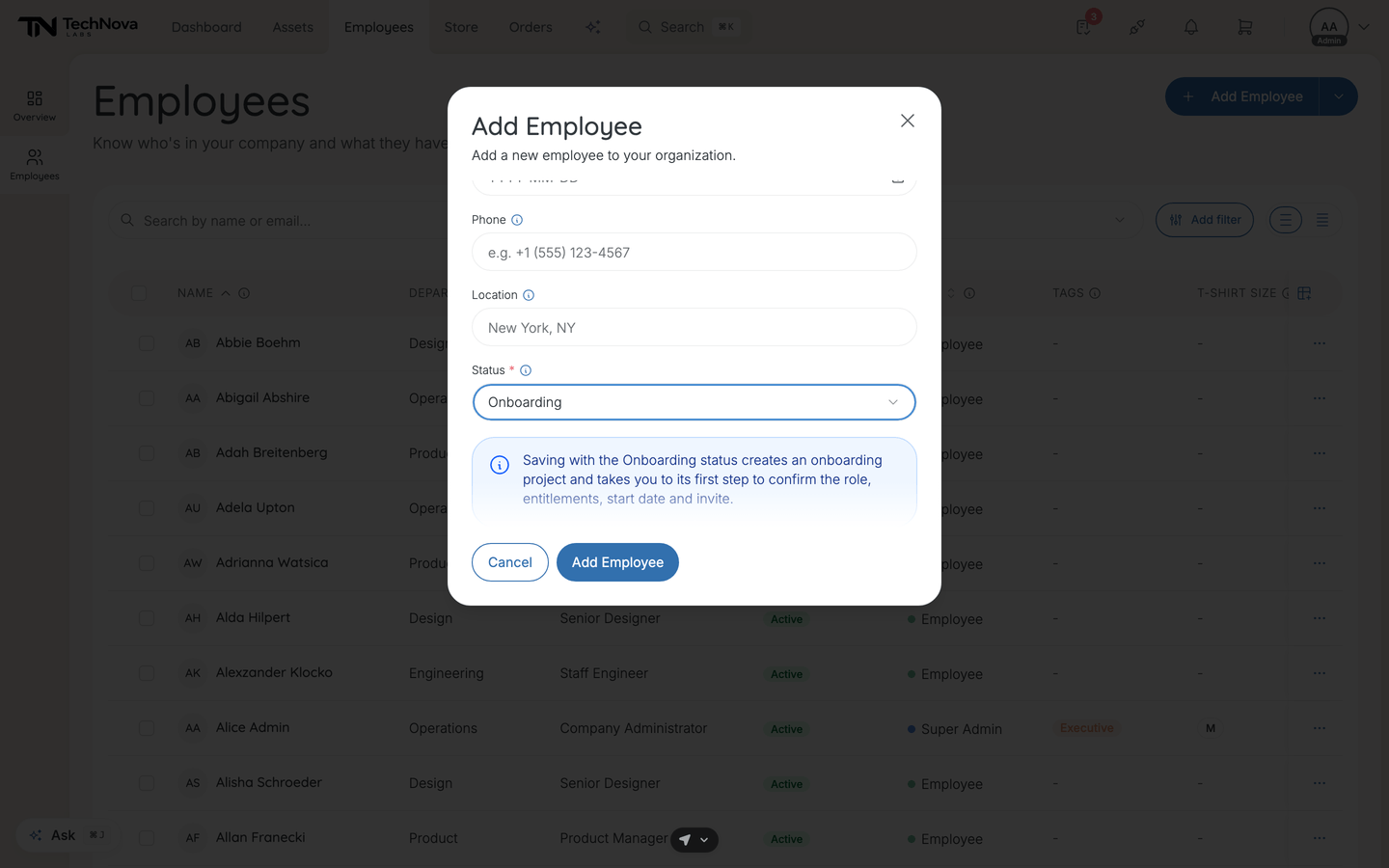
The fields
| Field | Required | Description |
|---|---|---|
| Yes | Work email — their login, where notifications go, and how Velory identifies them | |
| First Name | Yes | |
| Last Name | Yes | |
| Department | No | See below — it can do more than label them |
| Job Title | No | Suggests titles other people already have; type a new one freely |
| Start Date | No | When they start or started |
| Phone | No | The delivery contact number for their equipment |
| Location | No | Where they are based |
| Status | Yes | Their initial status. There is no default — the dialog will not submit without one |
Four required fields, not three. Status is the one people miss, because it sits at the bottom of the form under the optional ones.
Department does two different things
When your company has department groups in its org structure, the dropdown lists those, and picking one makes the person a real member of that group — not just a text label. When it has none, the dropdown offers the department names other employees already use, as autocomplete. Either way you can type something new.
What happens after you save
The dialog closes and the list refreshes with the new person on it. You are not taken to their detail page — open them from the list if you want to keep filling in their record.
One exception, and it is the useful one: if you set Status to Onboarding, Velory also creates an onboarding project for them and takes you straight to its Confirm new-hire trigger step, where you set the start date, the entitlement that applies and the invite. An information note appears in the dialog as soon as you pick that status, so it does not come as a surprise.
No invitation is sent by simply creating someone. See below.
Good to know
When should I use this rather than a file import?
For one or a few employees. An import is worth the setup from about ten upwards, and it can start onboardings per row. See How do I import employees from a file?.
What about connecting an HR system?
If you run BambooHR, Hailey HR or HiBob, or a directory like Google Workspace or Microsoft Entra ID, connect it. New hires and departures are then reported to you rather than retyped. Add Employee → Connect HRIS/Directory takes you to Settings → Integrations, filtered to HR systems. See Integrations.
Can I add the same person twice?
No. The email address is the identifier, and a duplicate is refused with a message saying so.
How do I give them a login?
Two ways, and they are not the same:
- Start onboarding — creates an onboarding project and invites them to choose their equipment. Use it for a new hire.
- Invite to set password — creates the account and sends a link straight to the set-password screen, with no equipment to choose. Use it for someone who only needs access to Velory.
Both are in the row menu on the employee list.
The group assignment failed but the person was created
That is on purpose. A failed group assignment is reported as a warning rather than rolling back the whole creation — add them to the group from their profile or from the list.
Was this article helpful?