How do I view and edit an employee's details?
Each person has a detail page: their information, what they hold, which groups they are in, and everything that has happened to them. It is also where an offboarding is started.
In this guide
Before you begin
You need Admin access to edit. Managers can read the page. A person can see and edit their own avatar; the rest of their record is read-only to them.
What is at the top
The header carries their avatar, name, job title and a status badge, with a back link to the employee list — or to Organization, if that is where you came from.
Manage, top right, holds the lifecycle actions. Today that means offboarding: Start offboarding for anyone who is not already Inactive, or View offboarding when one is already open. The menu hides itself when there is nothing to offer, so an Inactive person with no open offboarding has no Manage button at all.
Below the header, an information banner appears when the person has an onboarding or an offboarding in progress, linking straight to it. Both pending and active projects count, so a hire staged from an HR event is reachable from their profile before anyone has confirmed it.
The tabs
| Tab | What it holds | When it appears |
|---|---|---|
| Details | Their record, in sections | Always |
| Hardware | Devices assigned to them, with a count | Always |
| Software | Licences they hold, with a count | Always |
| Software Ownership | Services they are the named owner of | Only when they own at least one |
| Mobile Subscriptions | Phone subscriptions | With full platform access and the mobile feature |
| AI Agents | AI assistants assigned to them | With the AI agents feature |
| Groups | Their place in the org structure, their groups, and their company-wide role | Always |
| Lifecycle | The asset-lifecycle history behind their record | Always |
| Notes | Notes, plus Private Notes visible only to administrators | Only when they have a linked asset |
| Activity | Everything that has happened | Only when they have a linked asset |
The Mobile Subscriptions tab does not list anything yet. It renders its table and its Add button, but no subscriptions are loaded into it and the button reports that the feature is coming. Mobile subscriptions are managed from Assets in the meantime.
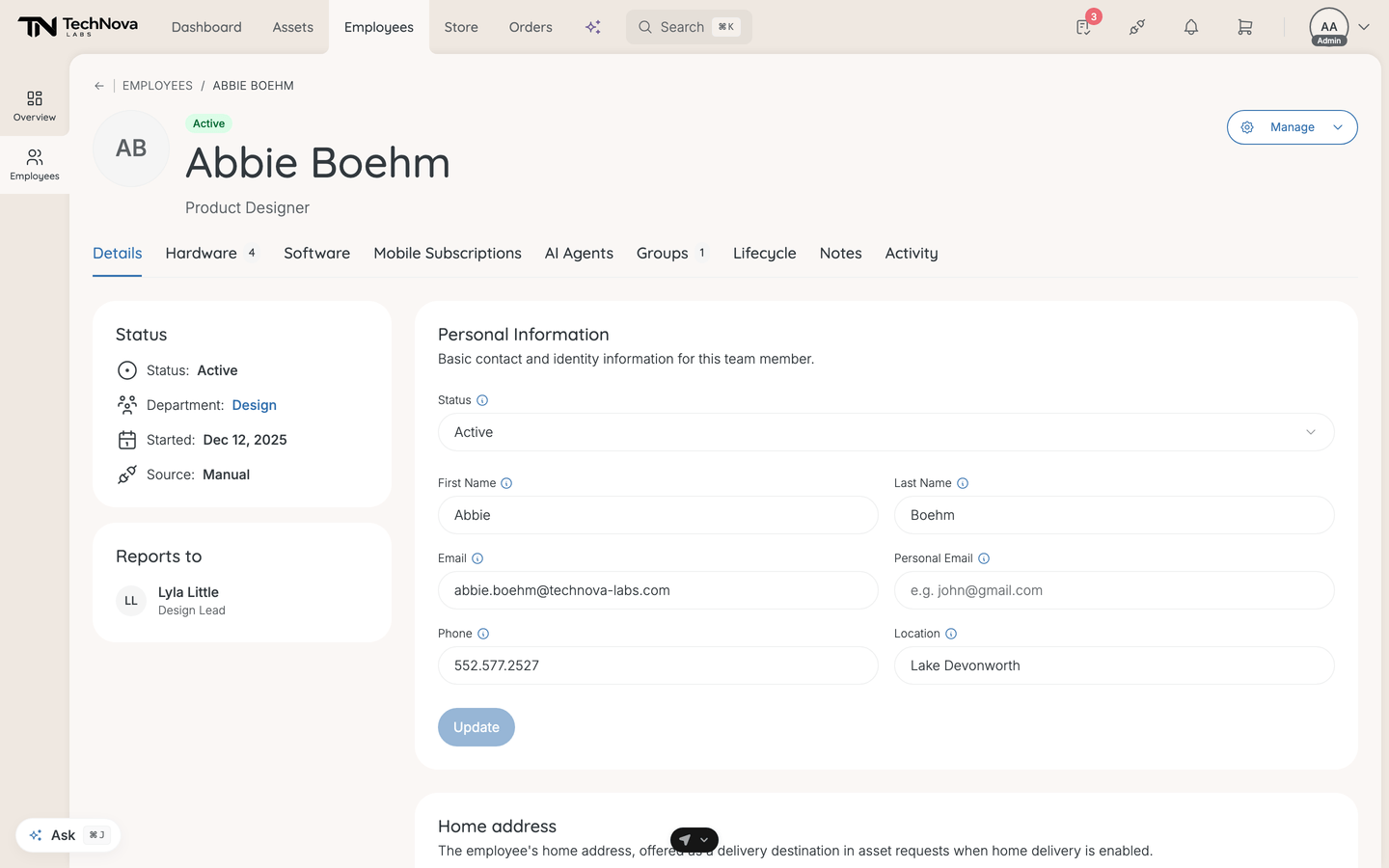
The Details tab
The left column
A Status card with the essentials — Status, Department, Started, Last day and Source — and, when they have a manager, a separate Reports to card naming that person and their job title. Rows appear only when there is something to show, so a manually created person with no manager and no start date shows little more than their status. Source reads Manual for a record you created and names the integration otherwise, with the last sync time in its tooltip.
Personal Information
Status, First Name, Last Name, Email, Personal Email, Phone, Location.
Status sits here rather than under Employment Information, which is the one field people go looking for in the wrong section.
Personal Email earns its keep in two places: it is matched when you import or sync employees, so someone whose record came from a private address is still recognised by their work one, and it is a way to keep a contact address for a leaver. Velory never sends to it — offboarding invites go to the work email.
Employment Information
Job Title, Department, Manager, Start Date, End Date, Cost Center, Employee Number.
The Manager picker is admin-only and edited here rather than on a separate form. It offers the first hundred employees in your company alphabetically, so in a large company the person you want may not be in the list.
Home address
Street address, apartment or suite, city, state or region, postal code, country. It is offered as a delivery destination on asset requests when home delivery is enabled — and a partial address is refused, because it cannot be shipped to. You need at least a street address, a city and a postal code.
Sync Information
Shown for a record an integration created or maintains: Sync Status (Synced, Pending, Conflict or Manual), Integration, Last Synced, External ID and Employee ID.
Custom Attributes
Any extra fields your company has defined for employees, with a link through to manage them. See How do I use custom attributes on employees?.
Each section saves on its own Update button.
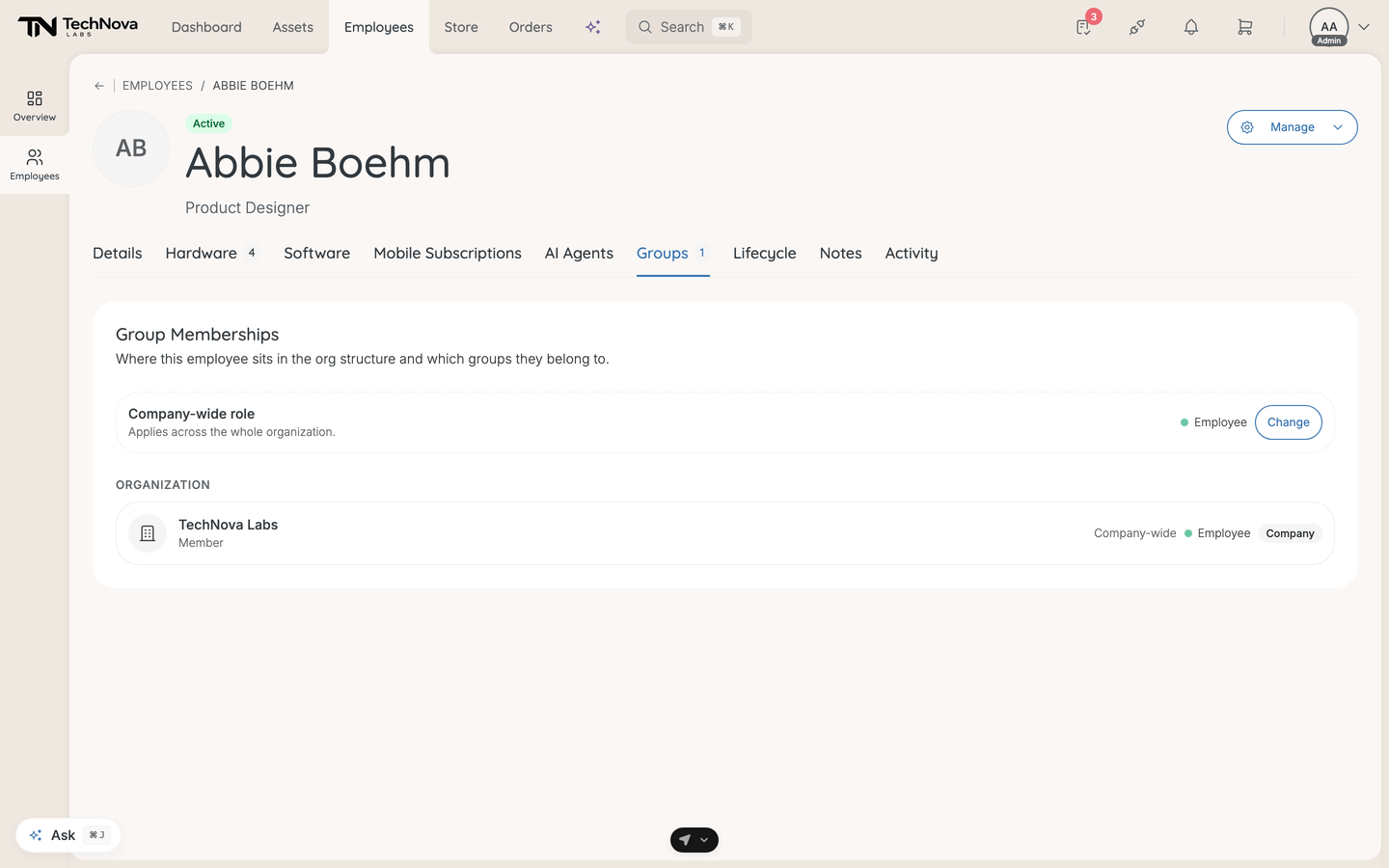
The Groups tab
Headed Group Memberships. Organization shows where they sit in the structure, each row carrying their membership and its group type; a Groups section follows when they belong to any non-structural groups.
Above both, Company-wide role shows the role that applies across the whole organisation, with Change or Assign role next to it. Only a company-wide admin can assign a role — a scoped admin sees the role but not the control, and cannot grant a role higher than their own. See How do I assign roles?.
The Activity tab
A chronological log built from the person's own record, the devices they hold, and their requests and orders — status changes, field updates, assignments, syncs and note edits. Edits to Private Notes appear only for administrators.
Good to know
What if a field is locked?
A field an integration owns shows as locked and says which source manages it. Change it in that system and it syncs back. Disabling the source in Velory unlocks the field again. Status is never locked — it stays yours whatever else is synced.
How do I delete someone?
From the employee list, not from here. Open the row menu on their name and choose Delete. There is no delete on the detail page.
Can I upload a photo?
Yes — click the avatar. Administrators can do it for anyone; everyone else only for themselves.
There is a separate edit form. What is it for?
A full-page version of the same record, reachable from View / Edit, including the Primary Group field that the inline sections do not carry. Everything else is editable in place on the Details tab.
Why can I not see the Notes and Activity tabs?
They hang off the person's linked asset record. A person without one — unusual, but it happens with partially created records — has neither tab.
Why is a role shown but not changeable?
Either you are a scoped admin, or the role was granted at a scope you do not administer. Roles are managed in Settings.
Was this article helpful?
Related articles
How do I use custom attributes on employees?
Employee Management
How do I organise employees with groups?
Employee Management
How do I view and manage employees?
Employee Management
How do employee statuses work?
Employee Management
How do I use tags on employees?
Employee Management
How do I start an offboarding?
Employee Management