What is MDM and how does it work in Velory?
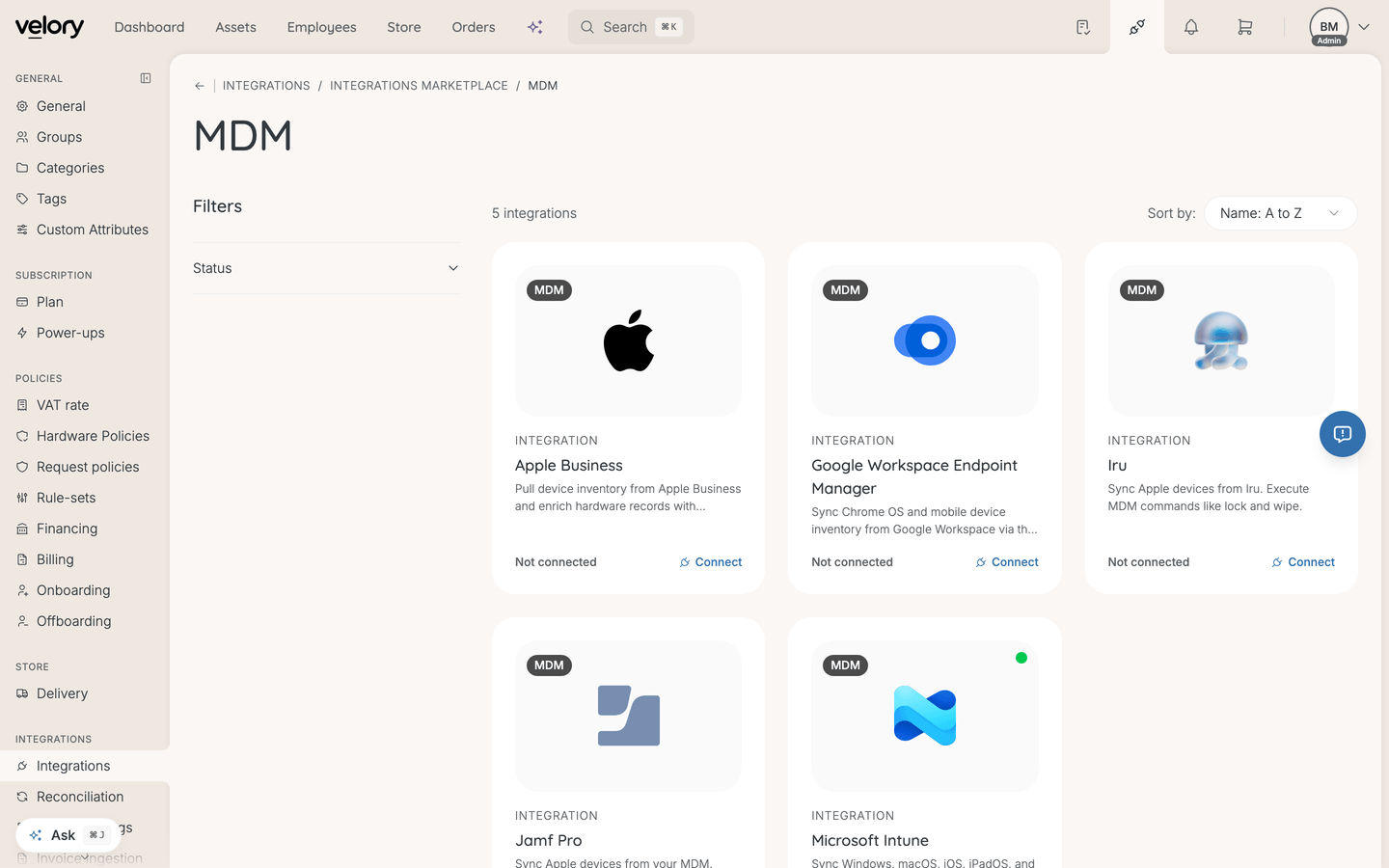
Mobile Device Management (MDM) lets you automatically import and sync your managed devices with Velory. Once connected, enrolled devices appear without manual entry, stay up to date, and you can perform remote actions like locking, wiping, and revealing recovery keys — all from within Velory.
Supported providers
| Provider | Sync | Remote actions |
|---|---|---|
| Microsoft Intune | Yes | Lock, Lost Mode, Wipe, Recovery Key |
| Jamf Pro | Yes | Lock, Lost Mode, Wipe, Recovery Key |
| Iru | Yes | Lock, Lost Mode, Wipe, Recovery Key |
| Google Workspace Endpoint Manager | Yes (read-only) | Not available |
How to connect
Each provider has its own setup process. See the dedicated guide for your provider:
- Microsoft Intune — uses Microsoft's OAuth flow (sign in and grant permissions)
- Jamf Pro — uses API credentials generated in the Jamf Pro console
- Iru — uses an API token from the Iru admin portal
Test and sync
After connecting any provider, you should verify the connection and run the initial sync:
- Click Test Connection to verify that Velory can reach your MDM. A success message shows your organisation name and device count.
- Click Sync Devices to start the initial import. A progress bar shows real-time status as devices are processed.
The sync creates new hardware records in Velory for each enrolled device. Device details like serial number, OS, model, and encryption status are imported automatically.
Tip: After the initial sync, Velory keeps your devices up to date on its own. Device connections re-sync every hour, so newly enrolled devices appear and changes to existing ones follow without anyone clicking anything.
Polling is the only change feed a device platform offers, so Recurring sync — the switch on the Sync activity card — is on by default for these connections. It is there to stop the hourly sync, not to start it. Jamf Pro has no switch, because it has no background sync to schedule.
Good to know
Can I connect multiple MDM providers?
Yes. You can connect different providers (e.g. Intune for Windows devices and Jamf for Macs) or multiple tenants of the same provider. Use labels to tell them apart.
What if a device is in both my MDM and already in Velory?
Velory's reconciliation settings determine how synced devices are matched to existing records. You can configure auto-merge and auto-create policies in the integration settings.
Does the MDM sync delete devices from Velory?
No. If a device is removed from your MDM, it stays in Velory. You can delete it manually if needed.
Can I use Velory without an MDM?
Absolutely. MDM integration is optional. You can add devices manually or via file import and manage them entirely within Velory.
Was this article helpful?