How do I connect Iru?
Updated last monthSara AhlénIntegrations
Iru uses an API token that you generate from the Iru admin portal and enter in Velory.
In this guide
Before you begin
- You need Admin access in Velory.
- You need admin access to the Iru admin portal to create API tokens.
Create an API token in Iru
- Log in to the Iru admin portal.
- Go to API settings.
- Create a new API token.
- Note your subdomain and region (US or EU).
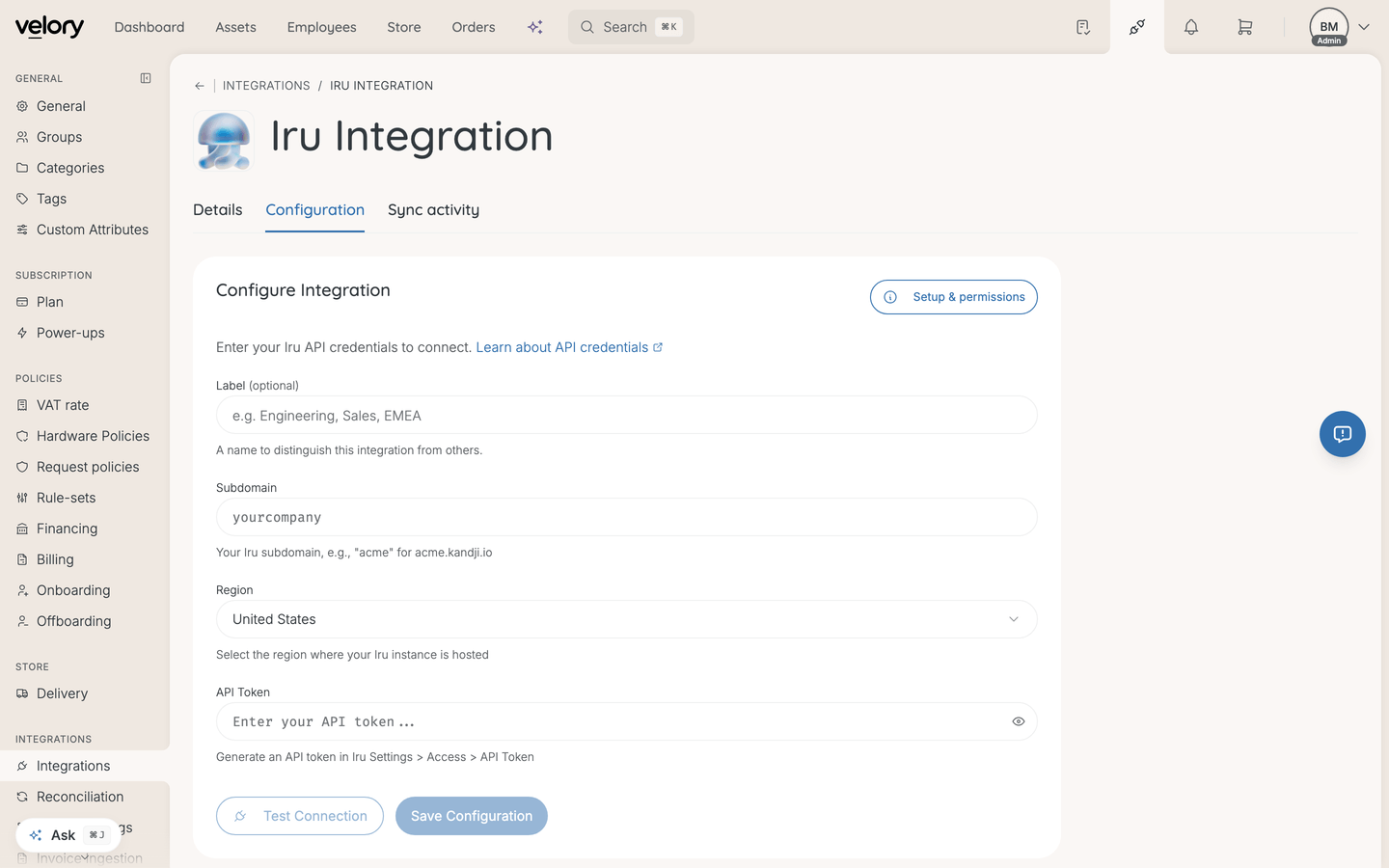
Connect Iru in Velory
- Go to Settings → Integrations.
- Click Explore marketplace.
- Open the MDM category, find Iru, and click Connect.
- Fill in:
- Subdomain — your Iru organisation subdomain
- Region — US or EU
- API Token — the token from Iru
- Label (optional) — an identifier for this connection
- Optionally enable Track check-ins to monitor device check-in status.
- Optionally enable Backdate enrollment to set enrollment dates to actual device acquisition dates.
- Click Connect to Iru.
After connecting
- Click Test Connection to verify that Velory can reach your Iru instance. A success message shows your organisation name and device count.
- Click Sync Devices to start the initial import.
Once synced, your Iru-managed devices will appear in the hardware list.
Good to know
What does "Track check-ins" do?
When enabled, Velory monitors when devices last checked in with Iru. This helps you identify devices that may be offline or inactive.
What does "Backdate enrollment" do?
When enabled, Velory sets the enrollment date to the actual device acquisition date from Iru rather than the date it was synced to Velory.
Was this article helpful?