How do I connect Microsoft Intune?
Updated last monthSara AhlénIntegrations
Intune uses Microsoft's OAuth flow — you sign in with your Microsoft account and grant Velory permission to read and manage your devices.
Before you begin
- You need Admin access in Velory.
- You need a Microsoft account with sufficient permissions to grant consent, or access to a Global Admin who can approve.
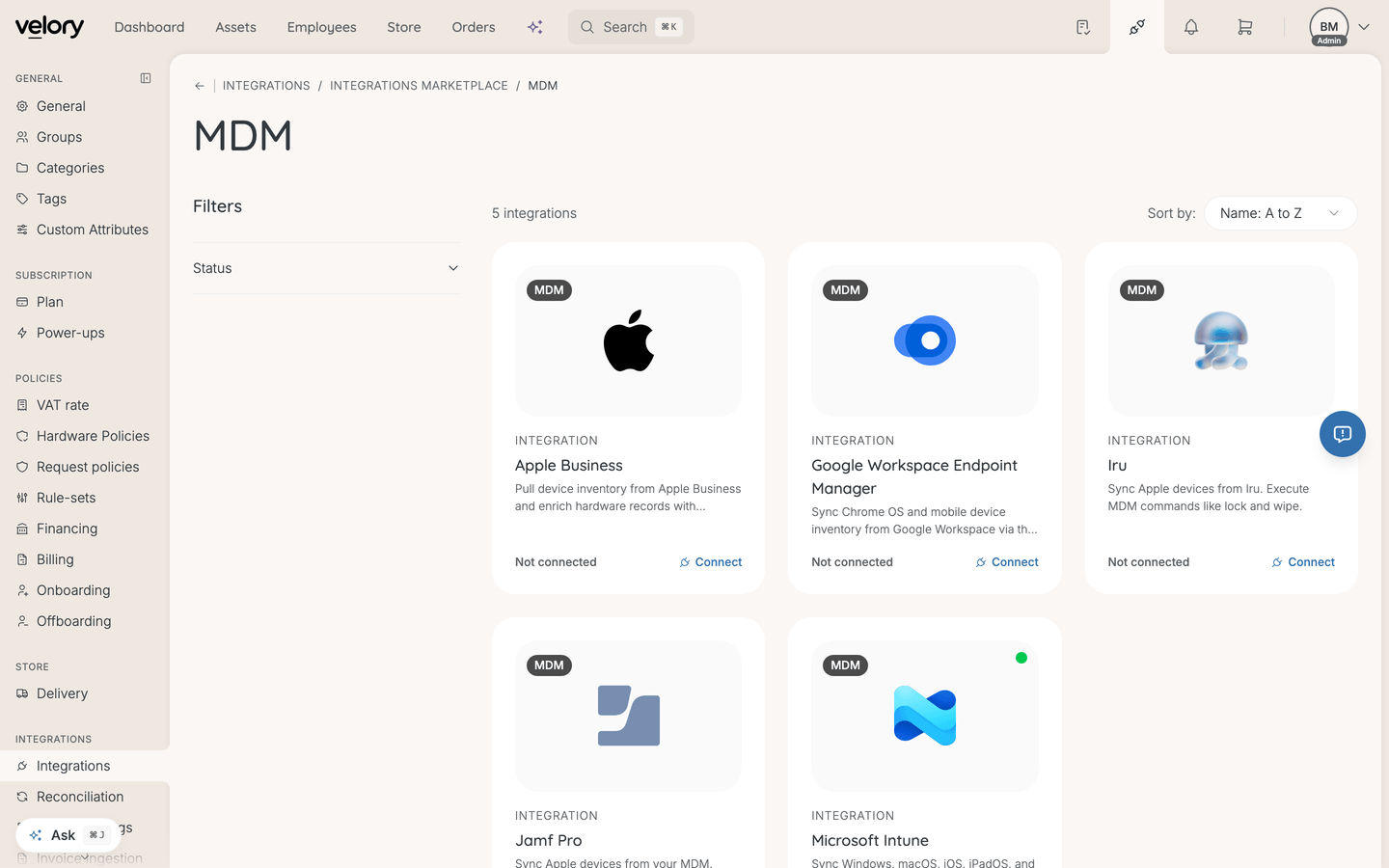
Connect Intune
- Go to Settings → Integrations.
- Click Explore marketplace.
- Open the MDM category, find Microsoft Intune, and click Connect.
- Open the Configuration tab. The page opens on Details, which shows connection status but no connect action.
- Optionally enter a Label (e.g. "Production Tenant") to identify this connection. Required if you connect more than one tenant.
- Click Connect to Microsoft.
- Sign in with your Microsoft account and grant the requested permissions:
- Read devices and device properties
- Run privileged operations on devices
- Read organisation name
- You are redirected back to Velory.
Note: If you see "Admin consent required", a Microsoft Global Admin needs to approve the connection. This is a Microsoft tenant policy — contact your IT team.
After connecting
- Click Test Connection to verify that Velory can reach your Intune tenant. A success message shows your organisation name and device count.
- Click Sync Devices to start the initial import.
Once synced, your Intune-managed devices will appear in the hardware list.
Good to know
Can I connect multiple Intune tenants?
Yes. Add a label to each connection to tell them apart. The label is required for the second connection onwards.
What permissions does Velory need?
Velory requires read access to devices and device properties, permission to run privileged operations (for remote actions like lock and wipe), and read access to the organisation name.
Was this article helpful?