How do I connect Apple Business?
Apple Business knows what Apple hardware your organisation bought, and from whom. Connecting it pulls that device inventory into Velory and enriches hardware records with procurement data — purchase dates and reseller details that an MDM does not have.
In this guide
Before you begin
- You need Admin access in Velory.
- You need the Organization Administrator role in business.apple.com. Only that role can create API accounts.
Apple Business is a procurement source, not a management one. It complements Jamf Pro or Iru rather than replacing either — see What is MDM and how does it work in Velory?.
Create an API account in Apple Business
- Sign in to business.apple.com and go to Settings → API.
- Select Add API Account and enter a name, for example "Velory".
- Under Role Access, choose a role, then select Next:
- Device API Manager, if your organisation has it. Apple created this role for organisations that already had API accounts when they moved from Apple Business Manager.
- Device Enrollment Manager otherwise. Every organisation has it.
- Or a custom role with only the permission Velory needs — see Which role should I choose?.
- Select Generate & Download to save the private key.
- Select Edit on the new account to see its Client ID and Key ID.
The private key is shown once. Download it before leaving the page — if you lose it you have to generate a new one.
Connect Apple Business in Velory
- Go to Settings → Integrations.
- Click Explore marketplace.
- Open the MDM category, find Apple Business, and click Connect.
- Open the Configuration tab. The page opens on Details, which shows connection status but no fields.
- Fill in:
- Client ID — from the API account
- Key ID — from the API account
- Private Key (PEM) — drop your
.pemfile on the upload area, click it to browse, or use …or paste the key directly
- Click Save Configuration.
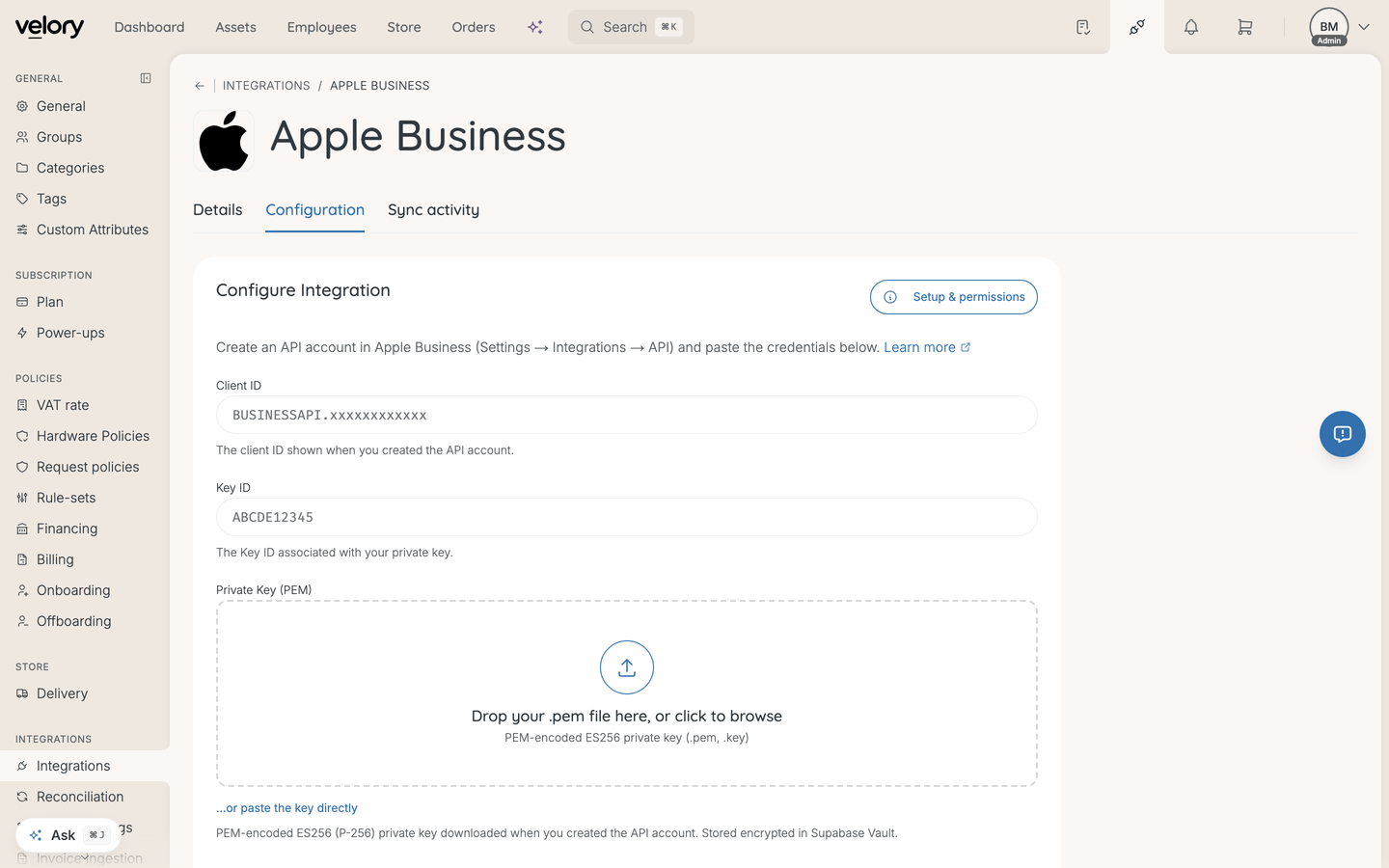
The private key is a PEM-encoded ES256 (P-256) key, so a .pem or .key file is what you are looking for. Velory stores it encrypted.
The Setup & permissions button on that tab repeats the roles and steps above, if you need them while switching between Velory and Apple Business.
Good to know
Which role should I choose?
Velory only reads from Apple Business: it reads what you own and when you bought it, and it does not change assignments or push commands. Apple Business gives each API account a role rather than read-only access, so the role decides what the account could do.
- Device API Manager and Device Enrollment Manager work without extra setup. Device Enrollment Manager can also release devices from your organisation and remove Activation Lock, which Velory never does.
- A custom role limits the account to what Velory needs. Go to Settings → Roles & Permissions, select Add next to Custom Roles, and under Devices turn on only View device management services, manage default platform assignment, and add devices with Apple Configurator. Apple may add related permissions automatically when you save. Then choose this role when you create the API account.
Whichever role you choose, it needs that permission. Without it, Velory cannot read your devices or device management services (MDM servers).
Can I use this instead of Jamf Pro or Iru?
No. Apple Business tells you which devices you bought. It does not manage them, and it does not issue lock or wipe commands. For device management you still need Jamf Pro or Iru.
This shows up in the data too: devices imported from Apple Business are not marked as MDM-managed, even though Apple Business sits in the MDM category in the marketplace. A device only counts as managed once a real MDM reports it.
How do imported devices reach my hardware list?
As reconciliation candidates, like other device imports. See How do I reconcile imported hardware?.
Devices from Apple Business arrive unassigned — they land as Available for use or Inactive rather than attached to an employee, because a procurement record says what you own, not who has it. Assigning them is a separate step.
What if I need to change the credentials?
Use Replace on the private key field, or Clear to remove it, then save again. You do not need to remove and re-add the whole integration.
How do I disconnect it?
The same way as any MDM connection — see How do I remove an MDM connection?.
Was this article helpful?