How do I disconnect an HR integration?
Disconnecting stops the sync. It does not delete the employees the integration already brought in.
Disconnecting a directory instead? See How do I disconnect a directory integration?.
Before you begin
You need Admin access. Know what changes first: fields the integration owned become editable by hand again, which means nothing keeps them matching your HR system afterwards.
Disconnect the integration
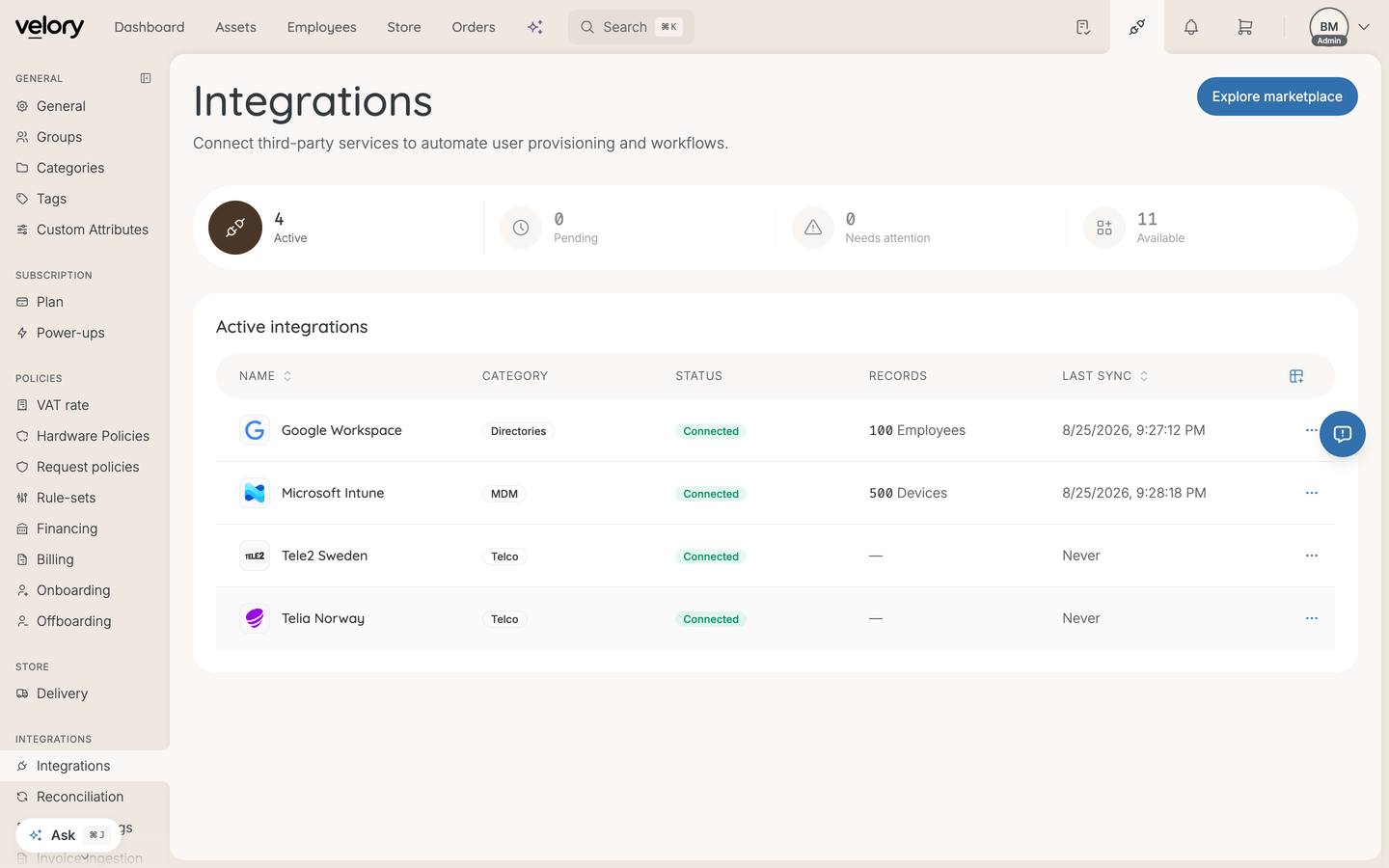
- Go to Settings → Integrations.
- Open the connected provider from Active integrations.
- Click Disconnect.
- Confirm.
What changes afterwards
- Syncing stops — no more webhook updates or manual syncs from this provider.
- Employees are kept — everyone already imported stays in Velory, neither deleted nor deactivated.
- Fields unlock — anything that showed "Managed by [Source]" becomes editable, and the lock icon goes.
- History is preserved — past sync runs and reconciliation history remain for auditing.
Good to know
Can I reconnect later?
Yes. Go through the setup again and Velory runs a fresh first sync, matching imported employees against the records you already have. See How do I connect an HR integration?.
Will this affect employees' access to Velory?
No. Disconnecting an HR integration does not touch anyone's login or their Velory account. It only stops the data sync.
Should I disconnect, or just stop syncing a field?
If the goal is to own one field yourself, disable that field in the integration's field mappings and leave the connection alone — see How does HR syncing work?. Disconnect only when you want the integration gone.
I only want to change the credentials — do I need to disconnect?
No. Update the credentials on the existing connection. Disconnecting and re-adding loses nothing permanently, but it makes more work than it saves.
Was this article helpful?