How do I connect an HR integration?
Connecting an HR system lets Velory sync employees from the place that already records who works for you. Three providers are supported, and they authenticate differently.
Connecting HiBob? It has its own guide — HiBob integration guide — because nothing is entered in Velory at all: you approve Velory's marketplace app inside HiBob. This article covers BambooHR and Hailey HR.
Connecting a directory instead? See How do I connect a directory integration?.
In this guide
Before you begin
- You need Admin access in Velory.
- BambooHR — an account that can grant access during the sign-in flow.
- Hailey HR — the ability to create a Personal Access Token there. Who is allowed to create tokens varies by account, so check if you are unsure.
If this is your second employee source, set your field mappings before you sync rather than after. How do integrations work in Velory? covers the order.
Connect the integration
- Go to Settings → Integrations.
- Click Explore marketplace.
- Open the HR category and click Connect on the provider you want.
BambooHR
- Open the Configuration tab. The page opens on Details, which shows status but no connect action.
- Click Connect.
- You are redirected to BambooHR's sign-in page.
- Sign in and grant Velory the requested access.
- You are redirected back to Velory, and the integration shows as Connected.
Hailey HR
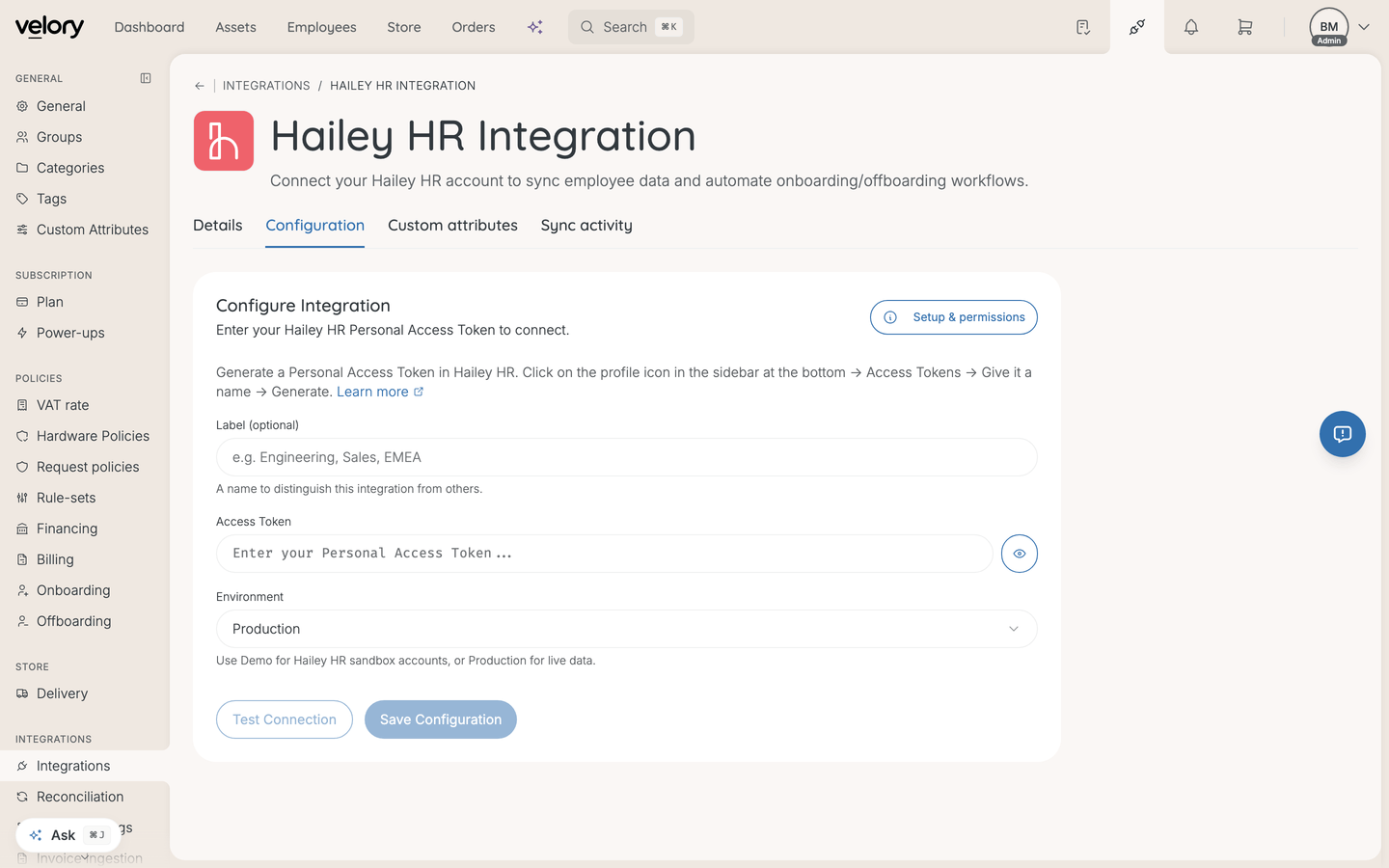
- Generate a Personal Access Token in Hailey HR's settings.
- Paste the token into the form in Velory. Everything is on one page — there are no tabs to switch between.
- Click Connect. Velory verifies the token before saving, so an invalid one is rejected straight away.
After connecting
Do these before the first sync, not after:
- Test the connection — confirm the credentials work and Velory can reach the provider.
- Set field mappings — choose which fields this integration fetches. See How does HR syncing work?.
- Check the reconciliation policy — auto-merge and auto-create are both on by default, so a sync will write records without asking.
- Then trigger the first sync.
Set up webhooks (optional)
BambooHR and Hailey HR both support webhooks, which is what makes updates near-instant rather than waiting until you sync again. (HiBob needs no setup here — HiBob creates the subscription itself when you install Velory's app.)
- Copy the webhook URL from the integration detail page in Velory.
- Add that URL in your provider's settings.
- Choose which events to send — employee created, updated, deleted.
- If Velory shows a signing secret or credentials, configure those in the provider too.
Add a label
If you connect two accounts from the same provider, give each a distinct label. It appears on integration cards and in sync history, and without it the two are hard to tell apart.
Good to know
What permissions does Velory need?
Read access to employee data. The sync is one-way — Velory does not write back to your HR system.
Can I connect more than one HR system at the same time?
Yes — any combination of BambooHR, Hailey HR and HiBob, and you can run an HR system alongside a directory too. Each integration syncs independently, and field mappings decide which source wins for any field they both provide.
What if the connection fails?
The integration shows an Error status with a description. The usual causes are an expired token, revoked access, or a credential rotated in the provider. Update the credentials on the existing connection rather than removing and re-adding it.
Was this article helpful?
Related articles