HiBob integration guide
Overview
Velory's HiBob integration keeps your Velory employee directory in step with HiBob, so hardware and licences can be assigned, reclaimed and reported against people HR already maintains.
- One-way. Employee data flows from HiBob into Velory. Velory holds read access only and never writes back — HiBob stays the system of record.
- Two read scopes. Velory requests View employee data and View company metadata — the list of which fields your tenant has, so you can map them. Salary, documents, national identifiers and employment history are never requested.
- Near-real-time. After the first sync, HiBob notifies Velory when someone changes and Velory re-reads that person within seconds. There is no webhook for you to configure.
- Installed as a marketplace app. You approve Velory inside HiBob. There is no API key or service-user token to create — the one HR provider where you enter no credentials at all. For BambooHR and Hailey HR, see How do I connect an HR integration?
What it syncs, in short: names, work and personal email, phone, job title, department, site, manager, employee number, start and end dates, lifecycle status and home address. Departments can also be turned into Velory groups. Profile photos are not synced.
In this guide
Before you begin
- Velory: the Admin or Owner role, granted company-wide. A group-scoped admin assignment is not enough.
- HiBob: an account that can install a marketplace app and approve the permissions it requests.
- HiBob is still being rolled out. If you cannot see it in the marketplace, it is not enabled for your workspace yet — contact support.
- If HiBob is your second employee source, decide your field priorities before the first sync rather than after. How do integrations work in Velory? covers the order.
Installation steps
Velory is installed in HiBob's Install from your landing page mode. Velory is listed in the Bob Marketplace and you can start from either side, but the install itself always happens in Velory: HiBob's Install button hands you over rather than running consent in Bob. Both routes meet at the same page and the consent screen is HiBob's own.
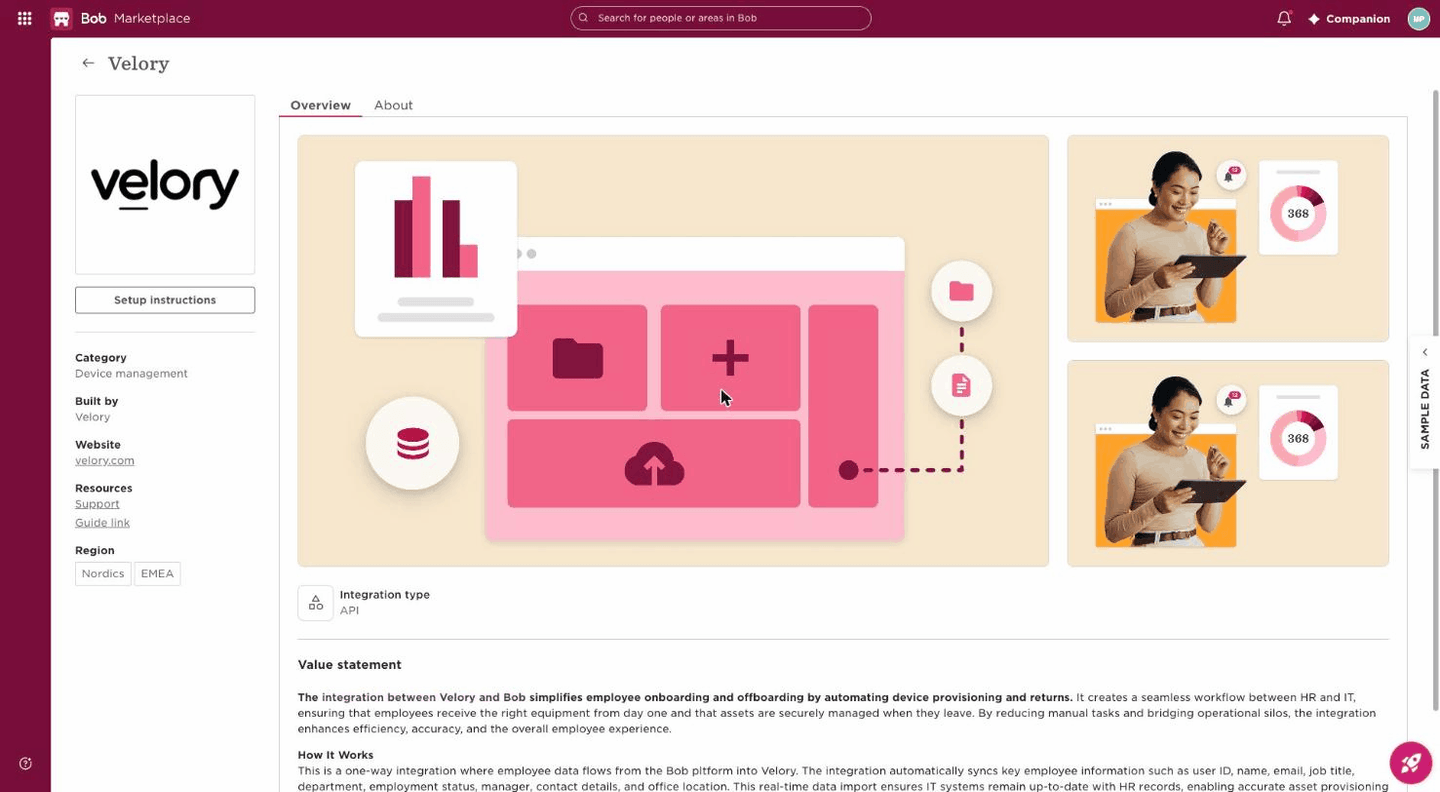
Installing from the Bob Marketplace
Velory's listing carries an Install button, but it does not approve anything on its own. In landing-page mode Bob's job is the handover: Install sends you to Velory, and the permission screen comes later, once Velory starts the request. Nothing is granted until you approve it there.
- In Bob, open Marketplace and find Velory.
-
Click Install. Bob asks for no permissions here. It sends you to Velory's landing page for this integration:
https://velory-next.com/company/settings/integrations/hibob -
Sign in to Velory if you are not already. You arrive on the integration page's Details tab.
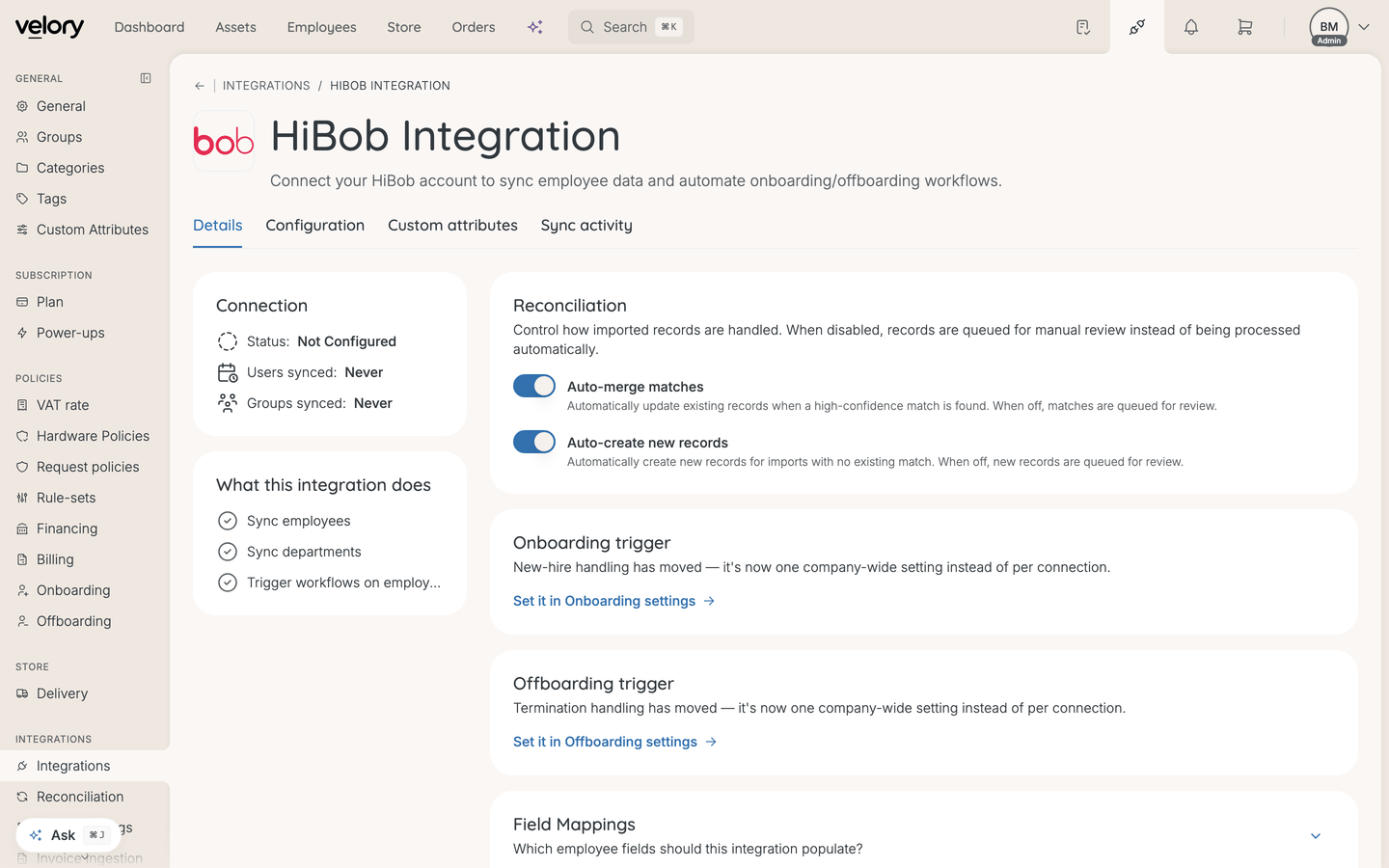
- Open the Configuration tab and continue from step 4 under Installing from Velory.
Uninstalling always happens in Bob, whichever way you installed.
Installing from Velory
You do not have to start in Bob. To go straight there:
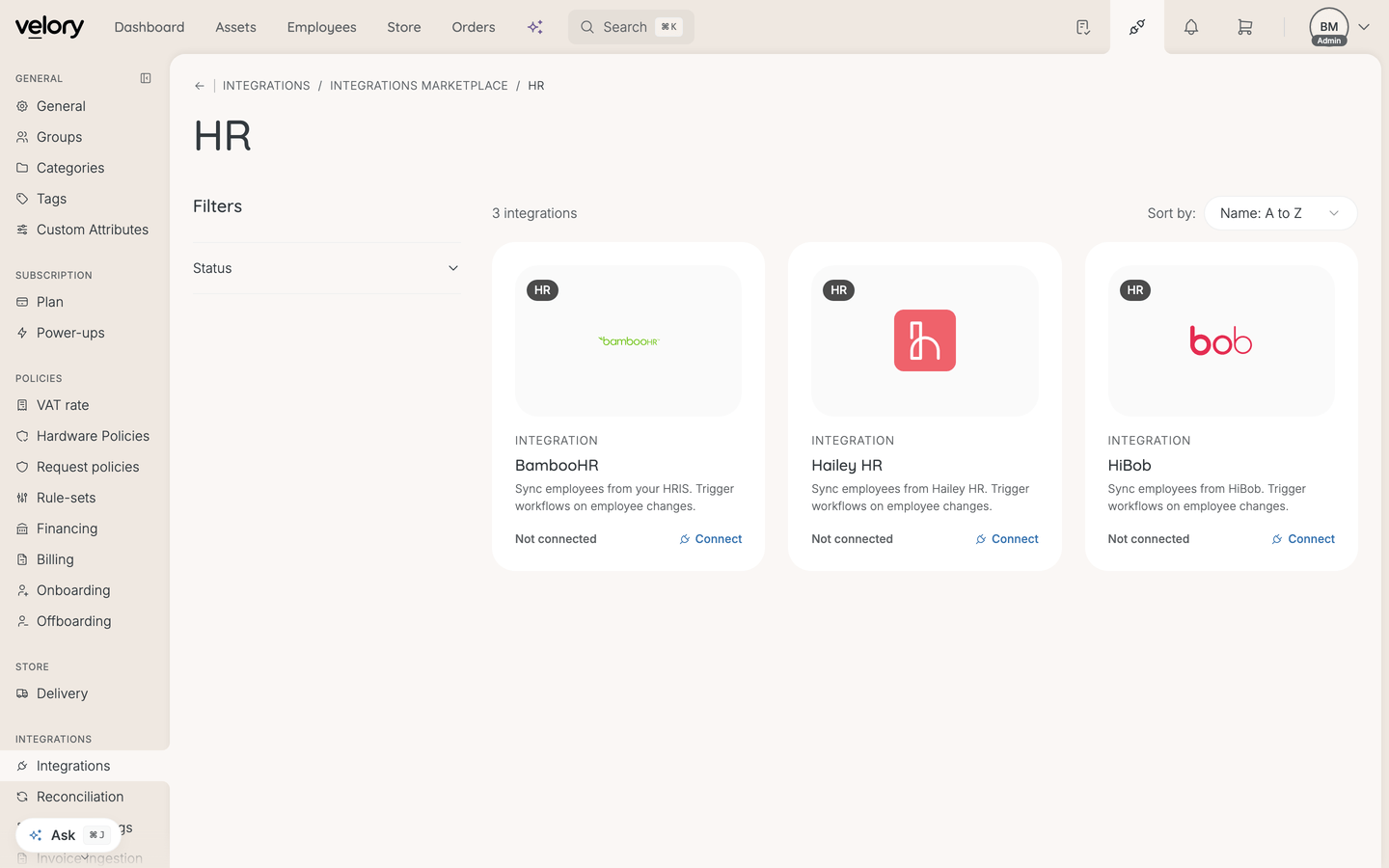
- Go to Settings → Integrations and click Explore marketplace.
- Open the HR category and click Connect on HiBob.
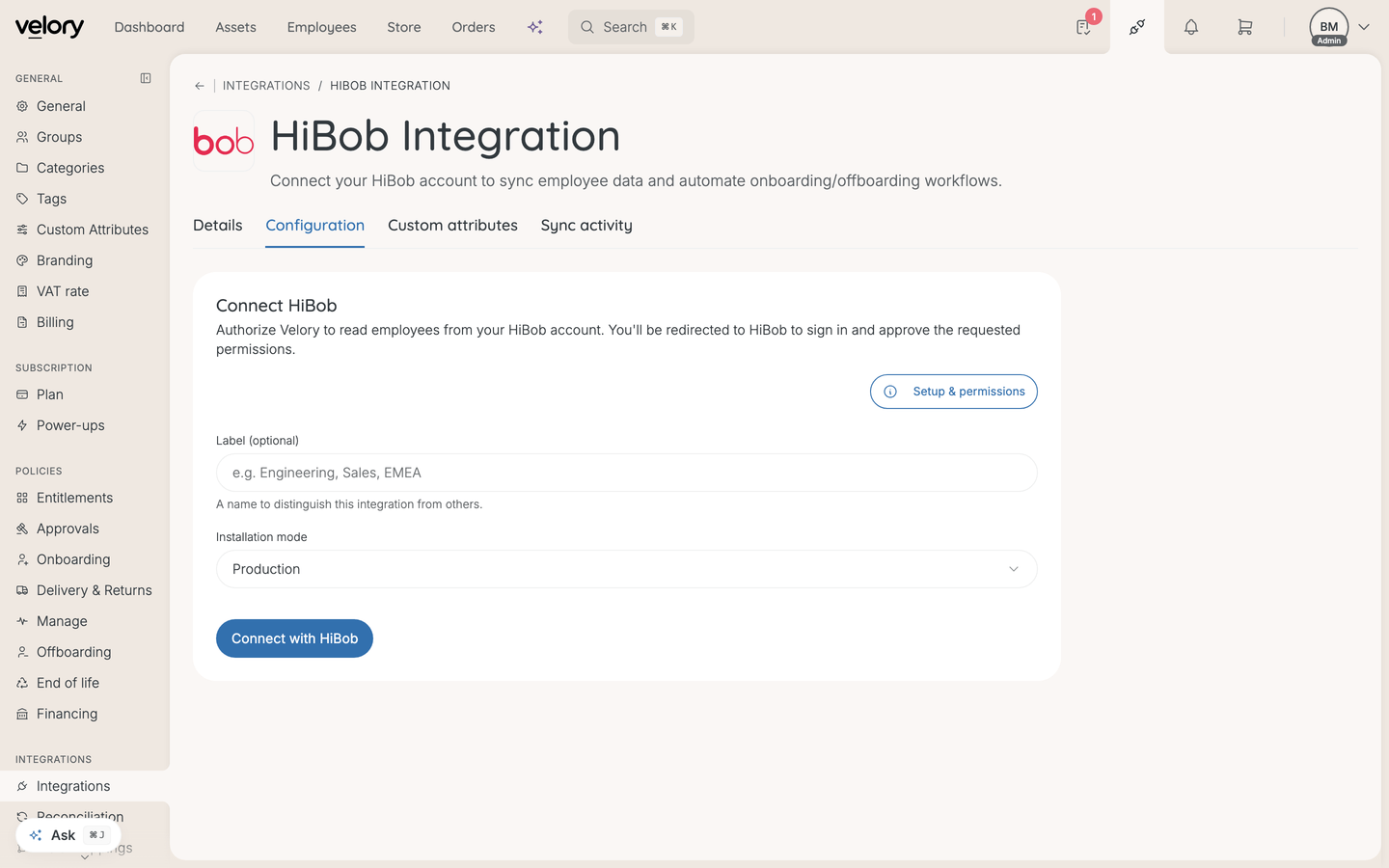
- Open the Configuration tab. The page always opens on Details, which shows status but carries no connect action.
- Label is optional for a first connection. Leave it empty unless you plan to connect more than one HiBob account. If you do use one, pick a label no other HiBob connection uses — a duplicate is only rejected after you have already approved in HiBob, and the message you get back is generic.
- Leave Installation mode on Production unless Velory support tells you otherwise. This choice is permanent for the connection: Reconnect always re-authorizes in the mode the connection was created with, and there is no way to change it afterwards short of removing the connection and starting again.
- Click Connect with HiBob and sign in to HiBob.
- Approve the permissions HiBob shows you.
- When HiBob asks whose data Velory may access, choose All company — see below.
- You return to Velory and the connection shows a Connected badge.
Finish the flow in the same browser you started it in, and while still signed in to Velory. The return trip is authenticated: completing consent in another browser or profile, or after your Velory session has lapsed, ends on a bare error page and the approval is lost.
A connection request expires ten minutes after you start it.
Choose "All company" for people data access
HiBob asks two separate questions during consent: which permissions Velory gets, and whose data those permissions cover.
Choose All company. Velory needs to see everyone it might assign a laptop or a licence to, and employees outside the audience you pick are invisible to it — as if they were not in HiBob at all. To sync only part of your company, use Velory's department scope instead, which you can change at any time. Changing the HiBob-side audience later means reinstalling the app in HiBob.
What Velory asks HiBob for
Velory requests two HiBob scopes, both read-only: View employee data — employee profiles and org data — and View company metadata, which lists the employee fields your tenant has defined so they can be offered for mapping. Metadata names fields; it never carries their values.
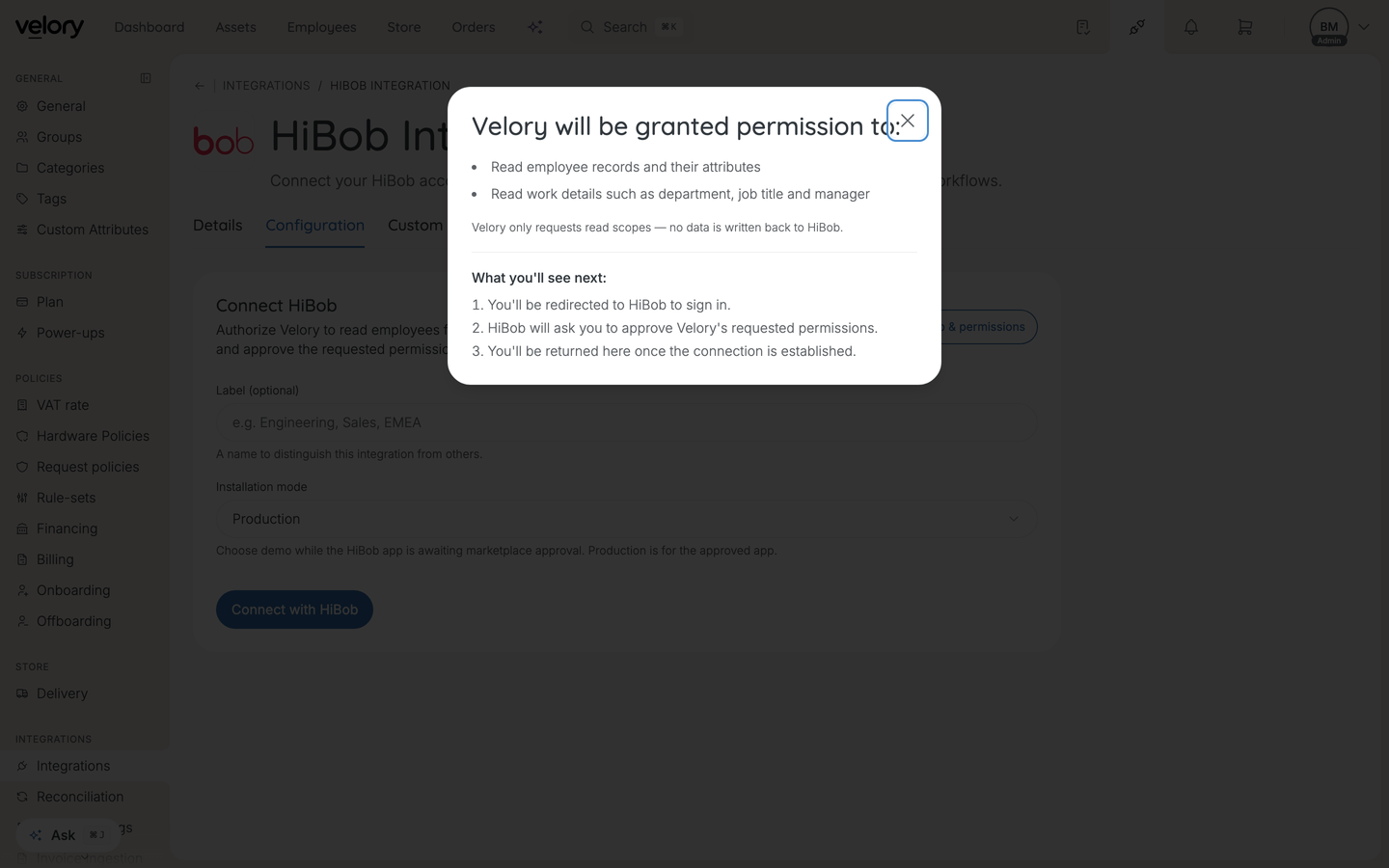
HiBob's consent covers current and future data within an approved scope, so custom fields your HR team adds later are included automatically without a new approval.
Setup in Velory
The integration page has four tabs: Details, Configuration, Custom attributes and Sync activity. It always opens on Details.
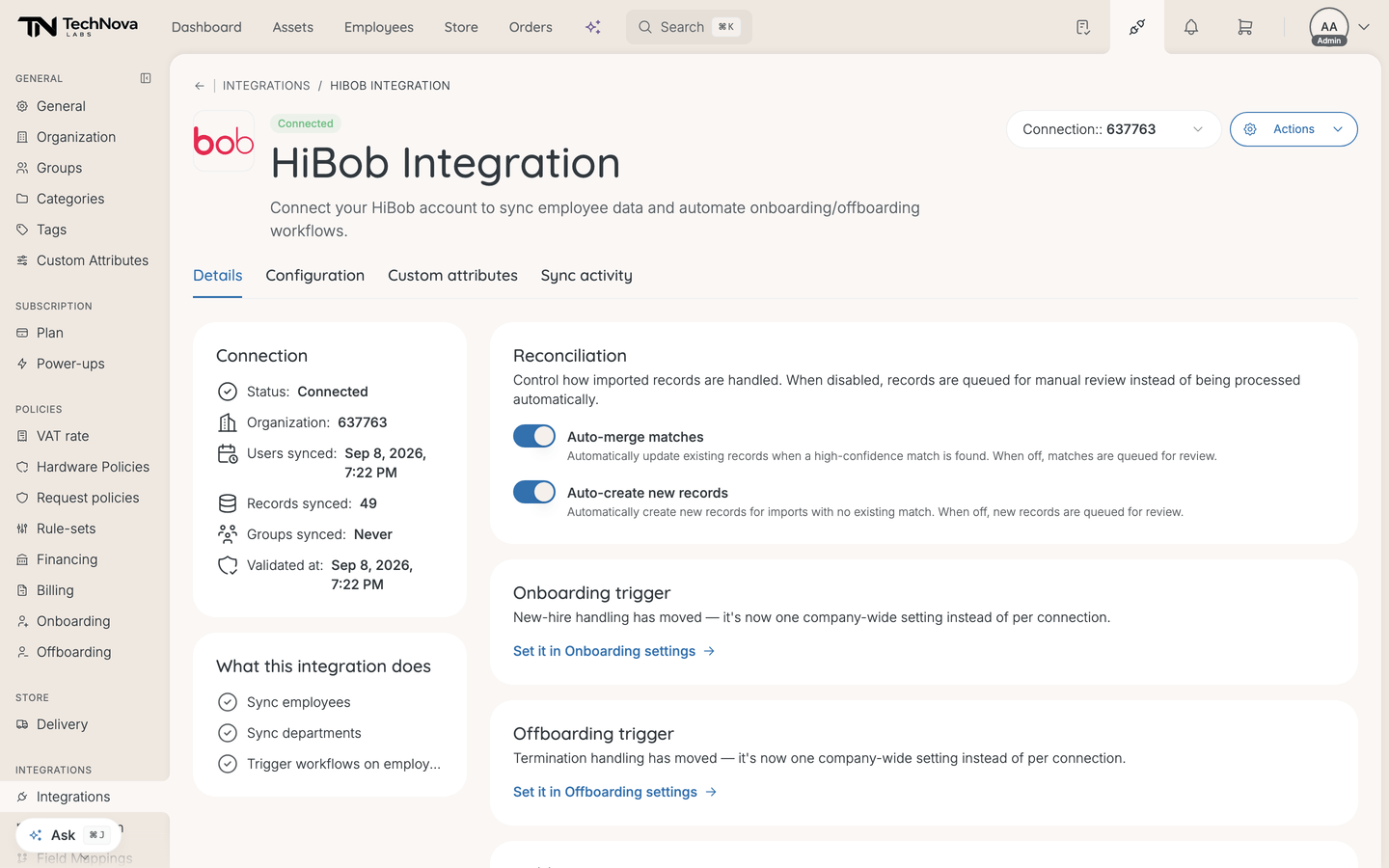
Work through these before you run the first sync.
Check the reconciliation policy. Auto-merge matches and Auto-create new records are both on by default, so a sync will write records without asking. Both are on Details.
Check the field mappings. The Field Mappings card on Details turns individual fields on and off for the HiBob source. Velory seeds HiBob's defaults at connect, so a working set already exists. If HiBob is not your only employee source, the priority ladder that decides which source wins a field is a separate page — Settings → Field Mappings.
Two things to know about the tickboxes:
- Status and End date always follow HiBob's lifecycle status. The tickboxes next to them do not change that.
- Turning a field off stops it overwriting an existing employee. It does not keep the field off a newly created employee — new people are created by reconciliation, which fills the core fields regardless.
Know where lifecycle automation lives. The Onboarding trigger and Offboarding trigger cards on Details are pointers, not settings. New-hire and leaver handling is now one company-wide setting rather than per connection; the cards link to it.
Map custom attributes, if you need fields beyond the table below. On the Custom attributes tab, pick a HiBob field, pick the Velory custom attribute to fill, and click Add — then click Save changes. Add alone only stages the row; nothing is stored until you save. The custom attribute has to exist first, created under Custom Attributes.
Not every HiBob field is offered. Fields your HR team defined are available whatever category they sit in. Built-in HiBob fields are offered from work, work contact, employment, about, lifecycle and jobs catalogue only, and never national identifiers, salary or document fields. A mapped attribute is readable by everyone who can view employees, not admins alone, which is why the list is deliberately narrow.
Two caveats: custom-attribute mappings belong to one connection, so a second HiBob connection needs its own. And their values refresh on a full sync only — a real-time update never carries them.
Choose which departments to sync, if you do not want all of them. Doing it now avoids the offboarding described in Narrowing a scope offboards the people you removed.
Data sync flows
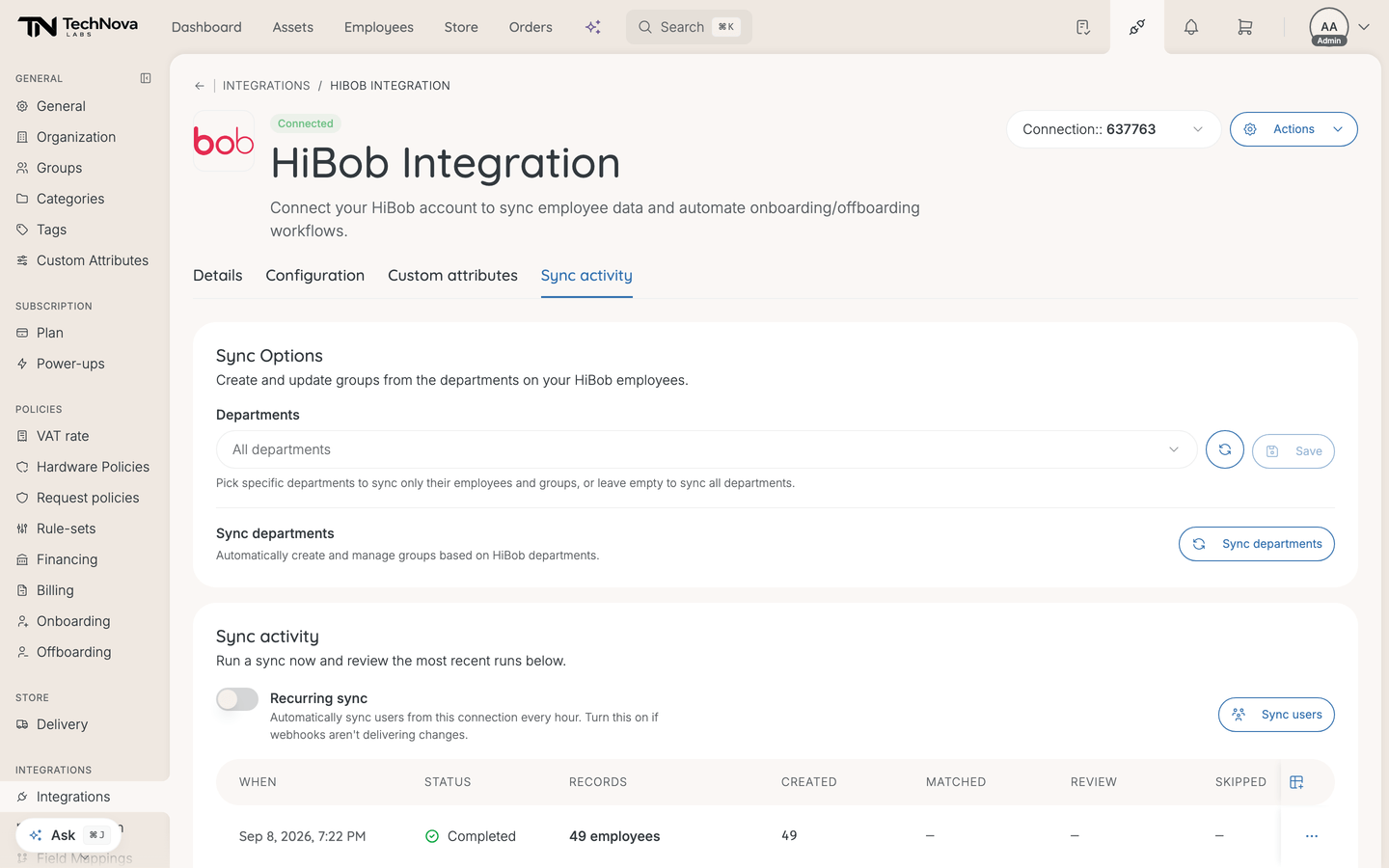
Four things move data, all of them reads:
| Flow | Starts when | Covers |
|---|---|---|
| Sync users | You click it on Sync activity | Every employee in scope |
| Sync departments | You click it on Sync activity | One Velory group per HiBob department |
| Real-time updates | HiBob notifies Velory of a change | The one employee who changed |
| Recurring sync | Hourly, when switched on | Employees only |
Run the first sync
Open Sync activity and click Sync users. Nothing syncs on connect, and real-time updates do not apply until a sync has run — a notification is a change against a baseline, and until Velory holds that baseline it accepts HiBob's notifications and discards them.
The first sync imports leavers. Velory asks HiBob for terminated employees too, so they arrive as Inactive Velory employees rather than being skipped. On a long-established HiBob tenant that can be a lot of people. Department scope is the only lever that narrows it.
A run is capped at 50,000 employees. Sync users and Sync departments lock each other out while either is running, and so does the department picker — a greyed-out button mid-sync is expected, and the page says which sync is holding it.
Choose which departments sync
HiBob has no department endpoint, so Velory derives the list from employees it has already fetched. The list is filled at connect and after every employee sync; the refresh button beside the picker re-derives it. A department with nobody in it never appears.
Open Sync activity and use the Departments picker. It has its own search, and each department shows how many people would actually import. A selection scopes both halves of the sync: only those departments' employees are imported, and only those departments become groups. All departments syncs everything, and so does an empty selection.
While a scope is set, employees with no department in HiBob are not imported at all. If your tenant leaves department blank for contractors, scoping excludes them.
Narrowing a scope offboards the people you removed
Saving only stores the selection. The next employee sync then treats everyone outside it as gone from HiBob, setting their status to Inactive with an end date of today. Nothing is deleted, but it looks like a mass departure and can set off whatever you have hooked to employees leaving. Widening the scope and syncing again brings them back.
The same applies in real time: a change arriving for someone now outside your scope offboards them if they are already in Velory. Someone who was never imported is simply ignored.
Renaming a department in HiBob creates a new one as far as Velory is concerned, and a scope still pointing at the old name matches nobody. Re-pick the department after any rename.
Sync departments creates and updates one Velory group per HiBob department. It never runs on a schedule, so a new HiBob department appears in the picker on its own but gets no group until someone presses the button. Run Sync users first — group membership is resolved from employees already in Velory, so departments synced first produce empty groups.
Keep employees up to date
Real-time updates need no setup. There is no URL to register, secret to paste or event type to pick. Velory registers one listener with HiBob as a marketplace partner, and HiBob subscribes your tenant when you install the app.
HiBob's notifications name what changed rather than sending new values, so Velory re-fetches the employee and applies the difference. Velory acts on employee changes, lifecycle entries (joined, left, activated, deactivated, temporary leave), deletions and HiBob's historical tables — which is how job title, department and site changes arrive. Other event families, such as time off and tasks, are ignored.
Real-time updates are not rows in the run table. That table lists syncs, including department syncs. To confirm an update landed, check the employee's activity timeline or the Users synced time on Details. A change can also arrive and not apply — if the employee is outside your department scope, has no email in HiBob, or is waiting in reconciliation.
Recurring sync is the fallback, and it is off by default for HR connections, because a notification is fresher and cheaper than an hourly full sync. Turn it on from Sync activity if real-time updates are not reaching you. It covers employees only; Sync users works either way.
What syncs
| Velory field | From HiBob |
|---|---|
| First name | First name |
| Last name | Surname |
| Work email, falling back to the private email | |
| Personal email | Private email |
| Phone | Work phone, falling back to work mobile |
| Location | Site |
| Job title | Job title |
| Department | Department |
| Status | Lifecycle status |
| Employee number | Your own payroll/HR number, not HiBob's internal id |
| Start date | Start date |
| End date | Termination date |
| Manager | Reports-to, resolved after the import |
| Home address | Home address |
Velory identifies people by email. Someone with neither a work nor a private email in HiBob never imports.
Home address may stay empty despite being mapped and ticked, because HiBob classes the address block as sensitive and Velory does not request that scope. An address also needs a street line to be stored; a city or postcode alone is discarded, since this feeds delivery addresses.
How status maps
HiBob's lifecycle status maps onto Velory's employee statuses: Terminated becomes Inactive, Hired and Onboarding become Onboarding, Leaving and Offboarding become Offboarding, anything else Active.
That mapping applies in full when a person is first imported. On an employee Velory already holds, two transitions do not currently carry through: someone Velory shows as Onboarding is not advanced to Active when they start, and someone already Offboarding stays there when HiBob later reports them Terminated. Set those two by hand, or watch for it after a HiBob termination.
A termination is not a deletion. The record stays, asset history included.
Troubleshooting
The connect attempt did nothing
A failed consent returns you to the integration page, which opens on Details — where nothing is shown. Click across to Configuration to read the reason above the form.
The usual cause is a consent screen left open longer than ten minutes. Start again. The others are finishing in a different browser from the one you started in, and a duplicate connection label.
Connected, but nothing works
Connected means the grant was stored, not that it works — and so does Validated at, which is stamped at connect whether or not the check behind it passed. If the people-data-access answer was too narrow, or the approval was partial, you get a green badge and a sync that finds nothing.
Run Actions → Test Connection. It proves the stored credentials still authenticate and that Velory can read people. It does not prove the audience covers everyone, that leavers are visible, or that real-time updates are arriving. A successful test also does not clear an Error badge — only Reconnect does that.
Some employees never arrive, and are not in reconciliation either
Check the people data access answer given when the app was installed in HiBob. If it was narrowed to a condition or a list of names, anyone outside that selection is invisible to Velory and no amount of syncing will bring them in. Reinstall the app in HiBob and choose All company.
The other causes are your Velory department scope, employees with a blank department while a scope is set, and employees with no email in HiBob.
A sync started failing
Run Actions → Test Connection to confirm whether the grant is the problem, then Reconnect if it is.
A connection in an error state stops everything, not just real-time updates: the recurring sync skips it and the manual buttons refuse to run. Reconnect is what heals it.
A revoked grant usually surfaces as failing syncs rather than as an immediate error badge. A connection that syncs regularly renews its own credentials as a side effect, so Velory does not probe it; on a quiet connection the badge can lag the revocation by up to about three weeks.
"A sync is already in progress"
A run that crashed stops blocking after fifteen minutes. Wait it out rather than reconnecting.
The Error badge does not match the connection I am looking at
With more than one HiBob connection, the badge at the top of the page is an aggregate. Any connection in an error state turns the whole page's badge to Error and shows that connection's message, even while the selector is showing a healthy one.
Removing the integration
Employee syncing stops. Employees already in Velory stay, and the fields HiBob owned become editable again — see How do I disconnect an HR integration?. Removing your last HiBob connection also discards HiBob's field mappings, so note any customisations first.
Removing it in Velory revokes nothing on HiBob's side. Uninstalling always happens in Bob: to withdraw access entirely, also uninstall the Velory app there.
Good to know
Can I connect more than one HiBob account?
Yes. Use the connection selector at the top of the page and choose Add Another. A label is required from the second connection onward — it is what tells Velory to create a new connection rather than replace the one you have.
Each connection keeps its own credentials, department scope, sync history and custom-attribute mappings. The Field Mappings tickboxes and the source priority ladder are shared across all HiBob connections.
Does Velory write anything back to HiBob?
No. The integration holds read scopes only and there is no write path.
Why would I need to reconnect?
Because access was revoked or the grant lapsed on HiBob's side. Reconnect on the Configuration tab re-runs the approval and refreshes the connection in place, keeping field mappings, department scope and sync history.
Also when Velory starts requesting a scope your grant does not carry. HiBob issues a grant for the scopes approved at install time and does not widen one afterwards, so a scope added later stays dormant until you approve it again. If Field Mappings stops offering your custom fields, that is the symptom — reconnect and approve View company metadata.
Getting help
Email support@velory.com, or browse the help centre at support.velory.com.
When the question is about a specific sync, include the connection's Organization id from the Details tab. That is HiBob's own company id for your tenant, and it is the quickest way for support to find the run in question.
Was this article helpful?