How does HR syncing work?
Once an HR system is connected, Velory keeps your employee records matching it. This covers what a sync does, when it runs, and how to control which fields it writes.
For directories, see How does directory syncing work? — the mechanics are close, but directories add domain and group scoping that an HR system has no equivalent of.
In this guide
Before you begin
You need Admin access and a connected HR integration. Go to Settings → Integrations and open the connected provider.
When a sync runs
| Method | When it runs |
|---|---|
| First sync | When you trigger it after connecting |
| Webhook | Within seconds of a change in the HR system — created, updated, or deleted |
| Recurring sync | Every hour, if you turn it on |
| Manual | Whenever you click Sync users |
All three providers support webhooks, so after the first sync you should not normally need to sync by hand. HiBob is the one you do not configure: HiBob creates the subscription itself when you install Velory's app — see HiBob integration guide.
Recurring sync is the fallback when webhooks are not an option. It is a switch on the Sync activity card, next to the manual sync button, and for an HR connection it is off by default — a webhook is fresher and cheaper than an hourly full sync.
Turn it on when webhooks cannot deliver. Hailey HR, for example, allows one webhook per account, so a company already using theirs elsewhere has no real-time path and wants the hourly sync instead.
Trigger a manual sync
- Go to Settings → Integrations.
- Open the connected provider.
- Open Sync activity and click Sync users.
Progress shows as it runs — how many records were fetched, processed, created, updated, and skipped — then a summary.
What a sync brings in
An HR system is the source for employment data: name, work email, department, job title, location, phone, start and end dates, manager, employee number, and status.
Departments, not groups. An HR system has no concept of groups, so Velory derives one group per department. A sync therefore reports departments where a directory reports groups. Same mechanism, different noun, because the source material differs.
View sync history
The Recent Syncs section on the integration page lists past runs with:
- Status — completed, partially succeeded, or failed
- Record counts — created, updated, merged, or filtered
- Errors — sample messages when records failed
- Date — when it ran
Click a run to see its individual candidates and how each resolved.
Configure field mappings
Field mappings control which of the provider's fields this integration fetches.
- On the integration page, find Field Mappings.
- Enable or disable individual fields.
- Click Save Changes.
There are two field-mapping views and they do different jobs. This one is per integration — what it fetches at all. Settings → Field Mappings is global — which integration wins a field when more than one provides it. A field must be enabled here before it can appear there.
Extra fields
Some providers expose fields beyond the standard set, such as BambooHR custom fields. Enable them here and route them to a Velory field or a custom attribute. A custom attribute has to exist first — create it under Custom Attributes, then map to it.
Field ownership
When a field syncs from an integration, that integration owns it:
- It shows a lock icon on the employee detail page, with "Managed by [Source]" on hover
- It cannot be edited by hand — the change has to happen in the HR system
- Stop syncing the field, or disconnect the integration, and it becomes editable again
Reconciliation policies
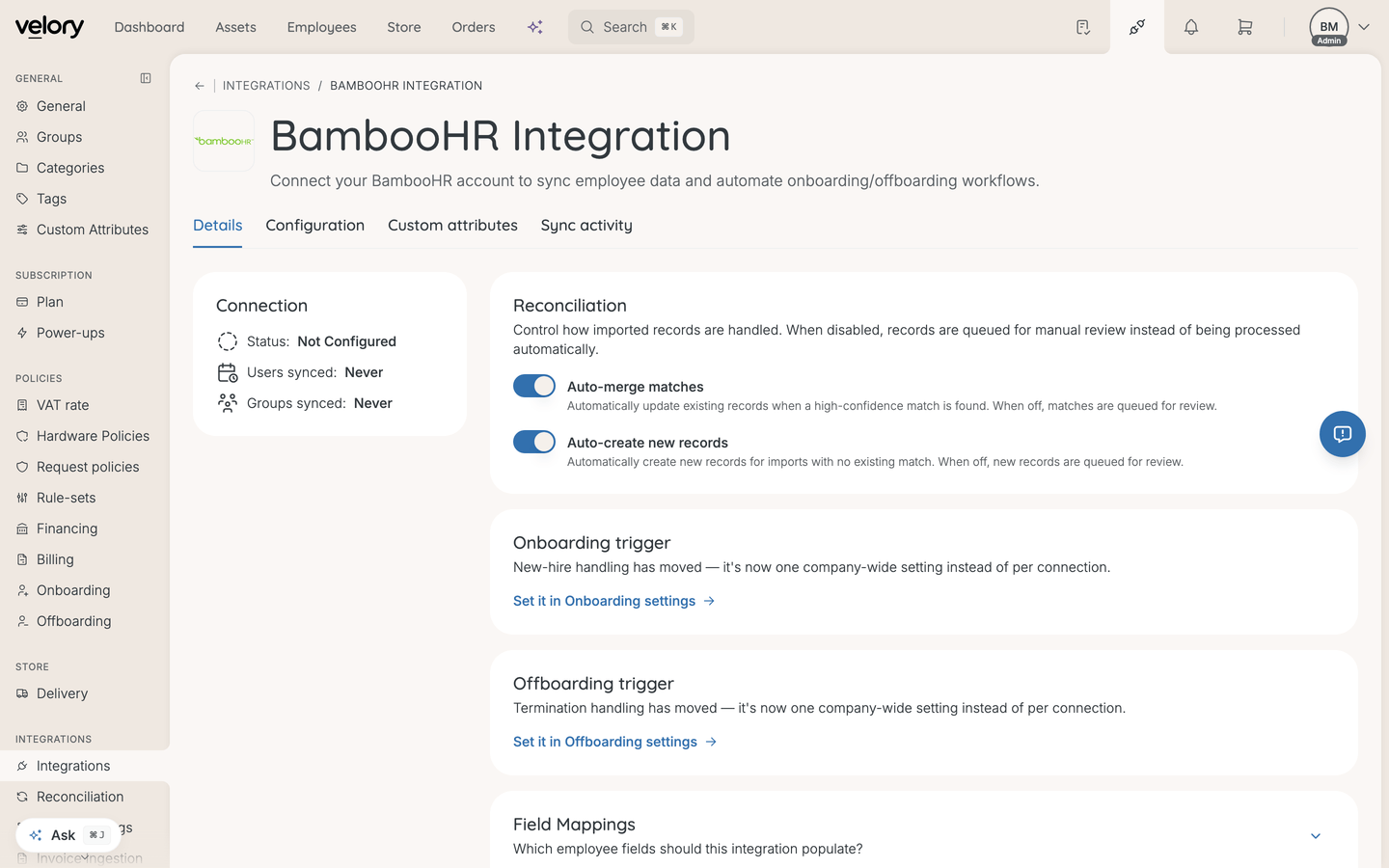
Two toggles on the integration page decide how much a sync does without asking, and both are on by default:
- Auto-merge matches — update an existing record on a high-confidence match. Off, and matches queue for review.
- Auto-create new records — create a record when there is no match. Off, and new records queue for review.
They apply to every sync from this integration. See What is reconciliation and how does it work?.
Good to know
What if a field is wrong in the HR system?
Correct it there. The next webhook or sync updates Velory automatically. Editing it in Velory is not possible while the integration owns the field.
Can I override a synced field manually?
Only by stopping the sync for that field. Disable it in this integration's field mappings, and the field becomes editable in Velory.
What happens when an employee is deleted in the HR system?
Velory deactivates rather than deletes. The employee's status becomes Inactive and the record is kept, including their asset assignment history.
Most of my imported employees are people who left. Can I filter them out?
Yes, with a filter workflow. It gates each sync and rejects candidates that fail a condition — employee status not equal to inactive, for example — and the rejections show under Filtered in the sync activity. This is worth doing at scale: HR systems normally retain leavers for years.
Was this article helpful?
Related articles