How do I assign software to employees?
You can assign software licenses to employees individually or in bulk. The bulk assignment wizard lets you select multiple plans and employees at once — useful when onboarding new hires or rolling out a new tool across a team.
In this guide
Before you begin
You need Admin access to assign software. The software service must already be added to your company with at least one plan set up.
Bulk assign licenses (recommended)
The assignment wizard walks you through three steps:
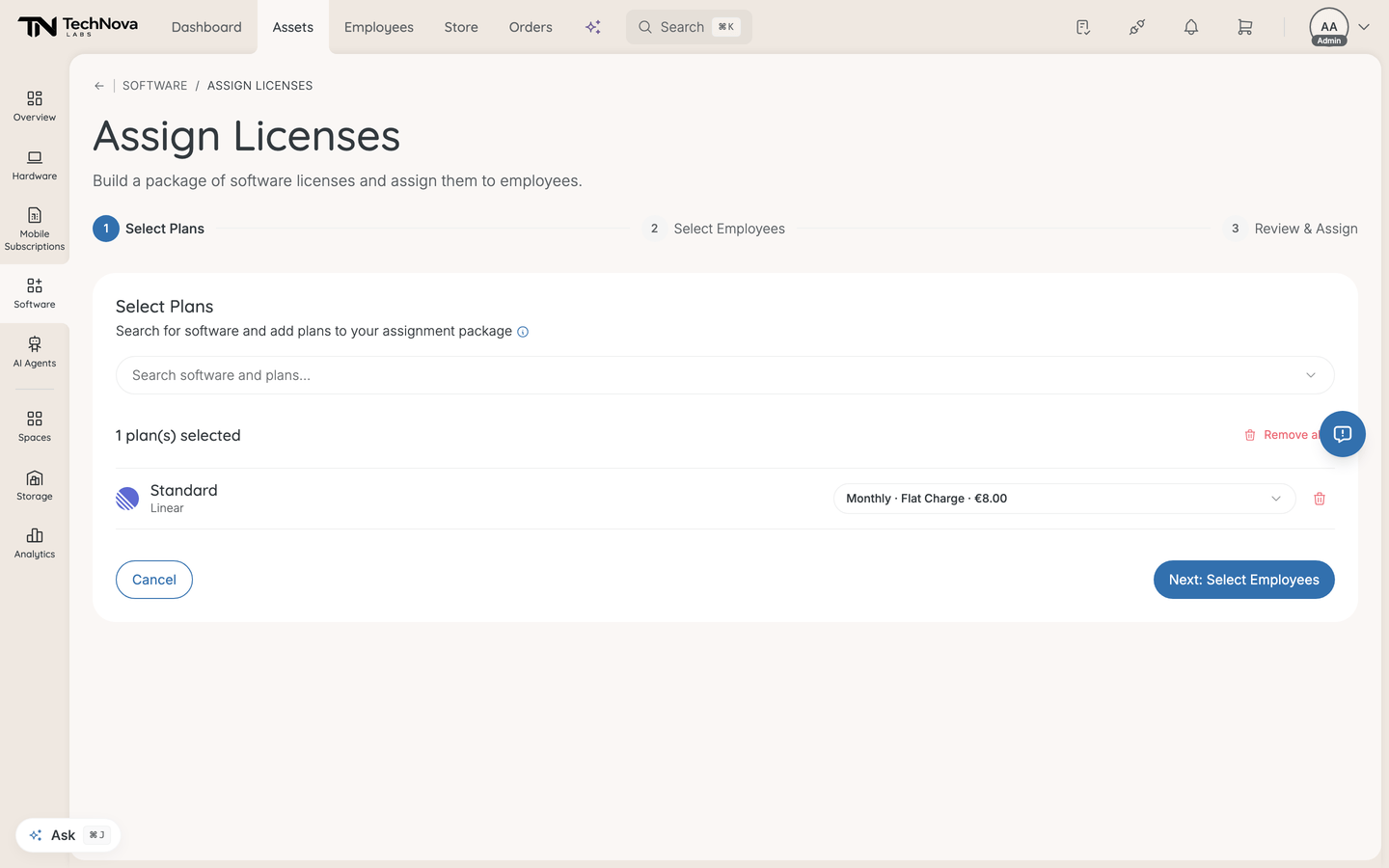
Step 1: Select Plans
- Go to Assets → Software.
- Click Assign to Employees.
- Search for the software you want to assign.
- Select a plan for each service. You can add multiple services and plans to your assignment package.
- Click Next: Select Employees.
Step 2: Select Employees
- Search for employees by name or email.
- Select the employees who should receive the licenses.
- Use the department, job title, or location filters to narrow down the list.
- Click Next: Review.
Tip: Use Add all employees to select everyone matching your current filters — useful for company-wide rollouts.
Tip: Selecting everyone works across pages, not only the rows on screen. Select all, then deselect the exceptions — Velory tracks the exclusions rather than making you tick hundreds of boxes.
Step 3: Review & Assign
- Review the summary: selected plans, employees, total licenses to be created, and estimated cost grouped by billing cycle.
- Decide whether to reuse existing unassigned licences — see below.
- Click Assign to create and assign all licenses at once.
Velory creates a license for each employee–plan combination. If an employee already has an active, pending, provisioning, or suspended license for the same plan, they are skipped to prevent duplicates. The wizard tells you before you commit: "Licenses will not be assigned to employees who already have an active, pending, or suspended license for the same plan."
Reuse unassigned licences first
If a plan already has unassigned licences sitting on it, Velory can hand those out before creating new ones. Leave the option on unless you have a reason not to — it avoids paying twice for seats you already hold.
Seat headroom
As you build the assignment, each plan reports its seat position:
| Status | Meaning |
|---|---|
| n seats available | Room for that many more licences |
| Unlimited | The plan has no seat limit |
| Full | No free seats — assigning more takes the plan over its limit |
| Overprovisioned | Already past the seat limit |
Velory warns but does not stop you. Going over a seat limit is a business decision, not an error.
The quick way, from a plan
The wizard is for rollouts. For one or two people, open the plan and use its assign action instead: pick the plan and access role, add the employees, and confirm. The seat position is shown live as you select people, so you see the effect before committing.
Assign a single license
From the license list on a service's detail page:
- Click the action menu on an unassigned license.
- Select Assign Employee to assign without changing the state, or Provision to assign and activate in one step.
- Search for and select the employee.
Assign from the employee
You can also work from the person rather than the software. Open the employee, go to their Software tab, and use Add Software. This is the natural route when you are setting up one new joiner rather than rolling a tool out to a team.
Unassign a license
From the license list or license detail page:
- Click the action menu on an assigned license.
- Select Unassign to free up the license, or Deprovision to unassign and suspend it.
The license returns to the available pool and can be reassigned to another employee.
Good to know
What happens when I assign a license?
A license record is created (or reused if an unassigned one exists for the same plan) and linked to the employee. The assignment is logged in the license's Activity tab. The employee can see the license in their Personal workspace.
Can I assign the same software to an employee twice?
No. Velory prevents duplicate assignments — if an employee already has an active, pending, provisioning, or suspended license for the same plan, the assignment is skipped. This applies to both single and bulk assignments.
How do I reassign a license from one employee to another?
Unassign the license from the current employee first, then assign it to the new employee. Or use Deprovision followed by Provision if you want to suspend and reactivate in the process.
Can I assign software to a space instead of an employee?
Yes. Licenses can be assigned to shared spaces — useful for software tied to a meeting room display, a shared workstation, or similar shared locations.
A licence has one holder at a time: an employee or a space, never both. Assigning it to a space releases it from the employee, and the reverse.
Note that Deprovision behaves slightly differently for a space. It unassigns only when a person holds the licence — a space keeps it — and then suspends it either way.
Can I have licences assigned automatically instead?
Yes, by group. Link a group to a plan and its members receive a licence when they join and lose it when they leave. Set it up from the plan's Groups tab or the group's Auto-assign tab.
Auto-assigned licences are badged and cannot have their assignment edited by hand — change the group instead. See How do I create software plans?.
Why was somebody skipped without a message?
Almost always the duplicate rule: they already hold a licence on that plan in an active, pending, provisioning or suspended state. A suspended licence still counts, which surprises people — resume theirs rather than assigning a second.
How many licences can one assignment create?
Enough for any realistic rollout — the wizard handles thousands of employee–plan combinations in a single run. If you are assigning across many plans at once, the review step's total is the number to sanity-check before you confirm.
Was this article helpful?