How do I view and manage company software?
Velory gives you a central view of all the software services your company uses — from productivity tools like Microsoft 365 and Slack to development tools like GitHub and Jira. You can see how many licenses are active, how many are unused, and what each service costs per month.
In this guide
Before you begin
You need Admin or Manager access to view and manage company software. Employees can see their own assigned licenses in their Personal workspace.
Navigate to the software list
- Go to Assets in the navbar.
- Click Software.
You will see a service overview — a table listing each software service your company has set up.
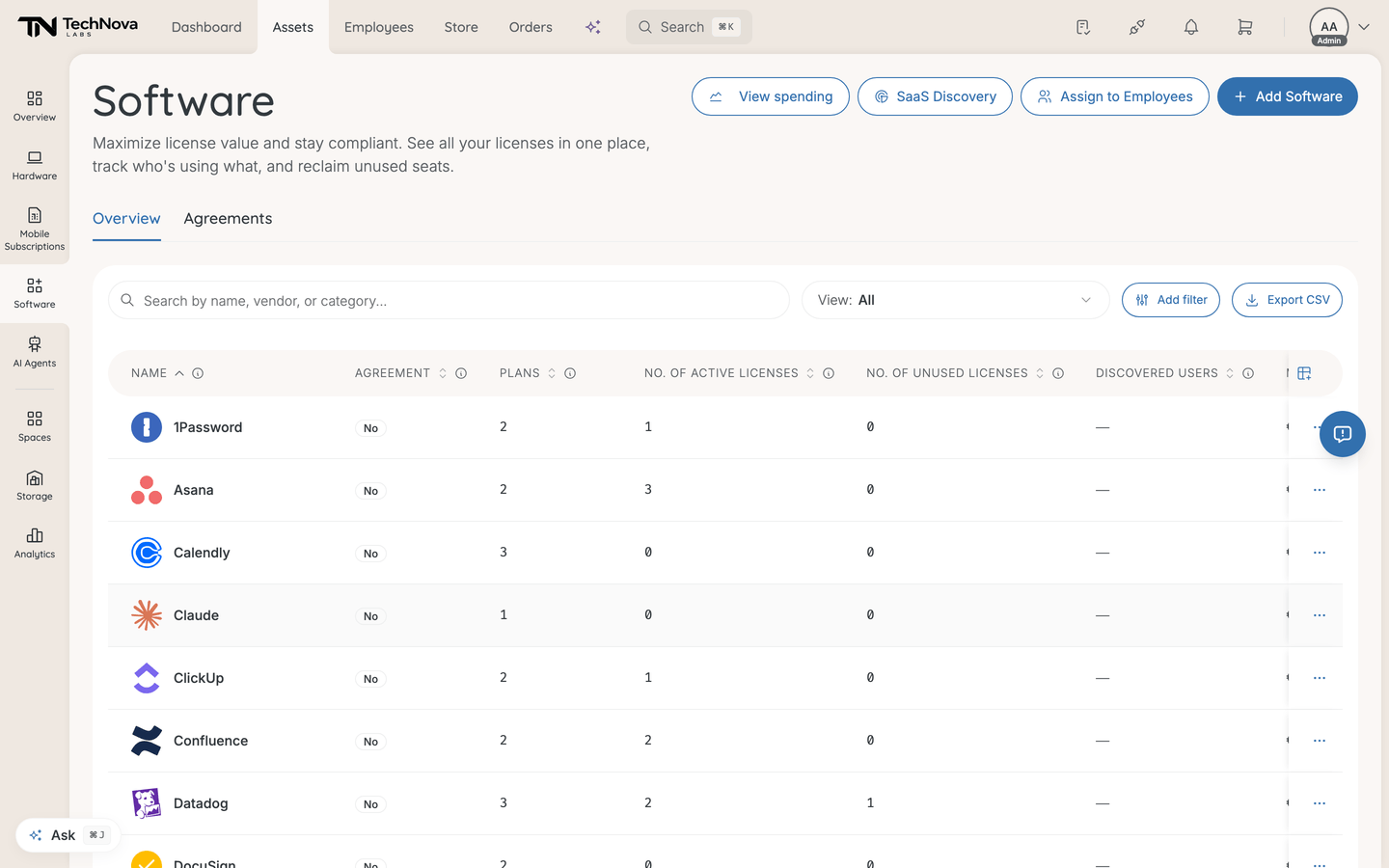
Understand what you see
Each row in the service overview table represents a software service:
| Column | What it shows |
|---|---|
| Name | The service name and logo |
| Agreement | Yes when a vendor agreement is on file for the service's plans, No when there is none |
| Plans | How many plans the service has |
| No. of Active Licenses | Total licenses in an active state (assigned and unassigned) |
| No. of Unused Licenses | Active licenses not assigned to any employee |
| Discovered users | People SaaS Discovery detected using the service who have no licence yet. Click through to assign them a seat |
| Monthly Cost | Normalised monthly cost across all active plans, in your company's currency |
Click on any service to open its detail page, where you can manage plans and licenses.
The three tabs
| Tab | What it is |
|---|---|
| Overview | The service list described above — your default view |
| Agreements | Negotiated vendor deals that govern plans across the companies in your organisation |
| Distribution | Which company consumes which plan under which agreement, with seats used and unused |
Agreements and Distribution are not shown to everyone. Agreements needs to be enabled for your company, and Distribution appears only when your company pays for an agreement that other companies consume, or when you are an organisation-level admin. If you do not see them, they do not apply to your setup.
Search and filter services
Search — Use the search bar to find services by name, vendor, or category.
Filters — You can filter by:
- Category — Productivity, Development, Security, Communication, Design, and more
- Vendor — the company that provides the service
- Agreement — whether an agreement is on file
- Has discovered users without an active seat — services where somebody is using the tool without a licence
Save a combination of filters and columns as a view to come back to it, the same way as elsewhere in Velory. Export downloads the current view as CSV, respecting your active filters.
Take action
The page header holds four actions:
| Action | What it does |
|---|---|
| Add Software | Add a service from the catalogue, or create one that is not in it |
| Assign to Employees | Open the assignment wizard to license several people at once |
| View spending | Open the Software Spending page for cost trends and utilisation |
| SaaS Discovery | Open the discovery inbox — services detected from connected sources, whether or not you have licensed them |
Click any service row to open its detail page, where you manage plans, licenses, access roles, resources, usage and provisioning.
How software is structured in Velory
Software follows a three-level hierarchy:
| Level | What it is | Example |
|---|---|---|
| Service | The software product itself | Slack, Microsoft 365, GitHub |
| Plan | A pricing tier under a service | Slack Pro, Slack Enterprise |
| License | An individual seat or subscription assigned to an employee | John's Slack Pro license |
You manage services and plans at the service level. Individual licenses are created when you assign software to employees.
Two smaller pieces hang off a service. A Resource is a grantable part of it — a team, channel, project or repository. An Access role is a level of access, optionally mapped to a group in your identity provider. Both are what employees actually ask for when they request access to a service.
Good to know
What is the difference between "unused" and "unassigned"?
They mean the same thing — a license that is active but not assigned to any employee. These represent potential cost savings because you are paying for a seat nobody is using.
How is monthly cost calculated?
Velory normalises all costs to a monthly figure in your company's currency. Yearly plans are divided by 12, quarterly by 3. Per-user plans multiply the per-seat cost by the number of licenses. Flat-charge plans show the fixed amount.
Where do I manage individual licenses?
Click on a service to open its detail page, then go to the Licenses tab. From there you can view, filter, assign, and manage individual licenses.
What are the tabs on a service detail page?
| Tab | What it holds |
|---|---|
| Details | Service identity, vendor, category, and its software owners |
| Plans | The pricing tiers, their costs and seat limits |
| Licenses | Every seat on the service |
| Discovered users | Detected users without a licence — only when discovery has matched something to this service |
| Spending | Cost history for this service |
| Usage | Who actually uses it, and telemetry where a provider reports it |
| Resources | Grantable parts, such as teams or repositories |
| Access roles | Access levels, optionally mapped to identity-provider groups |
| Provisioning | How access is granted and revoked |
| Activity | The service's event history |
Some tabs appear conditionally. Discovered users needs a matched discovered service, and Usage needs either a usage provider or telemetry already recorded.
A service shows discovered users but I have not set up discovery. How?
Somebody has. Discovery is switched on per source in integration settings, so another admin may have enabled it. The Discovered users column tells you people are using a tool without a licence — see What is SaaS Discovery?.
Why can't I see the Agreements or Distribution tab?
Agreements is enabled per company, and Distribution only appears when there is cross-company consumption to show — your company pays for an agreement other companies use, or you are an organisation-level admin. Neither missing tab indicates a problem.
Was this article helpful?
Related articles
What is SaaS Discovery?
Software
How do I add a software service?
Software
How do I assign software to employees?
Software
How do I track software costs and renewals?
Software
How do I delete a software service, plan or license?
Software
Where do I start with software?
Software
How do I create software licenses?
Software
How do I create software plans?
Software
What is provisioning and deprovisioning?
Software
How do I find and reclaim unused licences?
Software
How do I read a service's Usage tab?
Software