How do I create software licenses?
A software license in Velory represents an individual seat or subscription assigned to an employee. Licenses belong to a plan under a service — for example, "John's Slack Pro license". You can track their state, assignment, expiration, and usage from the license list.
In this guide
Before you begin
You need Admin or Manager access to manage software licenses.
View licenses for a service
- Go to Assets → Software.
- Click on a service to open its detail page.
- Go to the Licenses tab.
You will see a table of all licenses under this service.
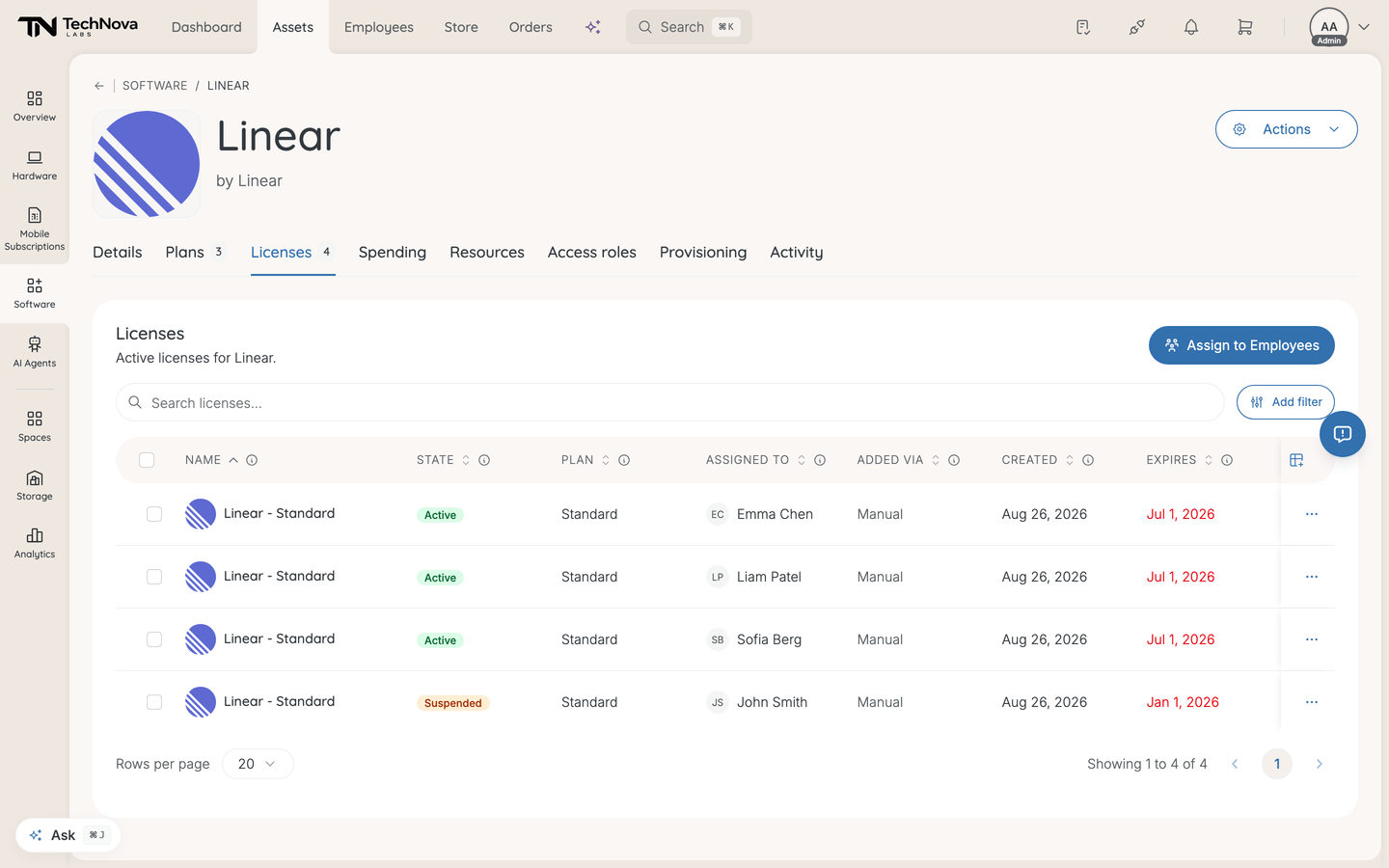
Understand what you see
The license table shows:
| Column | What it shows |
|---|---|
| Name | The license display name (typically service + plan) |
| State | Current state — Pending, Provisioning, Active, Suspended, Expired, or Revoked |
| Plan | Which plan the license belongs to |
| Assigned To | The employee or space assigned, or "Unassigned" |
| Expires | When the license expires — highlighted in red if expired, orange if expiring within 30 days |
| Created | When the license was added |
| Health | Usage health score (A–D) based on activity data, if available |
| Added via | How the licence record was created — manually, from the store, an import, or Discovery when it came from a detected user |
| Tags | Tags applied to the licence, for your own grouping |
Tip: You can show or hide columns using the column picker. Additional columns like Lifecycle, Health updated, Service, and Cost are available.
Added via is more useful than it looks. It separates licences somebody deliberately created from ones adopted out of SaaS Discovery, which is the difference between software you chose and software you discovered you were already paying for.
Search and filter licenses
Search — Find licenses by name.
Filters — You can filter by:
- Service — show licenses for specific services
- Plan — show licenses under specific plans
- State — Pending, Provisioning, Active, Suspended, Expired, or Revoked
- Added via — how the licence was created, including Discovery
- Lifecycle — Provisioning, Active, Inactive, or Archived
- Assigned — assigned vs. unassigned
- Assigned To — search for a specific employee
- Health Grade — A, B, C, or D
- Seat Type — Named User, Concurrent, or Device
- Billing Cycle — Monthly, Quarterly, Yearly, etc.
- Department — filter by the assigned employee's department
- Expiration Date — filter by expiration range
- Tags — filter by assigned tags
License states
Every licence has a State, and each state maps onto a broader Lifecycle stage shared with hardware and other assets. Both are available as columns and filters.
| State | What it means | Lifecycle |
|---|---|---|
| Pending | Created but not yet activated | Provisioning |
| Provisioning | Setup is under way — access is being granted in the software | Provisioning |
| Active | Live and usable | Active |
| Suspended | Temporarily disabled | Inactive |
| Expired | Past its expiration date | Archived |
| Revoked | Permanently disabled | Archived |
Provisioning is the one to recognise. A licence sits there while automated provisioning runs, and it stays there if a provisioning workflow never reports back. A licence stuck in Provisioning usually means an incomplete setup rather than a licence in use — see What is provisioning and deprovisioning?.
The first time a licence becomes Active, Velory records the activation date automatically if you have not set one.
Take action on licenses
Single license actions
Click the action menu (three dots) on a license row:
| Action | What it does |
|---|---|
| View / Edit | Open the license detail page |
| Assign Employee | Assign the license to an employee |
| Provision | Assign and activate the license in one step |
| Suspend | Temporarily disable the license |
| Unassign | Remove the employee assignment — the license returns to the available pool |
| Deprovision | Unassign and suspend the license in one step |
| Transfer | Move the license to another company in your organisation |
| Delete | Permanently remove the license |
Bulk actions
Select multiple licenses using the checkboxes, then choose from the bulk action bar: Assign, Unassign, Deprovision, or Delete.
License detail page
Click on a license to open its detail page, which includes:
- Details tab — edit the license name, state, assigned employee, activation and expiration dates, license key, seat type, service role, and tags
- Lifecycle tab — view and change the lifecycle stage
- Notes tab — public notes (visible to all) and private notes (admins only), with version history
- Activity tab — chronological log of all changes
Good to know
What is the difference between "assign" and "provision"?
Assign links a license to an employee but does not change its state. Provision assigns the license and activates it in one step — useful when you want the employee to start using the software immediately.
What is the difference between "unassign" and "deprovision"?
Unassign removes the employee from the license, returning it to the available pool without changing its state. Deprovision unassigns and suspends the license — useful when an employee leaves and you want to free up the seat.
What is the health score?
A 0–100 score for how actively a licence is used, shown as a grade:
| Grade | Meaning |
|---|---|
| A | Excellent |
| B | Good |
| C | Fair |
| D | Poor |
Low grades mark candidates for reallocation. You can also filter by usage band — Unused, Low, Medium, High — or by Not scored yet.
Health scores need usage data from a provider. Without it every licence stays unscored, which is not a fault in the licence.
A licence says its assignment is managed by auto-assignment. Why can't I change it?
Because the licence comes from a group linked to the plan. Members of that group get a seat automatically and lose it when they leave the group, so editing the assignment by hand would be overwritten. The licence is badged Auto-assign.
Change the group membership, or unlink the group from the plan, rather than editing the licence. Be aware that unlinking a group unassigns the licence from every member it granted.
Can I store a license key?
Yes. The license detail page has a License Key field for the activation key or serial number. It is hidden by default; Reveal license key shows it and Copy license key puts it on your clipboard without displaying it.
Access follows the same permissions as the rest of the licence record — administrators and the service's software owners. Note that the key is stored as ordinary text in the database rather than encrypted, so treat it as you would any other field in Velory rather than as a secrets vault.
Why can't an employee have two licences on the same plan?
Because a named-user seat belongs to one person. When you assign a plan to someone who already holds a licence on it, Velory refuses the duplicate rather than quietly creating a second seat you would pay for.
"Already holds" covers Active, Pending, Provisioning and Suspended licences. A suspended seat still blocks a new one — resume the existing licence instead of creating another.
Expired and revoked licences do not block a new assignment.
Can I move a licence to another company?
Yes, if your organisation has more than one company. The licence detail page has a Transfer action for moving a seat to a sibling company.
Was this article helpful?
Related articles
How do I assign software to employees?
Software
How do I track software costs and renewals?
Software
How do I delete a software service, plan or license?
Software
How do I view and manage company software?
Software
How do I create software plans?
Software
What is provisioning and deprovisioning?
Software
How do I find and reclaim unused licences?
Software