How do I set up my equipment as a new hire?
Before your first day, your company sends you a link to choose your equipment. You review what has been prepared for your role, swap what you are allowed to swap, say where it should be delivered, and confirm. IT orders from there.
Open the link
The email is titled "Welcome to Velory" and reads "{inviter} invited you to join {company} on Velory". Select Activate your account.
The button signs you in. You do not need a password. Each link works once and only for a short time — if it has been used or has expired, Velory says "That sign-in link didn't work" and asks you to sign in or ask for a new one.
Until you have confirmed your setup, Velory opens it every time you sign in. To come back without the email, sign in with your work email — see How do I sign in to Velory?.
Choose your setup
-
Start shows your start date and what is included for you. Select Get started.
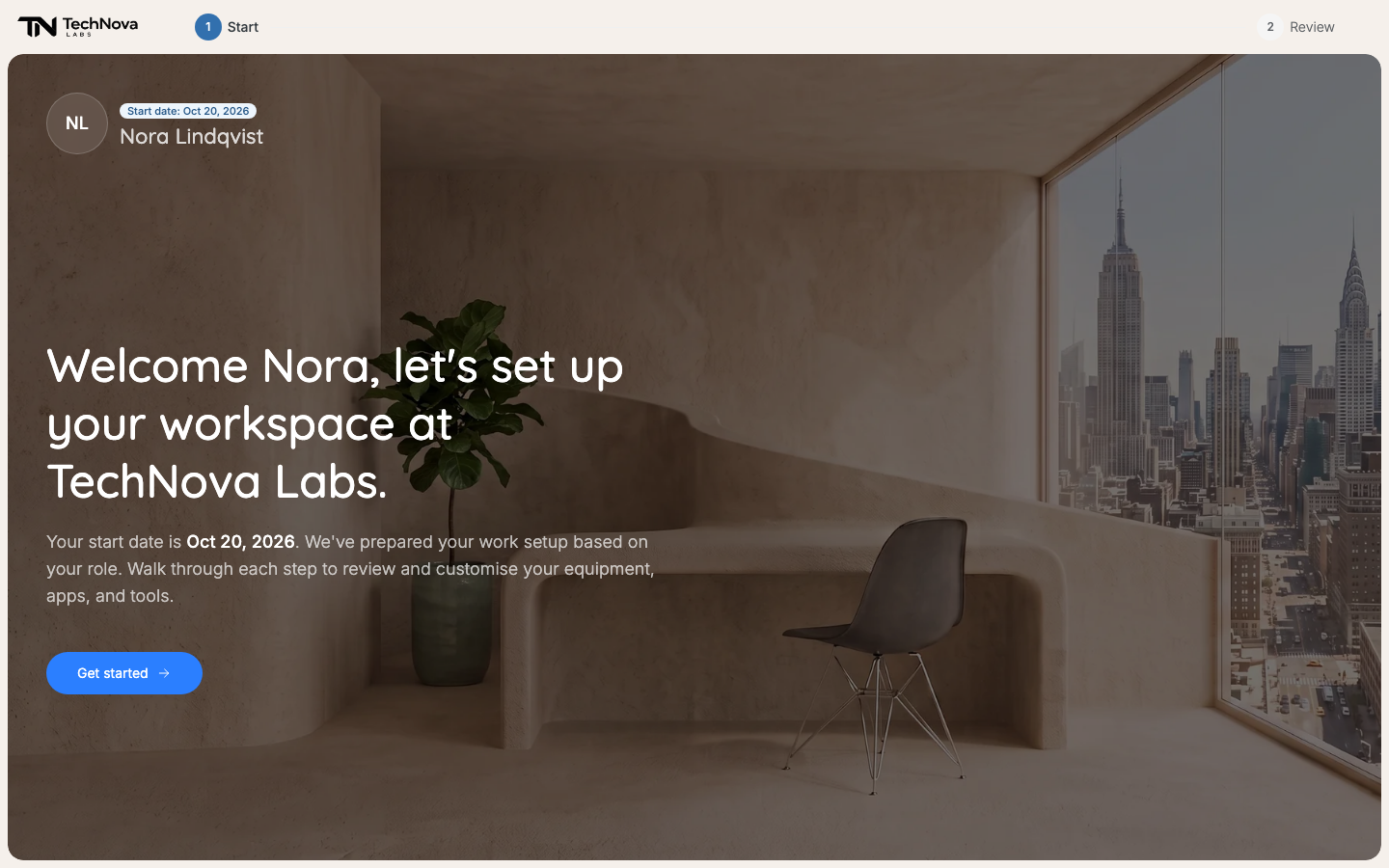
The welcome step names your start date. Get started opens your equipment. -
Hardware shows one item for each kind of device you get, chosen for your role.
- Select Replace to pick something else from what your company offers. Reset to default puts the original back.
- An item with no Replace is fixed for your role.
- A slot marked "This item is required for your setup" must be filled before you can continue.
- Needs approval means your pick goes over the allowance your company set for that kind of item. You can keep it and carry on. Your IT admin is told and reviews it; if they turn it down, they contact you about an alternative.
-
Software lists the apps that are set up for you. There is nothing to choose.
-
Review shows everything together. Fill in delivery:
- Delivery recipient: your name, email and phone, filled in from your record. Change them if they are wrong.
- Delivery destination: one of your company's offices, or Home when your company delivers to homes. A home address you enter here is used for this delivery only.
-
Select Confirm setup.
You are taken to your Overview, which reads "Welcome aboard". Your choices go to IT, who order what is needed.
After you confirm
Track what was ordered from your Overview. When a device arrives, confirm it — see How do I confirm my hardware has arrived?.
To change a choice before your start date, select View your order on your Overview, then Edit. Make the change and confirm again. Once IT has ordered your equipment, your choices are locked — ask IT instead.
Good to know
I didn't get the email
IT may send it on a set date, or share the link with you some other way. Ask your IT admin to send it again. Check your spam folder for "Welcome to Velory" first.
"This onboarding link has closed — the deadline has passed."
Your setup has a deadline, usually a week before your start date. After it, IT prepares your equipment without your choices. Ask your IT admin if you need something different.
The item I want isn't listed
Your company decides what you can choose from: which products, and how much each kind of item may cost. Replace shows only those, and nothing outside them can be picked during setup.
After you have started, New request on your Overview lets you ask for more — but from the same kind of list, set by your company. A request is not a promise: each item goes to whoever approves it, and it can be declined. See How do I request hardware?.
I can't see prices
They are not shown during setup. Needs approval is the only sign that a pick goes over its allowance.
There is a Mobile step
It is for review only. Nothing you see there is ordered. Your IT admin arranges phone plans.
The delivery address I picked was not used
IT can change the delivery address after you confirm. Ask them where your equipment is going.
Was this article helpful?