How do I connect a directory integration?
Google Workspace and Microsoft Entra ID both connect by signing in as an administrator of that directory. There is no API key to paste, and no self-service token to generate.
Connecting an HR system instead? See How do I connect an HR integration?.
In this guide
Before you begin
- You need Admin access in Velory.
- You need an admin account in the directory itself — a Google Workspace admin, or an Entra ID account allowed to grant tenant access. This is not optional the way it sometimes is for HR providers: without it the consent screen will refuse.
If this is your second employee source, set your field mappings before you sync rather than after. How do integrations work in Velory? covers the order.
Connect the integration
- Go to Settings → Integrations.
- Click Explore marketplace.
- Open the Directories category and click Connect on the directory you want.
- Open the Configuration tab. The page opens on Details, which shows status but no connect action.
- Click the connect button for that provider.
- Sign in with your directory admin account.
- Review the consent screen and approve the access Velory requests.
- You are returned to Velory, and the integration shows as Connected.
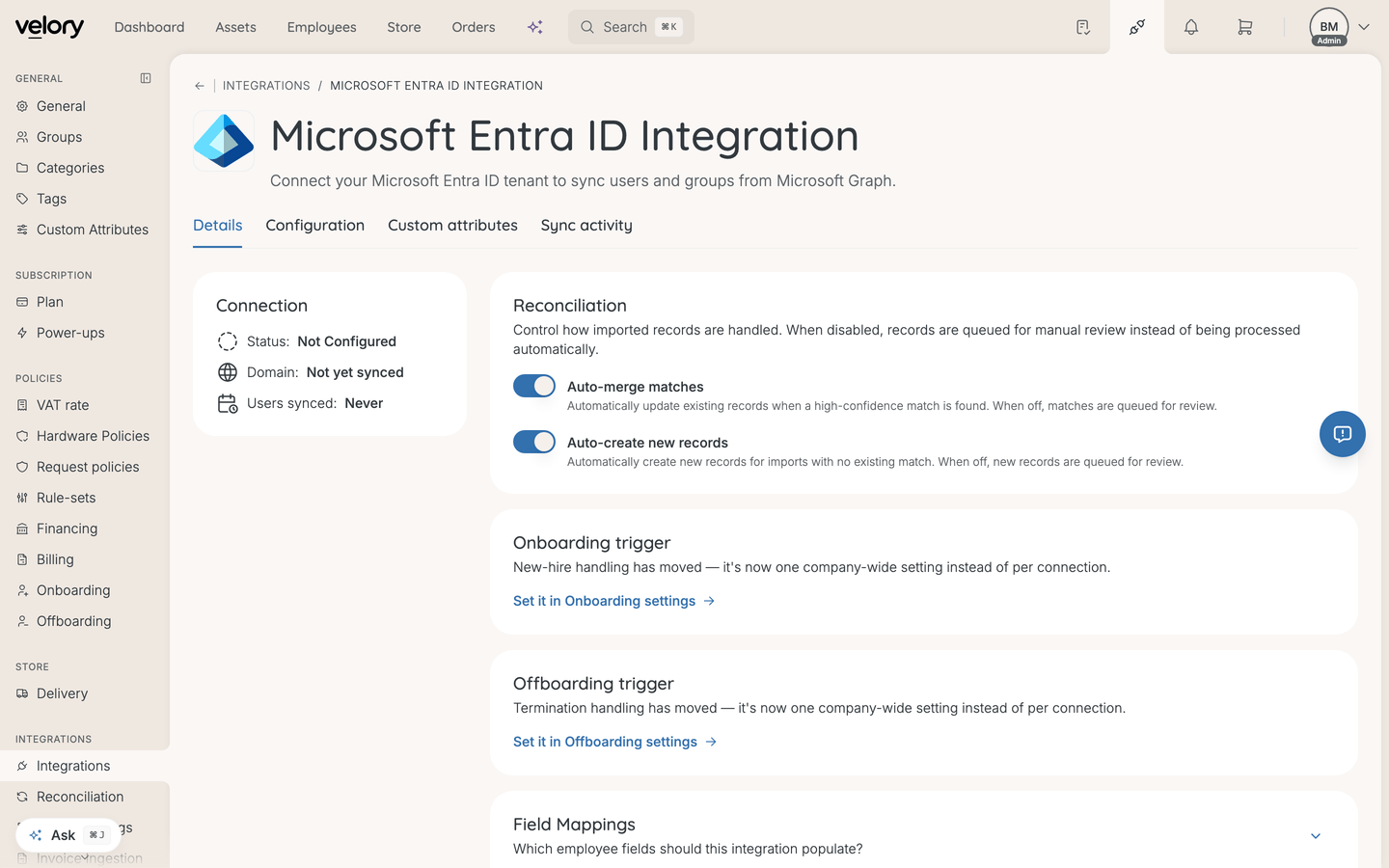
Choose what to sync, before the first sync
This is the step that has no HR equivalent, and it is easy to miss because it is not part of signing in.
Under Sync Options you choose:
- Domain — all domains on the account, or only specific ones. Picking specific domains syncs only users whose email is on them.
- Groups — all groups, or only specific ones.
Be deliberate with groups: selecting specific groups also limits which users sync, because only members of the selected groups are imported. It is a scope for people as much as for groups.
Leaving both set to "all" is a reasonable default for a first sync, and narrower than it sounds — a directory usually contains service and shared accounts you will want to skip afterwards.
After connecting
Do these before the first sync:
- Set field mappings — choose which fields this directory fetches. See How does directory syncing work?.
- Check the reconciliation policy — auto-merge and auto-create are both on by default, so a sync writes records without asking.
- Set your sync scope — the domain and group choices above.
- Then sync users, and separately sync groups.
Good to know
What permissions does Velory request?
Read access to users and groups in the directory. The sync is one-way: Velory does not create, change, or remove anything in your directory.
Does this also sync devices?
No. Google Workspace devices come from a separate integration, Google Workspace Endpoint Manager, filed under MDM. Connecting one does not connect the other — see How do I connect Google Workspace Endpoint Manager?.
Can I connect both Google Workspace and Microsoft Entra ID?
Yes. They are independent connections, each with its own scope, credentials, and sync history.
Can I change the scope after connecting?
Yes, but not while a sync is running — scope changes are locked until it finishes. After changing scope, sync again so the new scope is applied.
Was this article helpful?