How do I define custom attributes?
A custom attribute is a field Velory does not ship: purchase order number, insurance reference, desk number, cost centre. Settings → General → Custom Attributes is where you define them. Filling them in happens on the records.
Unlike a tag, an attribute has a type, optional validation, and a place in your category tree.
In this guide
Before you begin
You need Admin access.
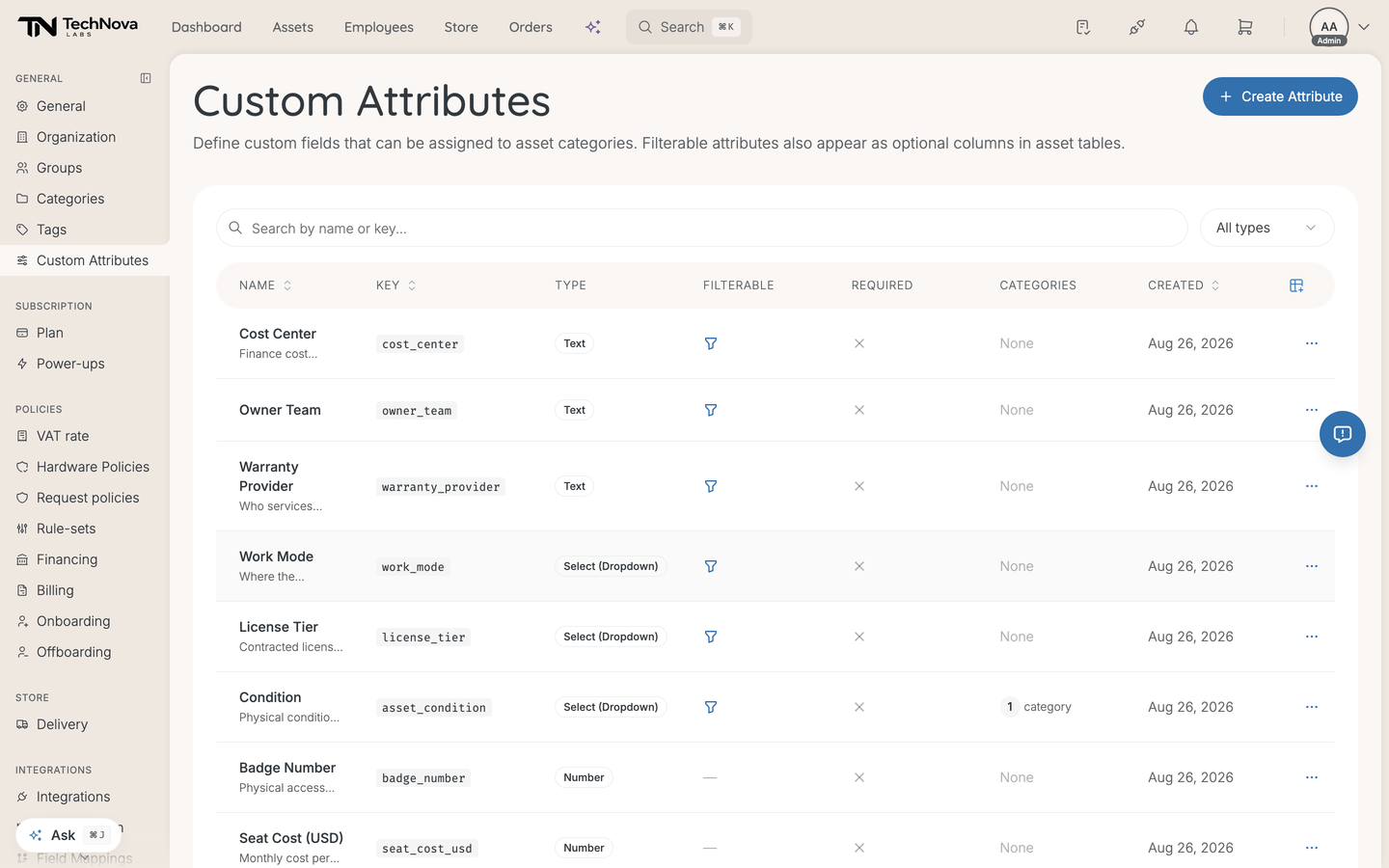
Create an attribute
- Go to Settings → General → Custom Attributes.
- Select the create action.
- Set a name and a key, pick a field type, and choose which categories it applies to.
- Decide whether it is required and whether it is filterable.
The four field types
| Type | For |
|---|---|
| Text | Free text |
| Number | Numeric values |
| Select (Dropdown) | A closed list you define |
| Date | Dates |
Select is the only type that carries options. Use it wherever the answer should be one of a known set — a text field asking for a cost centre will collect four spellings of the same one.
Velory enforces range and length rules on these types when values are written, but the create dialog exposes no fields for setting them. Options on a Select are the validation you control.
Categories decide where it appears
An attribute is attached to asset categories, not to everything. Attach "Warranty reference" to Laptops and it appears on laptops, not on monitors.
Attachment is inherited down the category tree. Attach an attribute to a parent category and its children get it too; the field shows "Inherited from parent category" so you can see why it is there. Attach high in the tree for something universal, low for something specific. See How do I manage product and hardware categories?.
The Categories column shows how many an attribute is attached to. None is not a mistake — it means no category restriction, so the attribute is available across its record type. Most attributes are fine that way; reach for categories when a field only makes sense on some of them.
Required and filterable
Required means a value must be provided where the attribute applies.
Filterable adds the attribute to the filter panel on asset tables. That is all it does.
Two things it is easy to expect and not get: every active attribute is already available as an optional column whether or not it is filterable, and custom-attribute columns cannot be sorted — there is no server-side ordering for them.
Finding one later
The list shows Name, Key, Type, Filterable, Required, Categories and Created, with a search box and a type filter. Fourteen attributes is already enough to want the filter.
Good to know
What does the key do?
It is the stable identifier, used by imports and the API. The name is what people read; the key is what machines match on. Choose it deliberately — renaming the name is safe, and the key is not something to churn.
Which record types can have attributes?
Hardware, software, employees and mobile subscriptions.
Why is this attribute greyed out on a record?
It is managed by a source — synced in from an integration, showing "Managed by" and "Edit in ... to change". The value belongs to the system it came from. Change it there.
Can a custom attribute drive a group or a policy?
Group membership criteria cannot read custom attributes — they match on seven built-in employee fields only. Request policies can build options from a Select attribute. See How do I make a group fill itself automatically?.
Attribute or tag?
If the answer is yes-or-no, use a tag. If the answer is a value, use an attribute.
Was this article helpful?