How do I choose which notifications Velory sends?
Settings → General → Notifications decides, for your whole company, which lifecycle notifications go out and on which channel: In-app, Email or Chat. Out of the box every notification goes to the in-app inbox and nowhere else. Email and chat stay off until you turn them on.
In this guide
Before you begin
You need Admin access. An admin whose access is limited to a group does not see the page — the switches apply to the whole company, so only a company-wide admin can set them.
To see exactly what each notification says on each channel before you switch it on, see What do Velory's notifications look like?.
Chat reaches only people who have connected Slack or Microsoft Teams themselves, on their own notification settings. Switching Chat on here sends nothing to anyone who has not. See How do I change my notifications, password or photo?.
How the page works
Notifications are grouped by lifecycle: Onboarding, Offboarding, Service & repair, Renewal and Asset requests. Each section starts collapsed and shows how many of its notifications are on, for example 7 of 8 on.
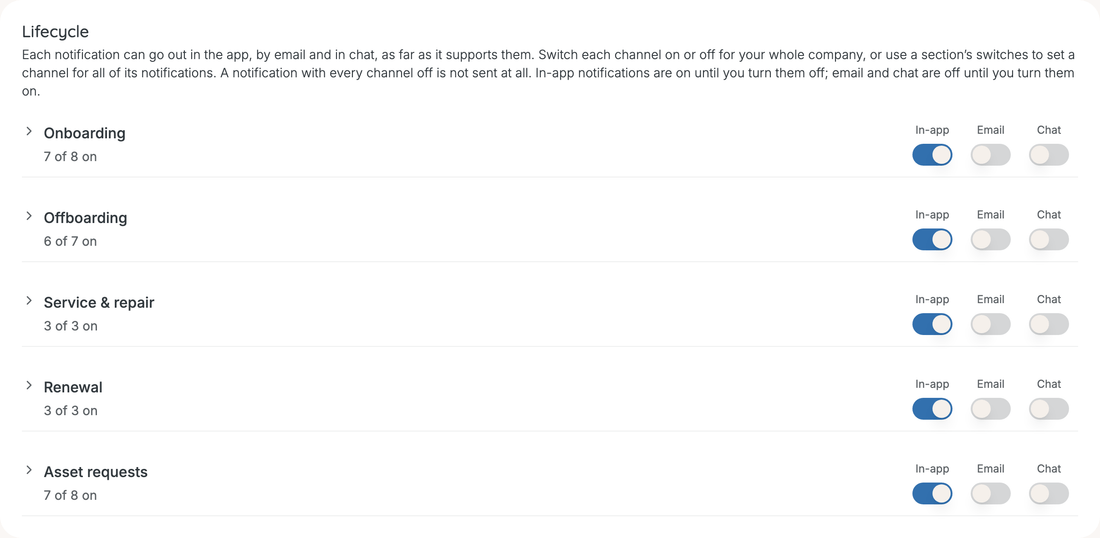
- The switches on a section heading set that channel for every notification in the section. A heading switch shows on only when every notification under it has that channel on; flipping a partly-on heading turns the channel on for all of them.
- Open a section to set each notification on its own. Hover the info icon next to a name to see who it goes to.
- A dash instead of a switch means that notification is never sent on that channel.
- Every switch saves the moment you flip it. There is no Save button.
A notification with every channel off is not sent at all. Turning one channel off leaves the others as they are.
What each notification does
The Who gets it column is the same text as the info icon on the page. Where a notification has only one channel, the column on the right says so; everything else can go in-app, by email and in chat.
Onboarding
| Notification | Who gets it | Channels |
|---|---|---|
| New hire waiting for confirmation | The people set in Who confirms a new hire | All three |
| Setup tasks without an owner | The same people, listing the tasks nobody owns | All three |
| Kit item needs approval | The approver for that item's category | All three |
| Invitation to the new hire | The hire — their setup link | Email only |
| Hire submitted their choices | Whoever confirmed the onboarding | All three |
| Deadline passed without a choice | Whoever confirmed the onboarding | All three |
| Software to set up by hand | The service's software owners | All three |
| Onboarding completed | Whoever confirmed the onboarding | All three |
Offboarding
| Notification | Who gets it | Channels |
|---|---|---|
| Departure waiting for confirmation | The people set in Who confirms a departure | All three |
| Device tasks without an owner | The same people, listing the tasks nobody owns | All three |
| Hand-back instructions for the leaver | The leaver — their last day, the devices to return, and their link | Email only |
| Device decision for the leaver | The leaver, asked to keep or return a device | All three |
| Leaver settled a device | Whoever confirmed the offboarding | All three |
| Leaver declined a buy-out | Whoever confirmed the offboarding | All three |
| Offboarding completed | Whoever confirmed the offboarding | All three |
Service & repair
| Notification | Who gets it | Channels |
|---|---|---|
| Fault report assigned | The admin assigned to the fault report | All three |
| Repair completed | The person who holds the device | All three |
| Repair cancelled | The person who holds the device | All three |
Renewal
| Notification | Who gets it | Channels |
|---|---|---|
| Early replacement requested | Company admins | All three |
| Device to hand back | The person handing back the device being replaced | All three |
| Returned device needs a new home | A company admin, to reassign the returned device | All three |
Asset requests
| Notification | Who gets it | Channels |
|---|---|---|
| Request over the allowance | Company admins, when a hire picked more than their allowance | All three |
| Request needs approval | Every eligible approver | All three |
| Request approved or declined | The requester | In-app only |
| Request ready to fulfil | Company admins | All three |
| Request ordered | The requester | All three |
| Item declined at fulfilment | The requester | All three |
| Confirm delivery | The requester, asked to confirm their items arrived | Email only |
| Request withdrawn or cancelled | Approvers still waiting, and the requester if someone else cancelled it | All three |
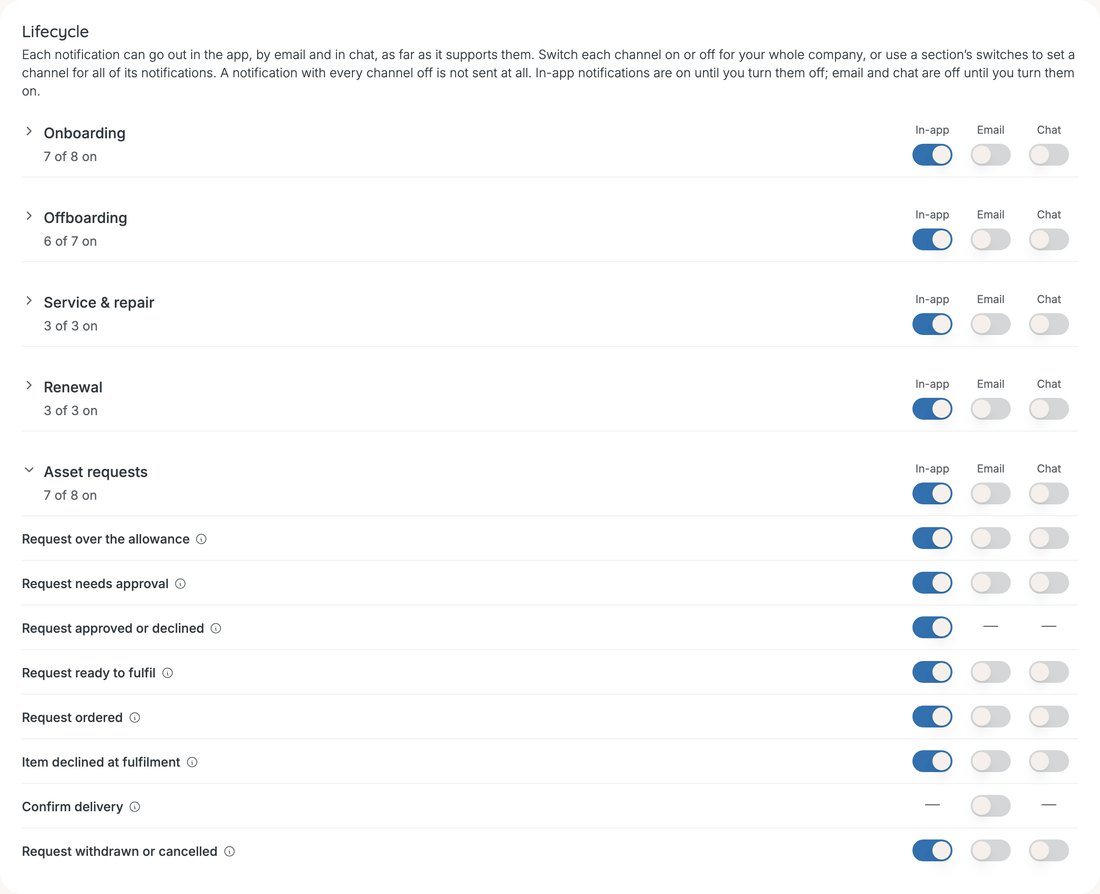
Three emails that are off until you turn them on
Three notifications exist only as email, so with the defaults they are not sent at all. Each section's count reflects this — Onboarding reads 7 of 8 on for a company that has changed nothing. Decide on these first.
| Notification | What happens while it is off |
|---|---|
| Invitation to the new hire | Only onboardings your HR system started automatically wait on this switch. An invite you send or schedule when you confirm a hire yourself goes out regardless. An automatic onboarding stays uninvited until you click Send invite on its Employee onboarding step; a scheduled one goes out on the first run after you turn the switch on |
| Hand-back instructions for the leaver | A self-serve leaver is not emailed their link when you confirm. The confirm step says so. Send it from the Track employee step with Send email, which ignores this switch, or use Copy link |
| Confirm delivery | The requester is not emailed when their items arrive or when you settle them from storage. They can still confirm from their Overview. The reminder emails for a delivery that has gone quiet are separate and are not controlled here |
When notifications are not sent
- At weekends. Notifications about work to be done are not delivered on Saturday or Sunday (UTC), on any channel: every Onboarding notification except Invitation to the new hire, every Offboarding and Service & repair notification, Device to hand back, Returned device needs a new home and Request needs approval. One that falls on a weekend is dropped, not held until Monday — the task or request it was about is still there to find. Deadline passed without a choice is the exception: it waits and is announced on the next weekday. The rest of Renewal and Asset requests go out every day.
- When a task notification arrives in a burst. Tasks created together — the setup tasks of a new onboarding, for example — arrive as one row each in the inbox, but as a single email and a single chat message per person, collected over five minutes.
Good to know
Does this affect notifications that are not on the list?
No. This page covers the lifecycle notifications listed above. Other messages follow their own rules — invitations to Velory itself, password resets, delivery reminders, export-ready messages, and anything a workflow you built sends with Send Notification.
Can one person turn off a notification I have switched on?
Partly. Each person can adjust their own delivery on their personal notification settings. What they cannot do is receive a channel you have switched off here: the company switch decides whether the notification goes out on that channel at all.
I switched on Email for the onboarding deadline. Do I still need Email admin at red stage?
Yes, both. Email admin at red stage in your onboarding policy decides whether the deadline is announced at all. This page decides which channels it uses. With the defaults, it arrives in the in-app inbox only.
Why does Leaver declined a buy-out never arrive?
Buy-out is not offered to leavers, so there is nothing for anyone to decline. The switch is there for when it is.
Who receives the onboarding and offboarding confirmation notifications?
The people set in Who confirms a new hire in your onboarding policy, and Who confirms a departure in your offboarding policy. Every company admin by default. See How do I set onboarding deadlines and reminders? and How do I configure offboarding?.
Was this article helpful?
Related articles
What do Velory's notifications look like?
Admin settings
How do I set onboarding deadlines and reminders?
Admin settings
How do I follow a leaver's own offboarding progress?
Employee Management
What happens on the Confirm new-hire trigger step?
Employee Management
How do I approve or decline a request?
Store & Ordering
How do I change my notifications, password or photo?
Your workspace