How do I update my company details and logo?
Settings → General holds the details Velory shows everywhere else: your logo in the navigation bar, your company name and address on orders and invitations, and the currency prices are displayed in.
Three cards, saved independently. Changing your logo does not require saving the form below it.
In this guide
Before you begin
You need Admin access. Managers and employees cannot open Settings at all.
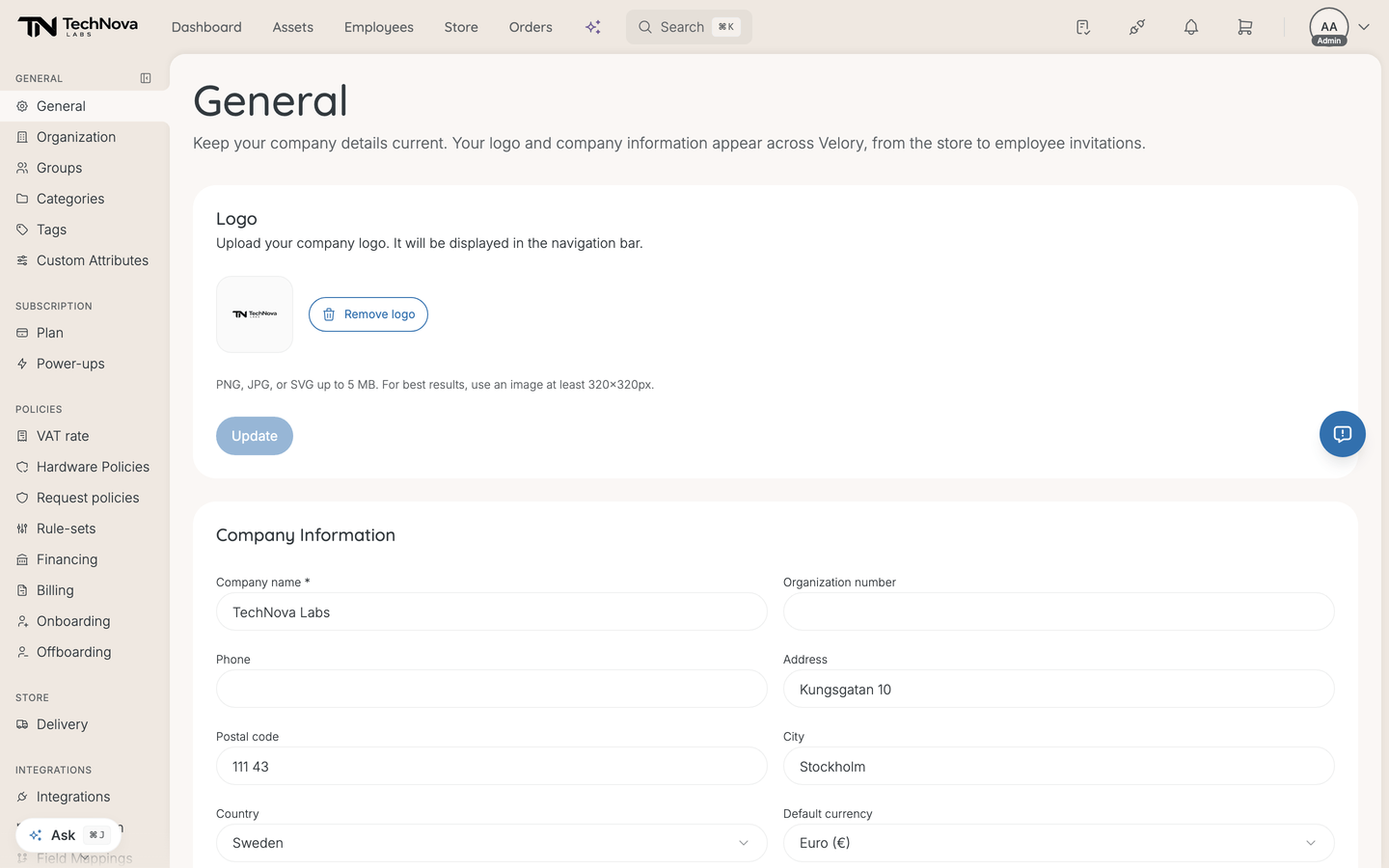
Upload a logo
- Go to Settings → General.
- In the Logo card, choose a PNG, JPG or SVG up to 5 MB. Aim for at least 320×320px.
- Select Update to save it.
Update stays disabled until you have picked a new image, so a greyed-out button means the file did not attach. Once saved, the logo replaces the Velory mark in the navigation bar; Remove logo puts the Velory mark back.
Fill in company information
The Company Information card holds company name, organisation number, phone, address, city, postal code, country and default currency. Change what you need and save the form once.
Default currency is worth deliberate thought: prices throughout the app are displayed in it. The list covers EUR, USD, GBP, SEK, NOK, DKK, CHF, CAD, AUD, JPY, PLN and CZK, among others.
Integration testing mode
The third card is a switch, off by default.
With it on, the Google Workspace and Microsoft Intune integration pages let you load generated sample data and run a full sync — no real account, no real credentials. It is the way to see what a sync does to your records before you connect anything.
Leave it off once you connect a real account. See How do integrations work in Velory?.
Good to know
Where does the company name actually appear?
On the store, on employee invitations, and on orders. It is not cosmetic — an employee receiving an invitation sees this name.
Can I change the default currency later?
Yes, and the picker will let you. Existing records keep the currency they were stored with, so a change affects how new prices are shown rather than retroactively converting old ones. Change it before entering costs at scale rather than after.
There is no language setting on this page
Correct, and there is nothing to set anywhere else either. Language selection is switched off, so everyone gets English and a saved preference is ignored until it is turned back on.
Why can I not see Settings at all?
Settings requires the Owner or Admin company role. A manager who opens the URL gets a "not found" page rather than a permission warning. See Who can change which settings?.
Was this article helpful?