How do I set the VAT rate?
Settings → General → VAT rate decides whether employees see prices with tax included. Set it and the store, cart and checkout all show the full price: 1,000 + 25% VAT = 1,250.
One setting, one picker.
Before you begin
You need Admin access.
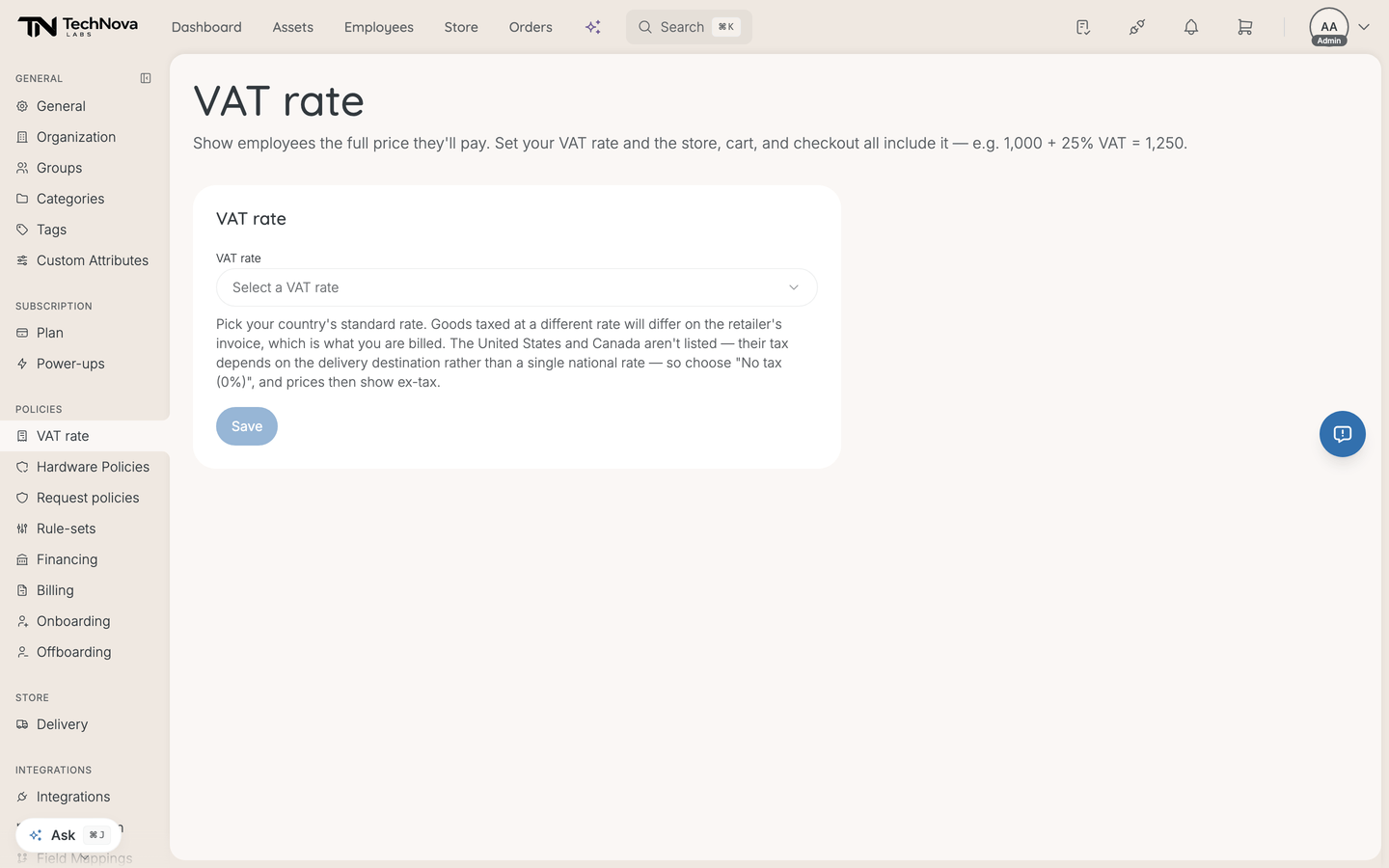
Set it
- Go to Settings → General → VAT rate.
- Pick your country's standard rate.
- Save.
If you are in the United States or Canada
They are deliberately not in the list. Sales tax there depends on the delivery destination rather than a single national rate, so there is no one number Velory could apply.
Choose No tax (0%). Prices then show ex-tax throughout.
Good to know
Is this what I actually get billed?
No. This setting controls what employees are shown. You are invoiced by the retailer, and their invoice is the authority.
Goods taxed at something other than your country's standard rate will differ between what Velory displayed and what the retailer charges. Pick the standard rate because it is right for most of what you buy, not because it is exact for all of it.
Where does the rate show up?
Store listings, the cart and checkout. Prices carry an Incl. VAT or Excl. VAT label so nobody has to guess which they are looking at.
Does this affect software costs?
No. This is the store and checkout price display. Software plan costs are entered as you pay them. See How do I track software costs and renewals?.
We are not VAT registered
Choose No tax (0%). Employees then see the same numbers you are invoiced.
Was this article helpful?